Create sending credentials
Create the username and password your mail app uses to send through Mailyoto, choose the addresses it sends as and when it expires, and reset or revoke it later.
Pro or Max plan Updated 31 October 2026
When you finish, you have a credential: the username and password a mail app uses to send email from your domain through Mailyoto.
Before you start
- A Pro or Max plan (see pricing). On Free, the Sending tab shows Sending is part of paid plans in place of these steps.
- The SPF record and both DKIM records from your domain’s DNS tab, added at your DNS provider (set up DKIM). You can create the credential first, but email sends only once the DKIM records are in place.
-
Open SMTP sending#
Open your domain and choose the Sending tab. Open the SMTP sending section.
-
Create a credential#
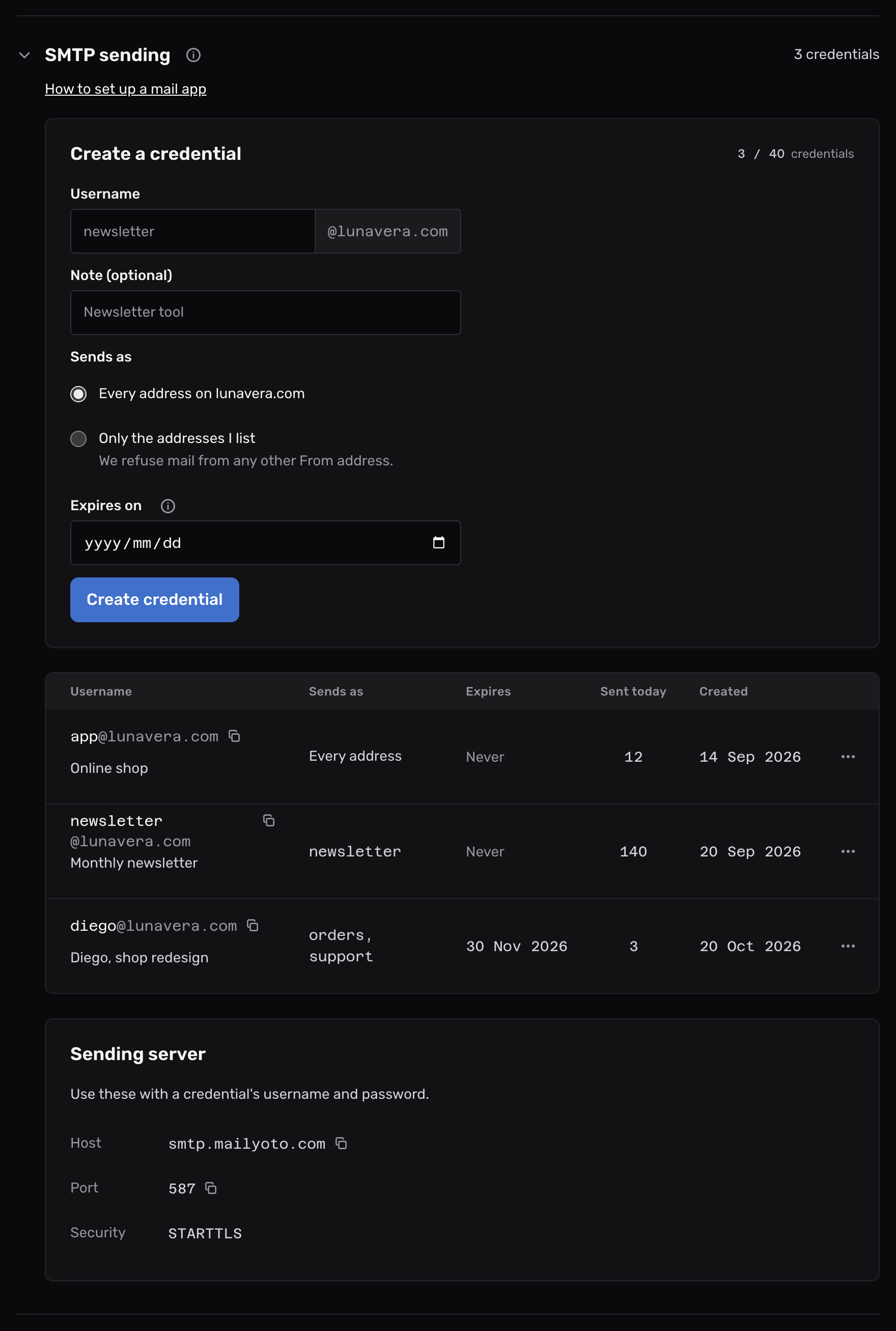
Under Create a credential, type a Username, such as
amina. The dashboard adds your domain after it. The full username isamina@lunavera.com. Add a Note (optional) to remember which app uses it.The Sending tab in the Mailyoto dashboard, with a new credential for amina@lunavera.com. A username can’t contain
@or spaces.Under Sends as, list the From addresses the credential may use. The first field starts with the username. Choose Add an address for each other address.
To end the credential on a set day, pick the day under Expires on. Leave it empty for a credential that works until you revoke it.
Then choose Create credential.
-
Copy the password#
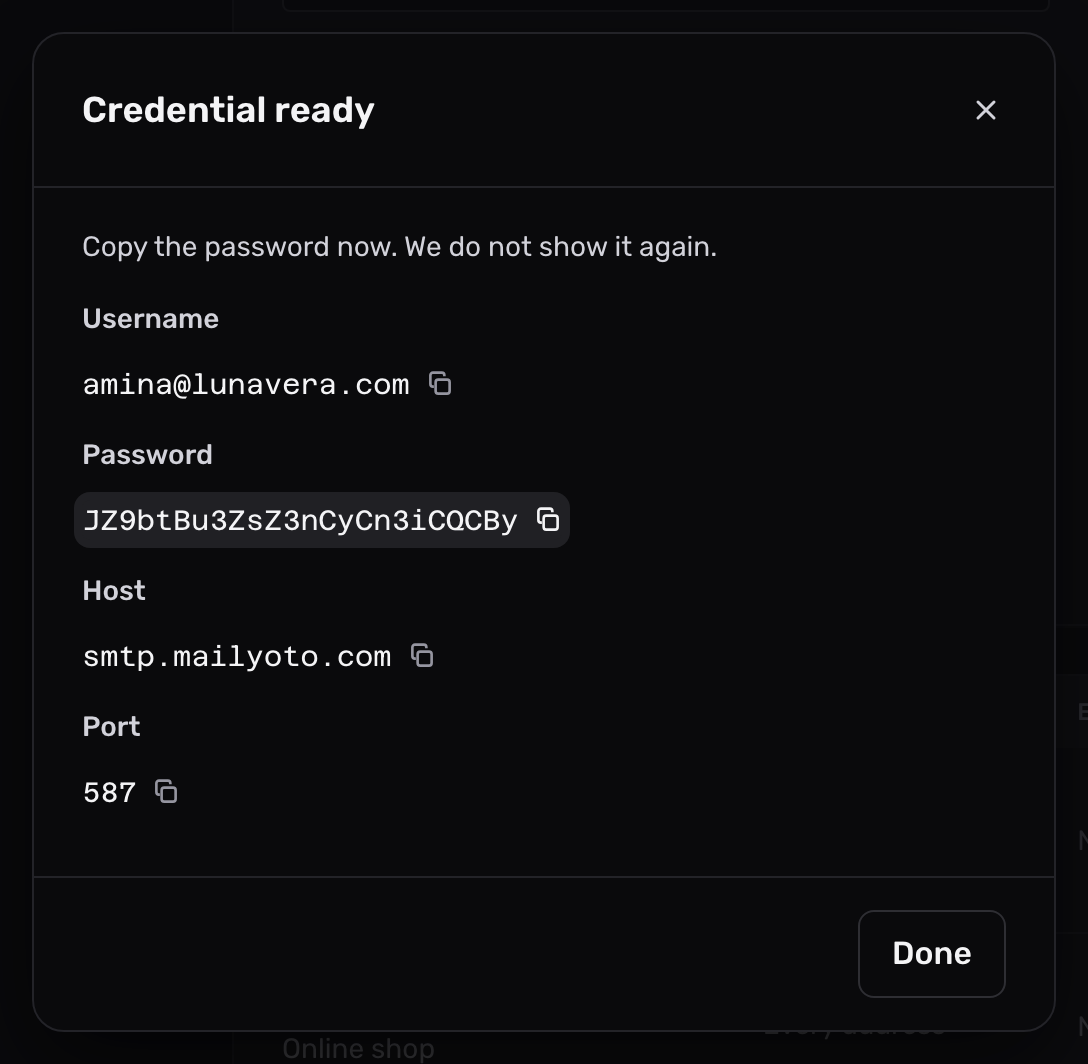
The Credential ready dialog shows the username and a password the dashboard generated. Copy the password into your mail app or a password manager before you choose Done. The dashboard does not show it again.
-
Enter the settings in your mail app#
The Sending server card under the table lists the Host, Port and Security. Your mail app needs these values:
- Outgoing server (SMTP)
- smtp.mailyoto.com
- Port
- 587
- Security
- STARTTLS
- Username
- amina@lunavera.com
- Password
- The password from the Credential ready dialog
If your network blocks port 587, port 465 with SSL/TLS also works.
For your app’s own steps, see Send from your mail app.
Check that it worked#
Send a message from your app to an address outside your domain. It appears in Logs when you choose Sent under Type. Once your SPF record, both DKIM records and a credential are in place, the top of the Sending tab says Ready to send.
What a credential can do#
- It sends only as the addresses it lists. See Send as several addresses.
- A list holds as many addresses as your plan allows aliases on a domain (plan limits).
- It can’t send as an address on another domain. Create a credential on each domain you send from.
- A domain can have up to 20 credentials.
- Your plan sets the monthly sending allowance for the whole account: 5,000 recipients a month on Pro and 15,000 on Max, counted per month from the day your plan renews. Replies from your alias count toward it too.
Use a separate credential for each app or device. Then you can reset or revoke one without changing the others.
Change the addresses or the expiry#
Open the credential’s actions in the table and choose Change addresses and expiry. The fields open under the credential’s row. Change them, then choose Save.
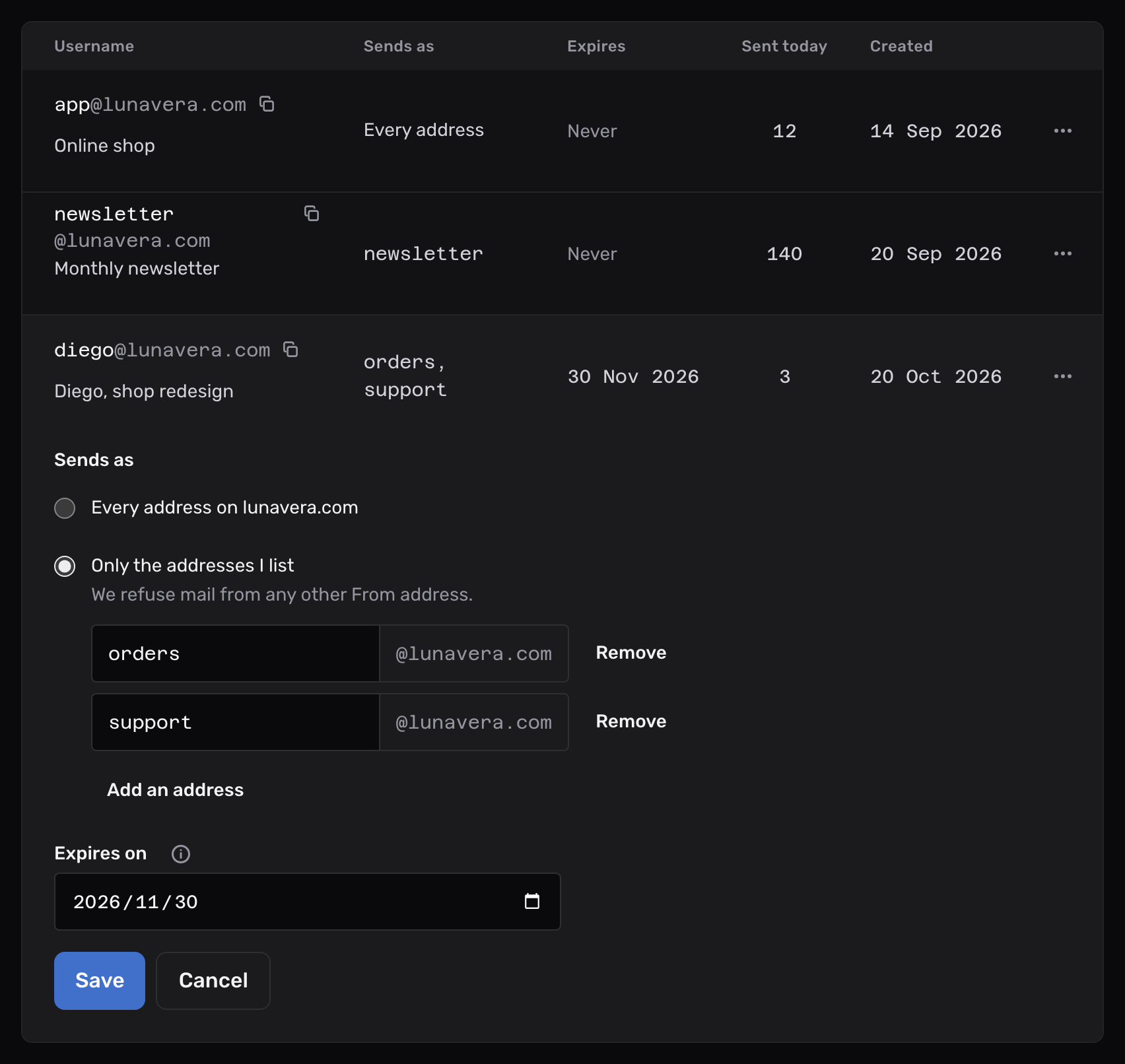
The username and password stay the same. Mail apps that use the credential need no new settings.
When a credential expires#
From the end of the day under Expires, the server refuses the credential’s sign-in. The table shows Expired above the date. To bring the credential back, pick a later day under Change addresses and expiry, or clear the day.
Reset a password#
Open the credential’s actions in the table and choose Reset password. Every app that uses the credential stops sending until you enter the new password. The username stays the same.
Revoke a credential#
Open the credential’s actions and choose Revoke, then Revoke credential. Anything still using it stops sending immediately. You can’t undo this.
The app says the username or password is wrong
The server responded 535 5.7.8 Authentication credentials invalid. Use the full username, such as amina@lunavera.com, not only amina. If the password is lost, reset it and enter the new one.
The app says the credential expired
The server responded 535 5.7.8 This SMTP credential expired at 2026-11-30 23:59 UTC. Extend it in the dashboard to sign in again. Pick a later day under Change addresses and expiry, or clear the day.
The server refuses a From address the credential doesn't list
The server responded 550 5.7.1 This SMTP credential can't send as orders@lunavera.com. Add the address to the credential in the dashboard. The credential sends only as the addresses it lists. Add the address under Change addresses and expiry, or send from a listed address.
The app says encryption is required
The server responded 538 5.7.11 Encryption required for requested authentication mechanism. Set the security to STARTTLS on port 587. Some apps call it TLS.
You can't create another credential
The domain has all 20 credentials it allows. Revoke one you no longer use. You can still reset the password of an existing credential.
The server refuses every message with a daily quota message
The server responded 452 4.2.2 This account has no sending left for today. Send again tomorrow. Free accounts get this for every message, because Free includes no sending. On Pro or Max, the account reached the most it sends in one day, and sending starts again at 00:00 UTC.