Sending-only domains on Pro and Max
The records a sending-only domain needs, what to leave alone, and how the dashboard shows a domain that only sends.
Pro or Max plan Updated 29 October 2026
Your MX records can stay with your current mailbox provider, and you add only the sending records.
The records to add#
Add the domain on the Domains page, then open its DNS tab. The SPF record is in the Forwarding table, and the DKIM and DMARC records are in the Sending table.
- SPF (TXT, host @)
- v=spf1 include:spf.mailyoto.com ~all
- DKIM 1 (CNAME, host yoto1._domainkey)
- yoto1.yotosend.com
- DKIM 2 (CNAME, host yoto2._domainkey)
- yoto2.yotosend.com
- DMARC (TXT, host _dmarc), optional
- v=DMARC1; p=none;
Your domain probably has an SPF record already, for your mailbox provider. Add include:spf.mailyoto.com to that
record instead of adding a second one: see Merging SPF records.
Setting up DKIM covers the 2 CNAMEs at common DNS providers.
Then create a credential: on the Sending tab, choose Create credential.
What to leave alone#
- Your MX records. They decide where incoming email goes, and sending doesn’t use them. Leave them with your mailbox provider.
- The MX rows on the DNS tab. They stay unmatched, and the tab lists your current MX records with a note to delete them. Don’t, unless you want Mailyoto to receive your email.
- Allow backup MX servers. The switch changes only how Mailyoto checks MX records for forwarding.
Your domain does need working MX records at some provider. Mailyoto checks your SPF record only after a successful MX lookup. A domain with no MX records can’t become ready to send.
How the domain looks#
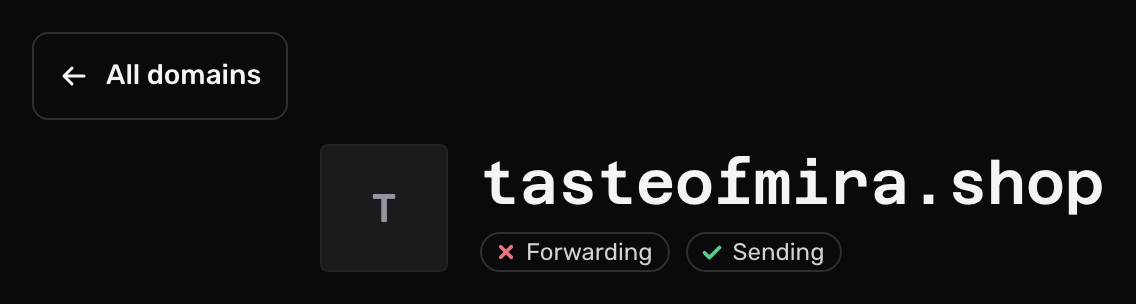
The Forwarding pill shows a cross, because the MX records point elsewhere. The Sending pill shows a tick once SPF, both DKIM records and a credential are in place.
Mailyoto receives none of this domain’s email. Aliases and the catch-all on it have no effect.