Send as your alias from Thunderbird
Add your inbox to Thunderbird, Gmail included, then Mailyoto as an outgoing server and an identity for your alias.
Pro or Max plan Updated 31 October 2026
When you finish, Thunderbird sends as your alias, such as amina@lunavera.com, from the account you already read your email in.
Each identity in Thunderbird can use its own outgoing server.
Aliases on several domains can sit side by side in one account.
With a Gmail inbox, nothing changes in Gmail’s settings: Thunderbird reads your email from Gmail, and email you send as your alias goes through smtp.mailyoto.com.
Settings for Thunderbird#
- Description
- Mailyoto SMTP
- Server Name
- smtp.mailyoto.com
- Port
- 587
- Connection security
- STARTTLS
- Authentication method
- Normal password
- User Name
- amina@lunavera.com
- Identity: Email Address
- amina@lunavera.com
- Identity: Outgoing Server (SMTP)
- Mailyoto SMTP - smtp.mailyoto.com
- Password, when Thunderbird asks
- Your credential's password
- Gmail inbox: Protocol
- IMAP, which Thunderbird picks for you
- Gmail inbox: Authentication
- OAuth2, which opens Google's sign-in
Before you start
- A credential on your domain and its password (create one).
- Thunderbird installed on your computer.
-
Add the inbox your alias forwards to#
If Thunderbird already shows that inbox, go to the next step.
Otherwise, open Thunderbird’s Account Hub, type your name and the inbox’s address, such as
amina.kone@gmail.com, and choose Continue.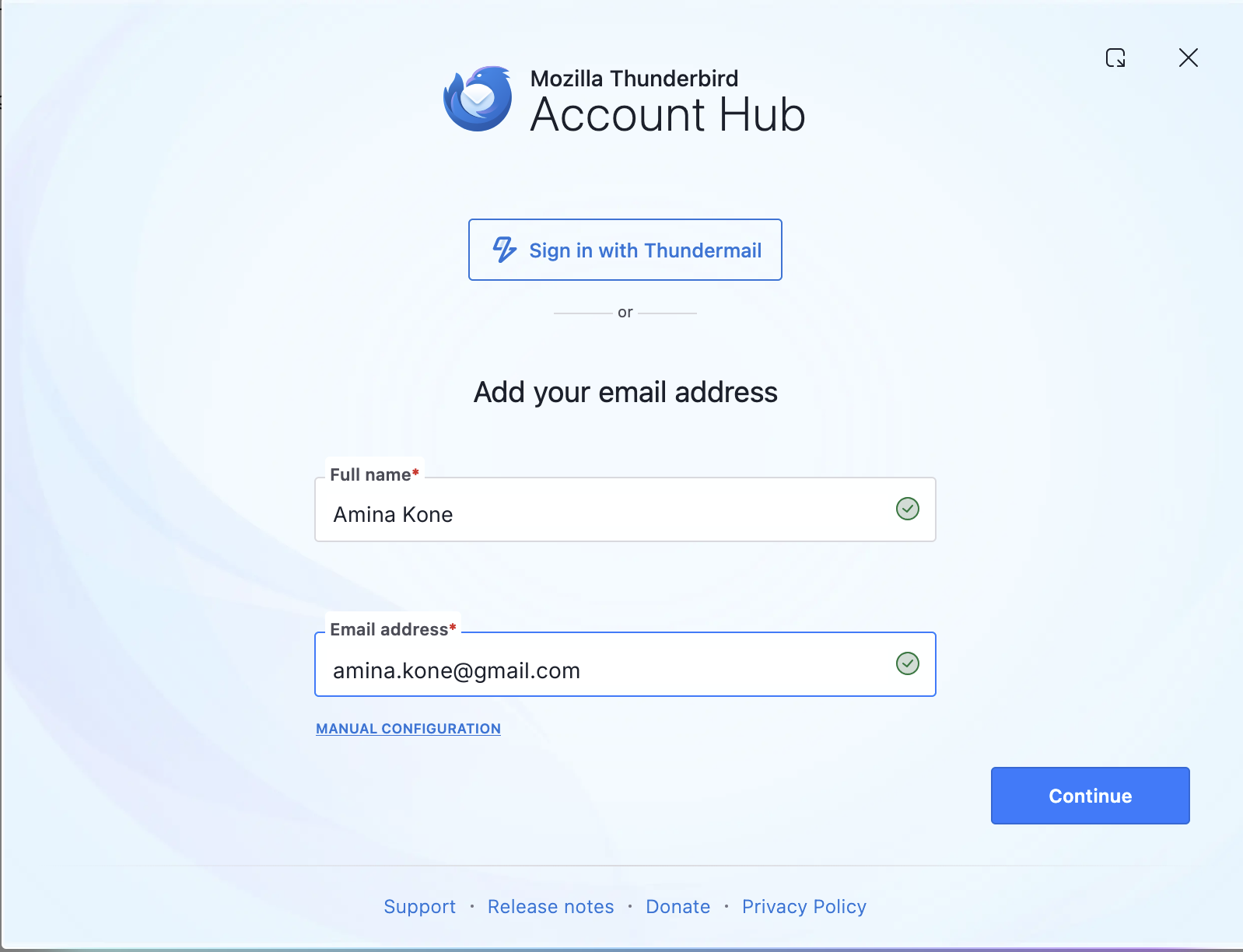
Thunderbird finds the provider’s servers by itself. For Gmail, keep IMAP selected and choose Continue, then sign in to Google in the window that opens and allow Thunderbird access.
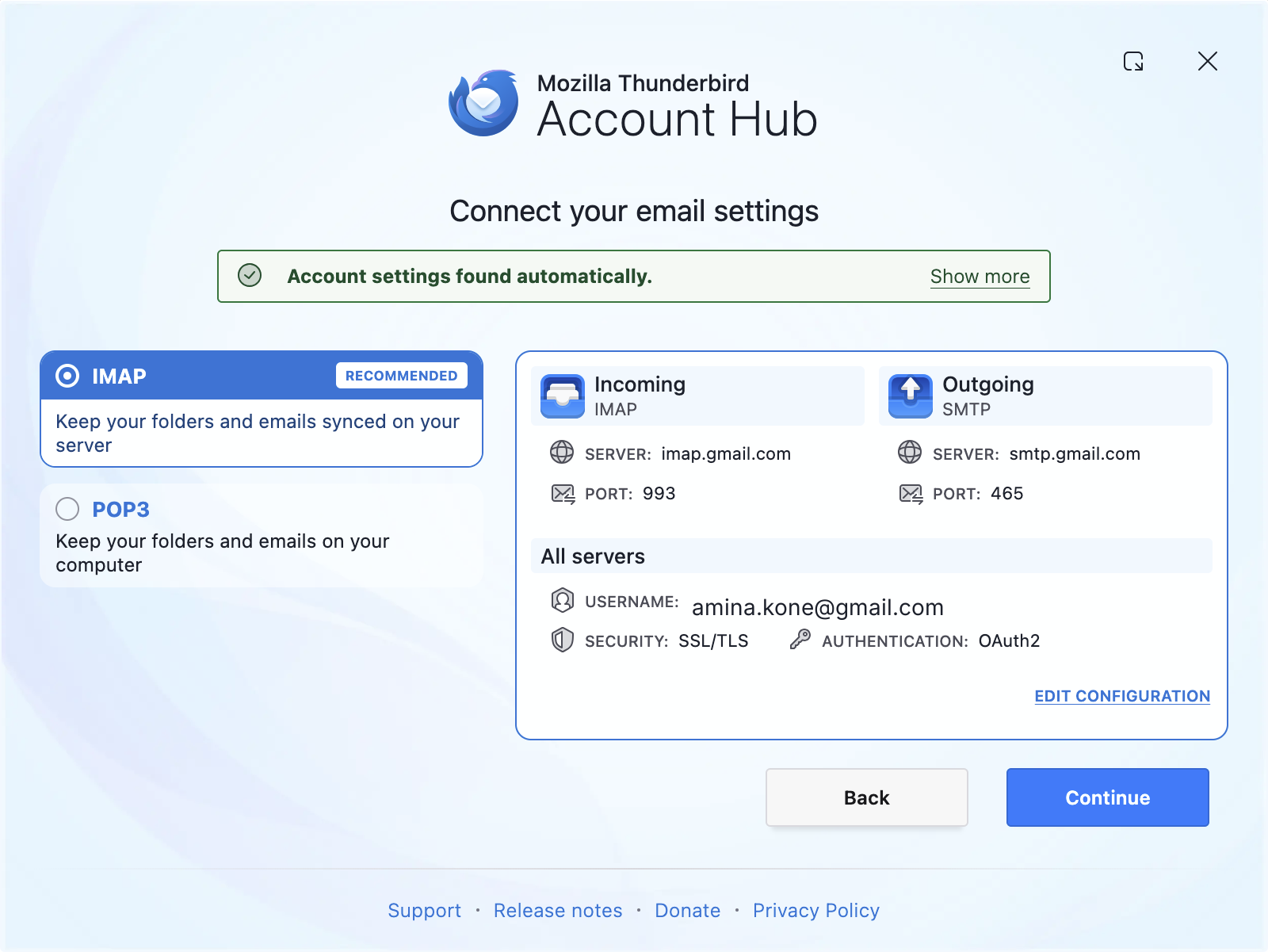
These are Gmail’s own servers, for email sent as your Gmail address. Your alias gets Mailyoto’s server in the next step.
-
Add Mailyoto as an outgoing server#
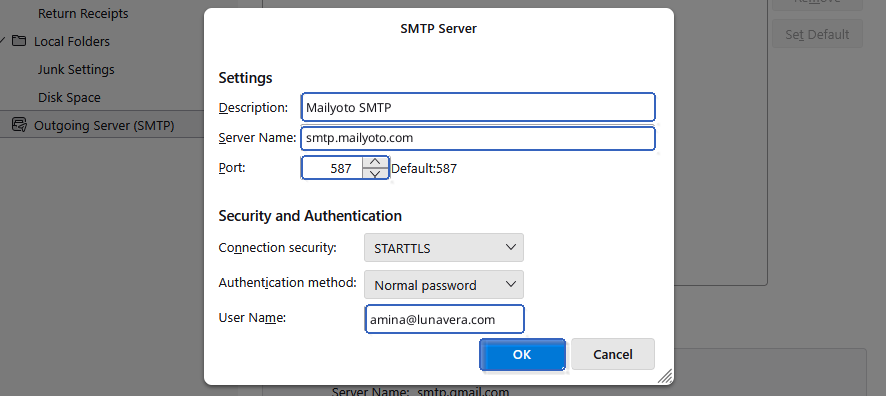
Open Account Settings and select Outgoing Server (SMTP) at the bottom of the list. Choose Add, fill in the form from the settings, then choose OK.
-
Add an identity for your alias#
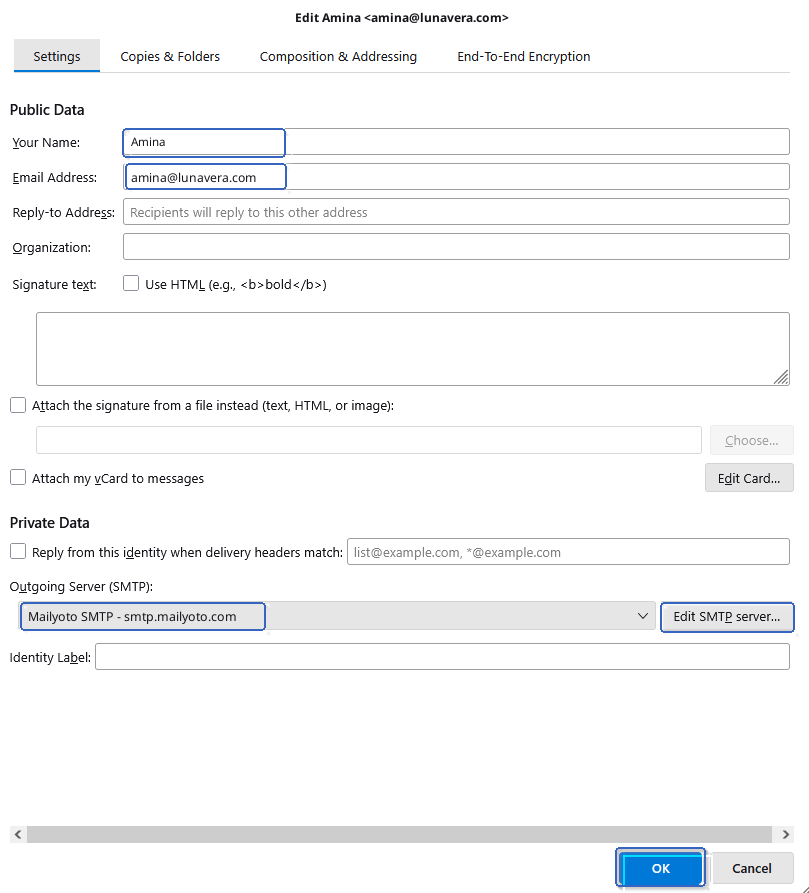
In Account Settings, select the account that receives your alias’s email. Choose Manage Identities, then Add. Type your name, then the Email Address and Outgoing Server (SMTP) from the settings, and choose OK.
Check that it worked#
Write a message from your alias to someone at another provider, such as diego@harborpine.net.
On the first send, Thunderbird asks for a password. Type your credential’s password and tick Use Password Manager to remember this password.
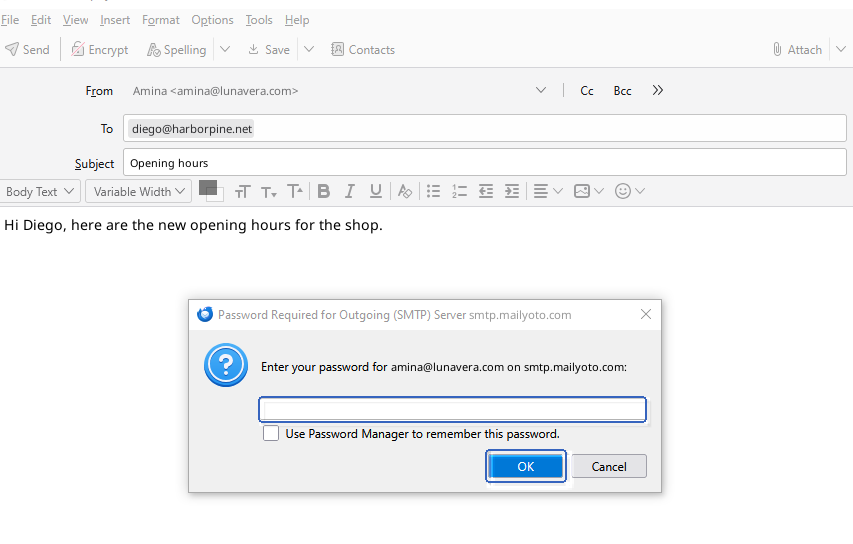
The recipient sees your alias as the sender. The message appears in your domain’s Usage and logs tab when you choose Sent under Type.
When you reply to email sent to your alias, Thunderbird picks the matching identity for you. With a Gmail inbox, email sent to your alias keeps arriving in Gmail, and Thunderbird shows it in the same inbox. To send as more addresses on the same domain, see Send as several addresses.
Thunderbird says login to the server failed
Open the Mailyoto outgoing server and check that User Name is your full alias. If the saved password is wrong, remove it in Settings → Privacy & Security → Saved Passwords, then send again and type the credential’s password.
The message is sent from your other address
The identity still uses your inbox provider’s outgoing server. Edit the identity and choose Mailyoto SMTP in Outgoing Server (SMTP).
Google's sign-in window doesn't open
Thunderbird opens it only when it uses OAuth2 for Gmail. Choose Edit Configuration on the settings screen and set the authentication to OAuth2.
Thunderbird can't connect to the server
Set port 587 and Connection security STARTTLS. If your network blocks port 587, port 465 with SSL/TLS also works.