Your alias can show a profile picture in Gmail
Create a Google Account for your alias address. People who read your email in Gmail then see your picture next to it.
Updated 27 October 2026
Create a free Google Account that uses your alias address, then give that account a picture. Gmail shows the picture to people who read your email in Gmail.
Before you start
- An alias, such as
support@lunavera.com, that forwards to an inbox you can read. Google sends a code to it. - A picture or logo, preferably square.
-
Start a new Google Account#
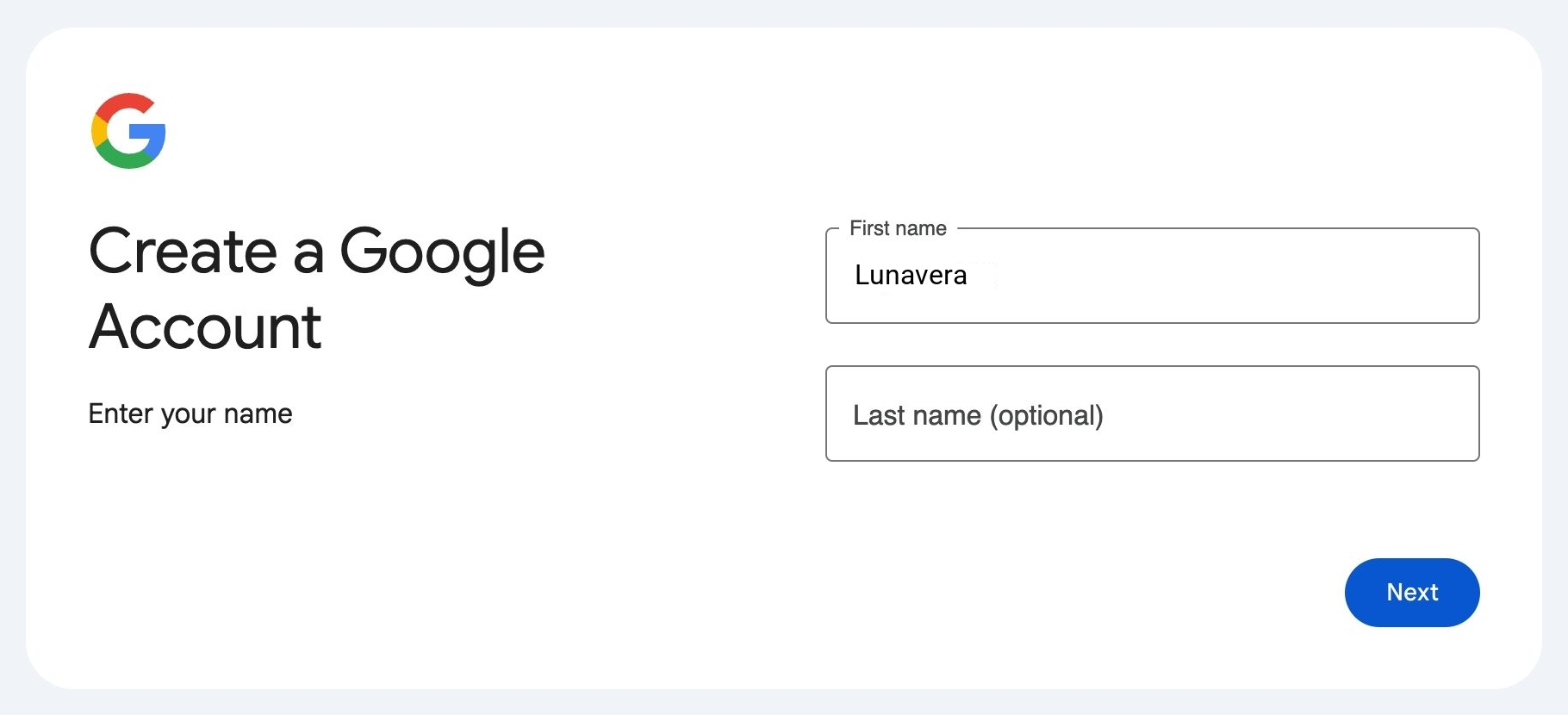
Open Google’s account sign-up page in a private browser window, where your usual Google Account is signed out. Enter the name people should see, such as your company’s name.
-
Choose your own address instead of Gmail#
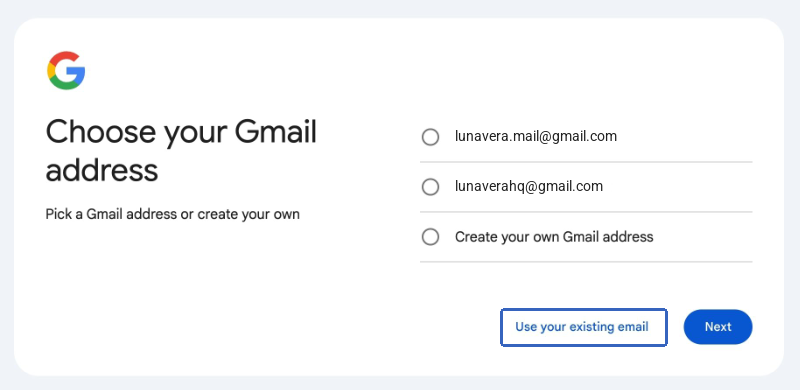
When Google suggests Gmail addresses, choose Use your existing email.
-
Enter your alias address#
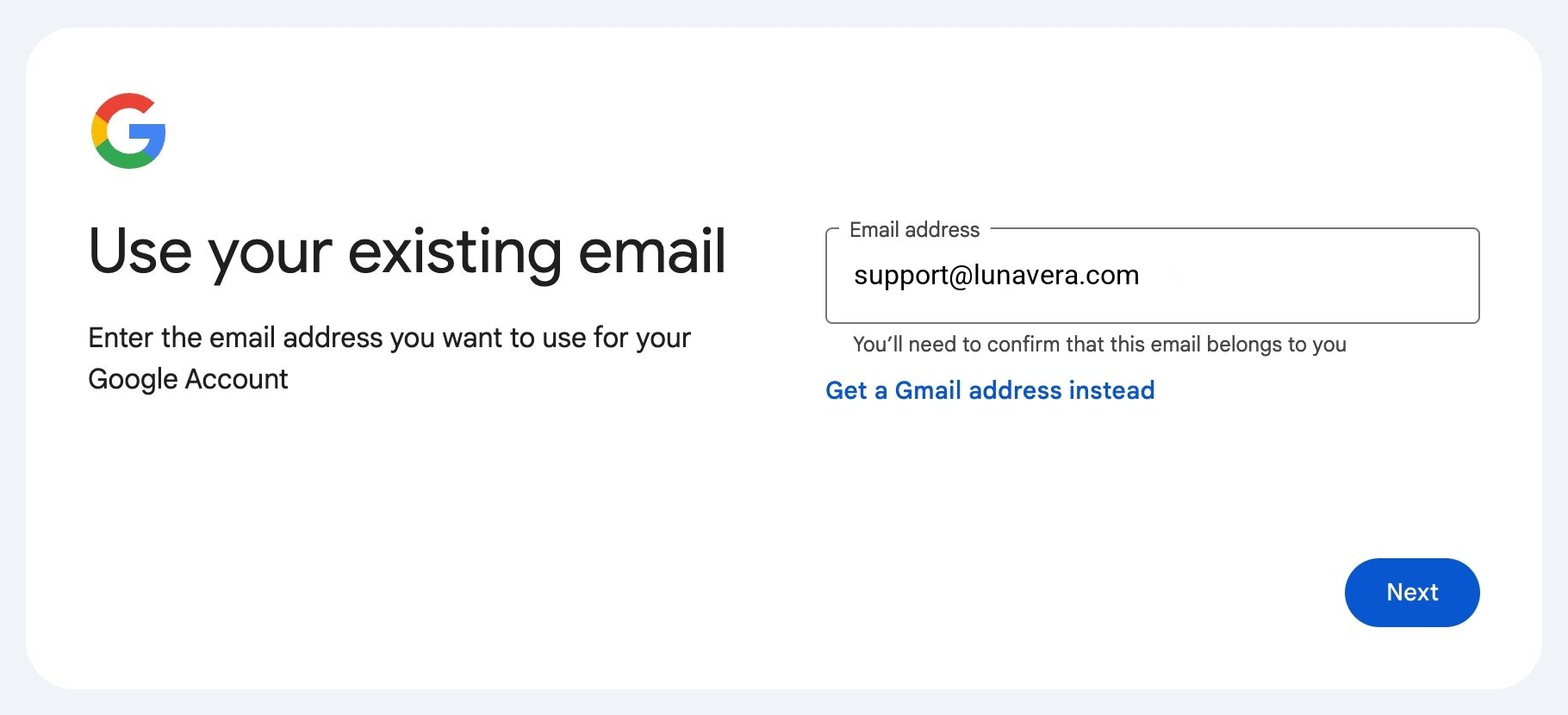
Type the alias address, then choose Next.
-
Confirm the address#
Google emails a code to the alias. Mailyoto forwards it to your inbox. Enter the code on Google’s page, then finish the remaining sign-up steps.
If the code doesn’t arrive, look for it in your Mailyoto Logs.
-
Add the picture#
While signed in to the new account, choose the account button in the top right corner of any Google page.
In the menu that opens, choose the round picture, then Add profile picture.
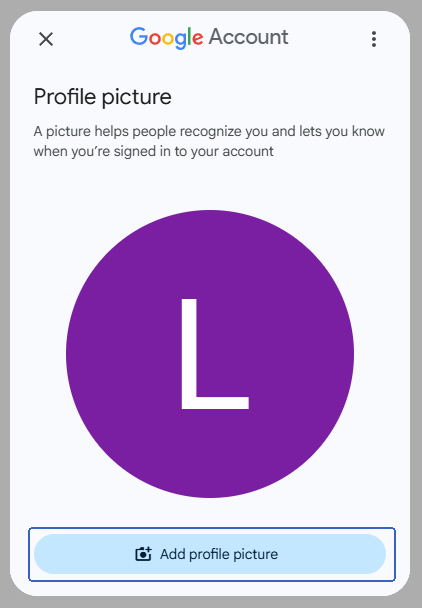
Upload your picture and choose Save as profile picture. Google notes that the change can take time to reach all of its services.
Check it#
Send an email from the alias to a Gmail address, then open it there. The picture appears next to the sender.
To send from the alias, use send from Gmail or reply from your alias.