Set up DKIM
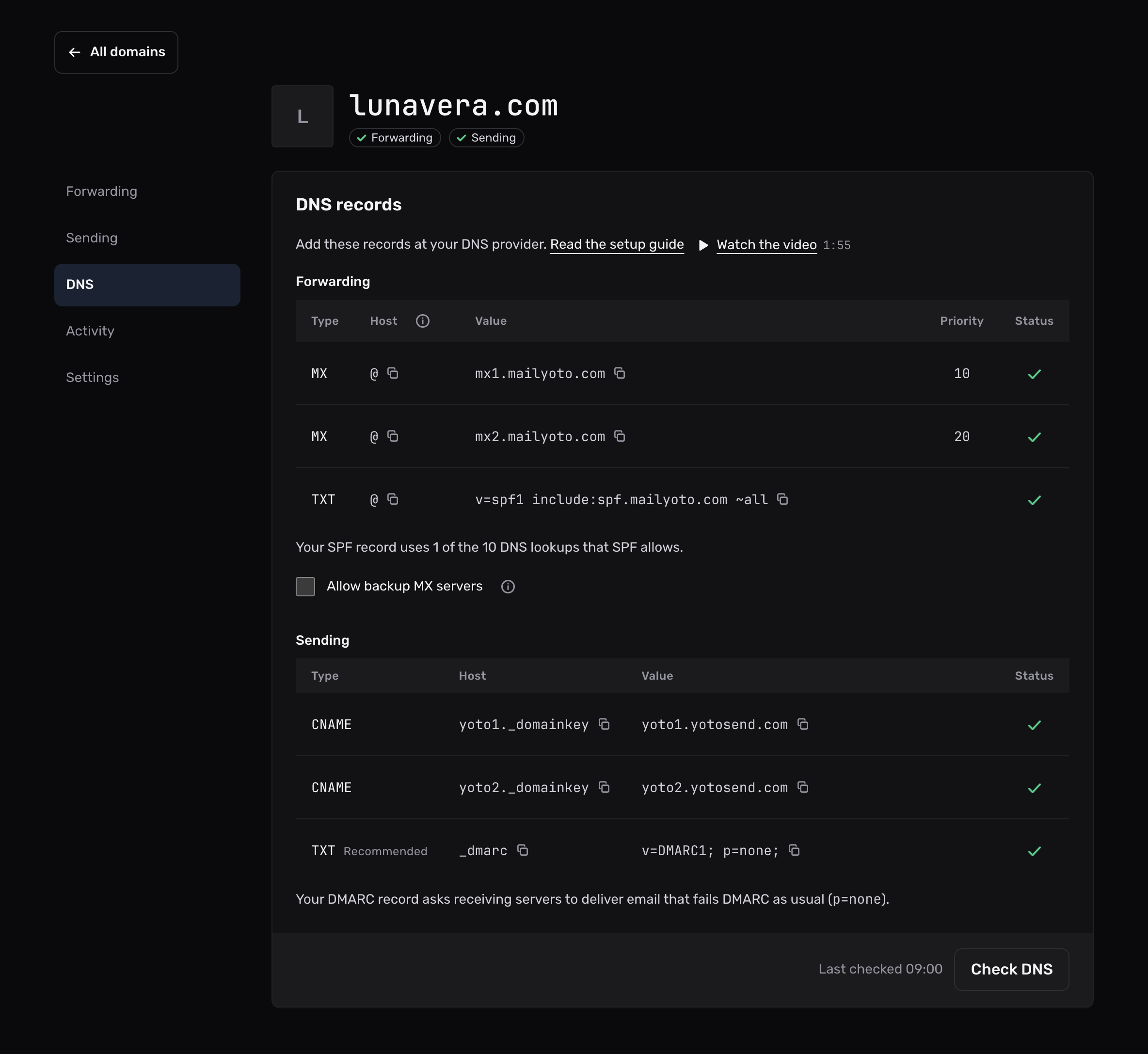
Copy the 2 DKIM records from your DNS tab to your DNS provider. Mailyoto then signs the email you send as your domain.
Pro or Max plan Updated 29 October 2026
When you finish, your domain has the 2 DKIM records that let Mailyoto sign the email you send from it.
DKIM is a signature that receiving servers check against your DNS.
Mailyoto signs every email you send through smtp.mailyoto.com with d= set to your domain.
Forwarding doesn’t need DKIM. Only sending does.
Before you start
- A Pro or Max plan. On Free, the DNS tab doesn’t list the sending records.
- Your domain added in Mailyoto, with its MX and SPF records in place. See Add your domain.
- Access to the DNS provider for your domain, the same place you added the MX records.
-
Find the records on the DNS tab#
In Mailyoto, open your domain and select the DNS tab. The Sending table lists the 2 DKIM records, each with a Copy button for its value.
-
Add the first CNAME record#
At your DNS provider, add a new record with these values.
- Type
- CNAME
- Name
- yoto1._domainkey
- Target
- yoto1.yotosend.com
The record type is CNAME, not TXT. You never paste a key: the CNAME points at a key Mailyoto publishes.
-
Add the second CNAME record#
Add one more record the same way.
- Type
- CNAME
- Name
- yoto2._domainkey
- Target
- yoto2.yotosend.com
Mailyoto signs with both selectors in turn. The dashboard checks for both records.
-
Check DNS#
Back on the DNS tab, select Check DNS. Each DKIM row shows a tick once your DNS provider publishes it.
Provider notes#
Cloudflare
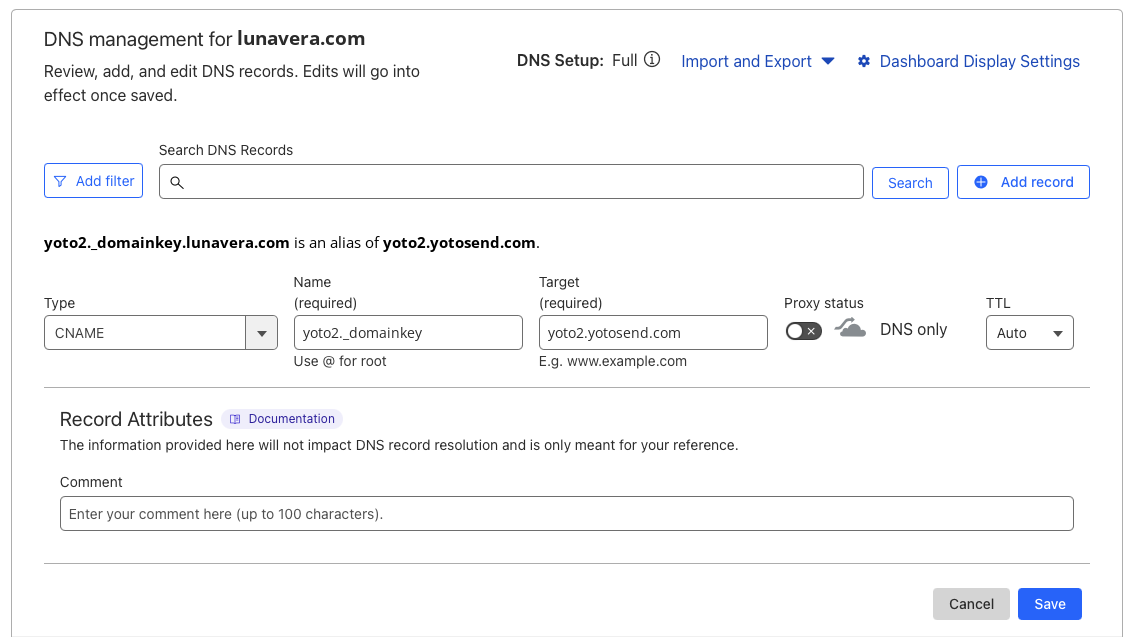
In Cloudflare, open your domain, then DNS and Records, and select Add record. Set Proxy status to DNS only. A proxied CNAME returns Cloudflare’s own addresses in place of the target, and the check can’t see it.
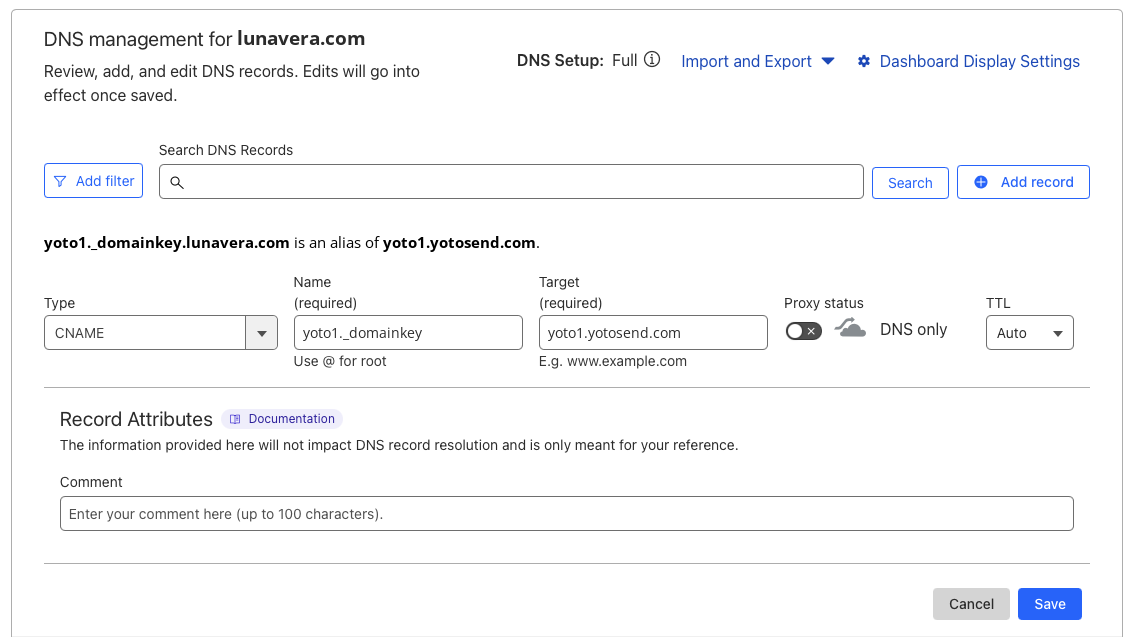
- Type
- CNAME
- Name
- yoto1._domainkey
- Target
- yoto1.yotosend.com
- Proxy status
- DNS only
- Type
- CNAME
- Name
- yoto2._domainkey
- Target
- yoto2.yotosend.com
- Proxy status
- DNS only
Other providers
Providers call the name field Host, Name or Alias. They call the target field Target, Value, Points to or Hostname. The generic DNS guide translates the common field names.
Most providers add your domain to the name for you.
Enter only yoto1._domainkey, not yoto1._domainkey.lunavera.com.
Some providers want a trailing dot on the target, such as yoto1.yotosend.com..
The check ignores that dot.
Either form works.
- Type
- CNAME
- Name
- yoto1._domainkey
- Target
- yoto1.yotosend.com
- Type
- CNAME
- Name
- yoto2._domainkey
- Target
- yoto2.yotosend.com
When your domain can send#
Your domain shows a tick on the Sending pill once 3 things are in place: the SPF record, both DKIM records and at least 1 SMTP credential. Create the credential on the Sending tab, then follow Send from your mail app.
Until Mailyoto finds a DKIM record, the SMTP server refuses email from your domain with this response:
550 5.7.1 We can't send mail for lunavera.com: we found no DKIM record for it.Add a DMARC record next. Your DKIM signature is what lets your own email pass it.
Problems#
The DKIM rows still show a cross
Open the record at your DNS provider and compare it with the Sending table.
- Check that the type is CNAME, not TXT.
- Check that the name doesn’t repeat your domain, such as
yoto1._domainkey.lunavera.com.lunavera.com. If it does, enter onlyyoto1._domainkey. - Check that the target is exactly
yoto1.yotosend.com(oryoto2.yotosend.com), with no spaces. - On Cloudflare, check that Proxy status is DNS only.
Then select Check DNS again.
The provider refuses a CNAME at that name
Another record already uses the name, often an old TXT record from a previous email service.
Delete the old record at yoto1._domainkey or yoto2._domainkey, then add the CNAME.
The DNS tab has no Sending table
Your domain is on the Free plan, which can’t send email. Upgrade to Pro or Max, and the Sending table appears.