Send as several addresses
Add hello@, support@ and other addresses on your domain to your mail app, using the same credential for each.
Pro or Max plan Updated 31 October 2026
When you finish, your mail app sends as several addresses on your domain, such as amina@lunavera.com and orders@lunavera.com, through one credential.
A credential sends only as the addresses on its list. The Sends as column in the credentials table shows them.
Before you start
- A credential on the domain, already set up in your mail app (create one, then add it to your app).
- Each address you send as on the credential’s list (change the list).
- An alias for each address you send as, or a catch-all, so that responses reach you. Without one, a response to that address bounces.
-
Add the address to your mail app#
Add each address as another sender on the account that already sends through Mailyoto. It uses the same outgoing server, username and password.
Gmail
Gmail adds each address separately. Repeat the Gmail steps for each one with the same credential. Gmail sends a confirmation code to each address.
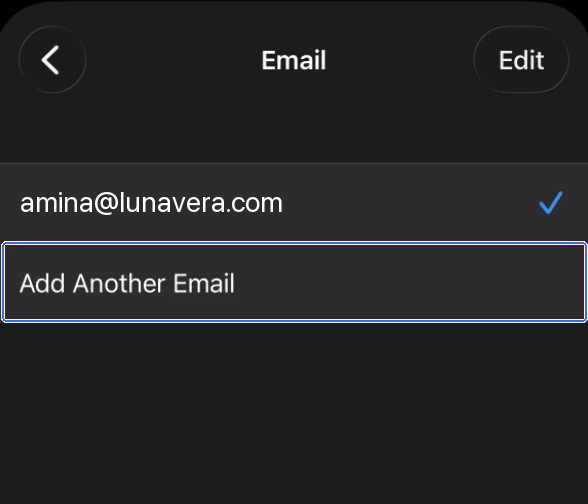
Apple Mail (iPhone)
- Open Settings → Apps → Mail → Mail Accounts and tap the account.
- Tap the account again, then Email.
- Tap Add Another Email, type the address, then tap Done.
Apple Mail (Mac)
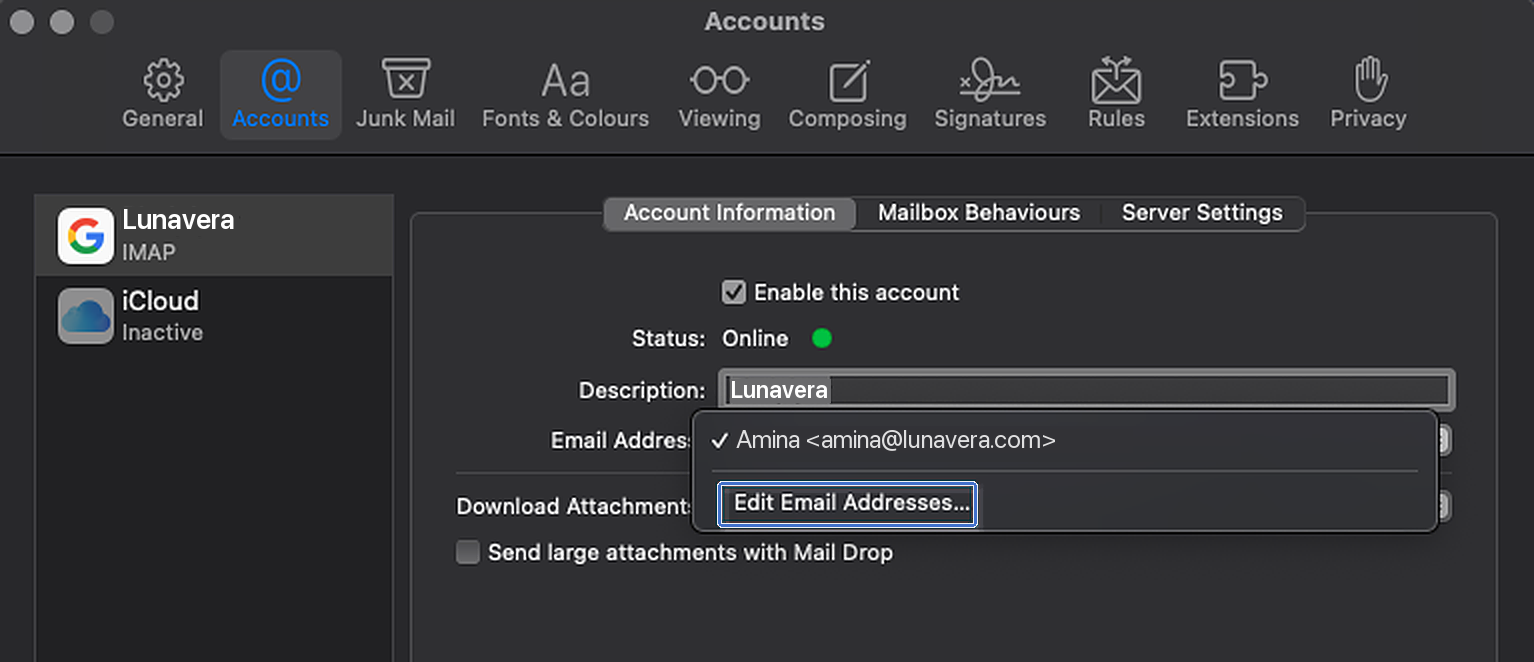
- Open Mail → Settings → Accounts and select the account.
- Open the Email Address menu and choose Edit Email Addresses.
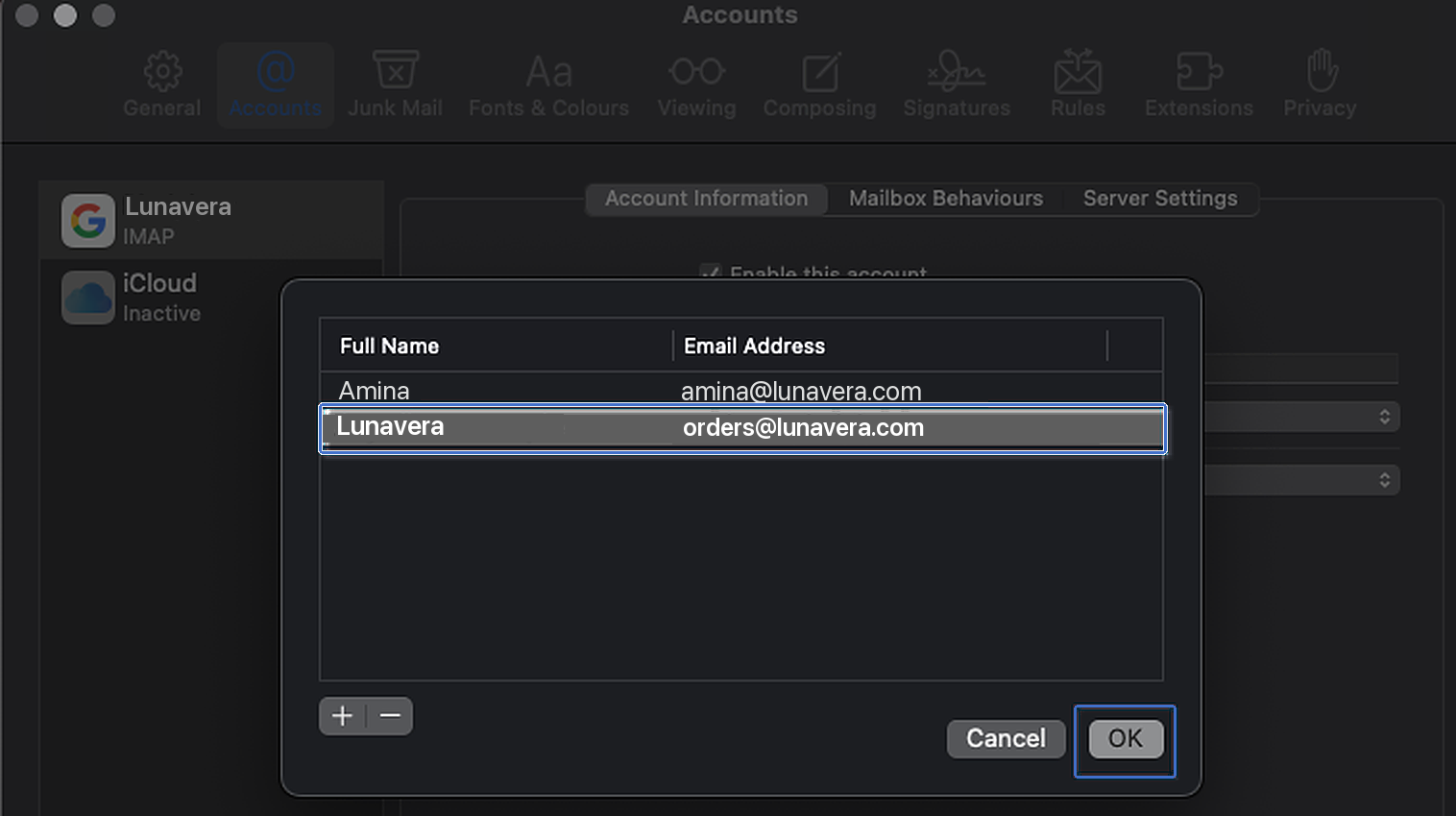
- Choose +, then type the name and the address. Choose OK.
Thunderbird
Add an identity for each address you send as often. In Account Settings, select the account, choose Manage Identities, then Add. Pick the Mailyoto outgoing server for it. The Thunderbird guide shows the form.
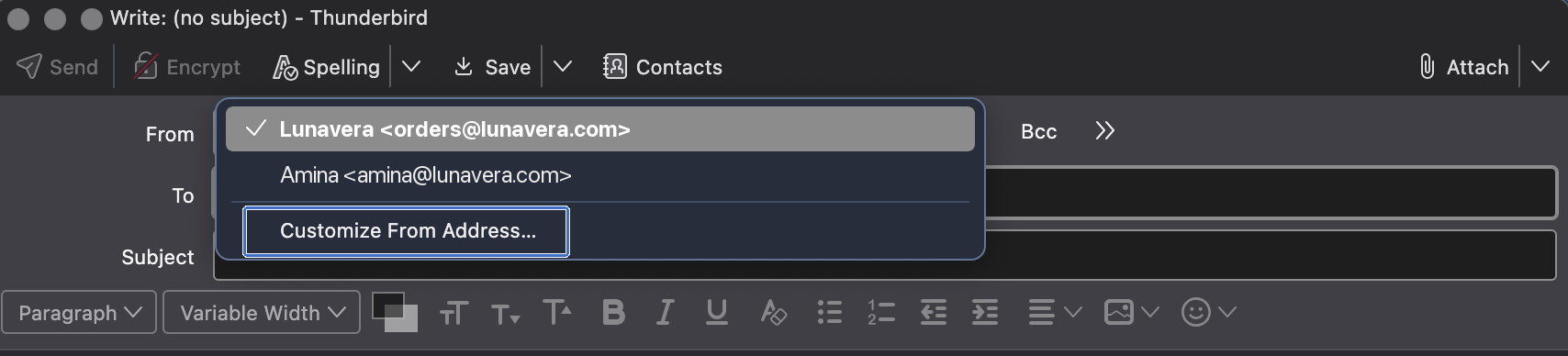
For an address you use only once, open the From menu in a new message and choose Customize From Address, then type the address.
-
Choose the address when you write#
Write a new message and choose the address in the From field. Send it to an address outside your domain.
Check that it worked#
The recipient sees the address you chose as the sender. The message appears in Logs when you choose Sent under Type.
Addresses on another domain#
A credential sends only as addresses on the domain it belongs to.
To send from lunavera.com and tasteofmira.shop, create a credential on each domain and add each one to your app as its own outgoing server.
The server refuses a From address on another domain
The server responded, for a credential on lunavera.com:
550 5.7.1 You can send only from addresses on lunavera.com.
The From address is on another domain. Choose an address on the credential’s domain, or send through a credential on the other domain.
The server refuses the message because the credential can't send as the address
The server responded, for a credential that lists amina@lunavera.com only:
550 5.7.1 This SMTP credential can't send as orders@lunavera.com. Add the address to the credential in the dashboard.
Add the address to the credential’s list (change the list).
Responses to the new address bounce
The address has no alias and the domain has no catch-all. On your domain’s Forwarding tab, create an alias for it.