Reply from your alias
On Pro and Max, press Reply on a forwarded email in any mail app, including a phone app, and your response is sent from your alias.
Pro or Max plan Updated 29 October 2026
When you finish, a reply you write to a forwarded email is sent from your alias, such as amina@lunavera.com, with nothing to set up in your mail app.
Replies reach only people who have emailed that alias. To write to someone new, use SMTP sending instead. Incoming and outgoing mail compares both.
Before you start
- A Pro or Max plan (see pricing).
- The 2 DKIM records from your domain’s DNS tab, added at your DNS provider and marked with a tick (set up DKIM).
- An inbox whose provider publishes DMARC. Gmail, Outlook, Yahoo and iCloud all do. If your inbox is on a domain of your own, set up DMARC for that domain.
-
Choose which aliases reply#
Open your domain and choose the Sending tab. Reply from your alias is the first section and lists every alias on the domain. Replies start off: tick each alias that should reply, or tick All aliases.
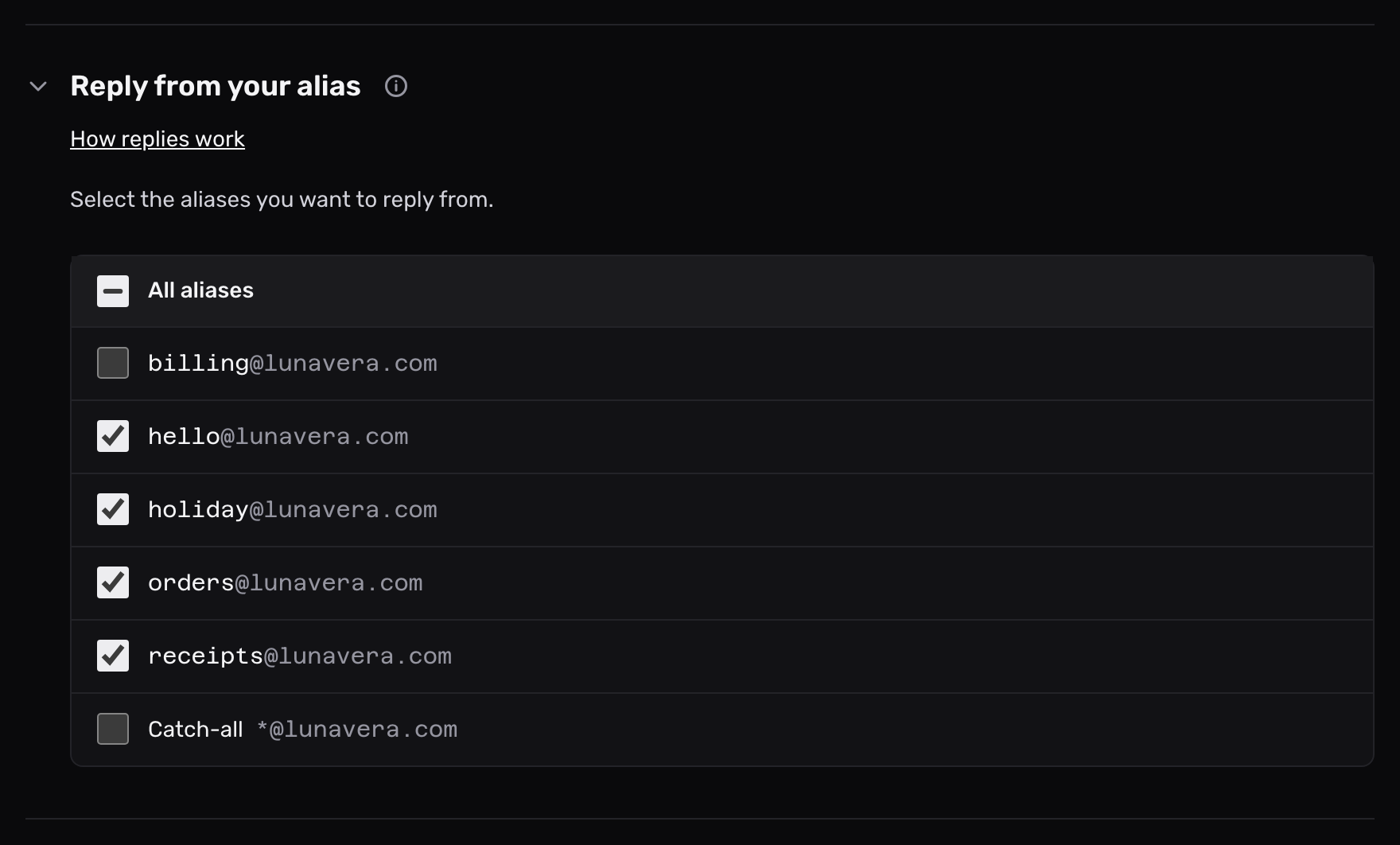
Each change saves at once. To stop replies for an alias, clear its box.
-
Reply as you always do#
Open a forwarded email and press Reply. The To field shows an address on Mailyoto’s reply domain,
reply.yotosend.com, in place of the sender’s own. That address stands for this sender and this alias. Write your response and send it.
Check that it worked#
The sender gets your response from your alias, in the same conversation as their email, signed for your domain. Your personal address appears nowhere in it.
Reply to one person at a time. A reply address reaches only the sender it stands for. Anyone else you add to the reply gets it from your own inbox, with your personal address.
Email from senders that seal their messages#
Gmail, and many companies whose email Google handles, seal each message. Adding a reply address would break the seal. A forwarded email from one of these senders arrives from its reply address instead, with the sender written into the name:
Mei Chen (mei at tasteofmira.shop)
Press Reply as usual. An inbox filter that matches the sender’s address won’t match these forwards. Match the sender’s name or your alias instead.
Limits#
- Only the addresses an alias forwards to can reply through it, and only when their email passes DMARC. Mailyoto refuses everything else as if the address did not exist.
- One sender can get up to 30 replies an hour from an alias.
- Each reply counts toward your plan’s monthly sending allowance: 5,000 on Pro and 15,000 on Max.
A forwarded email has no reply address
The reply goes from your own inbox, as before, when:
- The sender set their own reply address, as newsletters and receipts often do.
- Replies are off for the alias, your plan is Free, or your DKIM records don’t show a tick.
- A sealed email failed DMARC, or was sent to 2 of your aliases at once.
- The email went to a webhook, or a rule forwarded it.
The refusal notice says the address is not deliverable
Reply from the inbox your alias forwards to. A reply from any other address gets this response.
The refusal notice says the reply must pass DMARC
Your inbox provider did not prove the email came from you. If your inbox is on a domain of your own, add SPF, DKIM and a DMARC record for that domain.
The refusal says the account has no sending left for today
Your account reached the most it sends in one day. Your mail app keeps trying, and the reply goes out after 00:00 UTC. Once the month’s allowance is used, Mailyoto refuses the reply with 550 5.7.0 until the allowance starts again on the day your plan renews.