Send as your alias from iPhone Mail
Add your alias to Mail on an iPhone or iPad so it reads your inbox as before and sends as your alias through Mailyoto.
Pro or Max plan Updated 31 October 2026
When you finish, Mail on your iPhone shows the inbox your alias forwards to and sends as your alias, such as amina@lunavera.com.
You add the alias as its own account. Its incoming server is your inbox provider’s, and its outgoing server is Mailyoto’s. The same steps work on an iPad.
Note
Only need to respond to people who emailed your alias? Reply from your alias works in any phone app, with nothing to set up.
Settings for Mail on iPhone#
- Name
- Your name
- amina@lunavera.com
- Password
- Your inbox password, or a Google app password for Gmail
- Description
- A name for the account, such as Lunavera
- Account type
- IMAP
- Incoming: Host Name
- Your inbox provider's IMAP server, such as imap.gmail.com
- Incoming: Username
- Your inbox username, such as amina.kone@gmail.com
- Incoming: Password
- Your inbox password again
- Outgoing: Host Name
- smtp.mailyoto.com
- Outgoing: Username
- amina@lunavera.com
- Outgoing: Password
- Your credential's password
- Use SSL
- On
- Authentication
- Password
- Server Port
- 587
Before you start
- A credential on your domain and its password (create one).
- Your inbox provider’s IMAP server name and your sign-in details for it. For Gmail, the server is
imap.gmail.com, and Google asks for an app password here, not your Google password.
-
Add your alias as a new account#
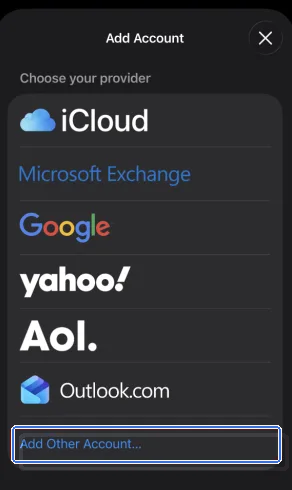
Open Settings → Apps → Mail → Mail Accounts → Add Account. Tap Add Other Account, then Add Mail Account.
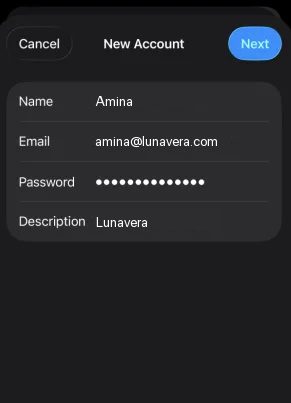
Type the name, Email, password and Description from the settings, then tap Next.
-
Enter the servers#
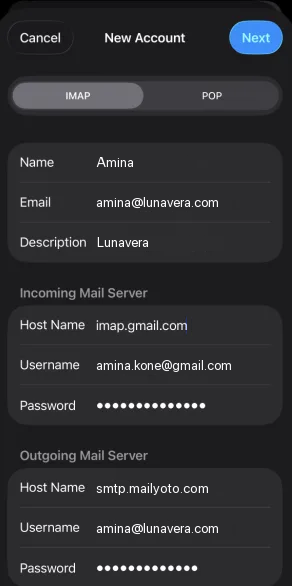
Keep IMAP selected and fill in both servers from the settings. Tap Next, then Save.
-
Check the outgoing server#
In Mail Accounts, tap the new account, then SMTP, then
smtp.mailyoto.com. Make sure Use SSL, Authentication and Server Port match the settings, then tap Done.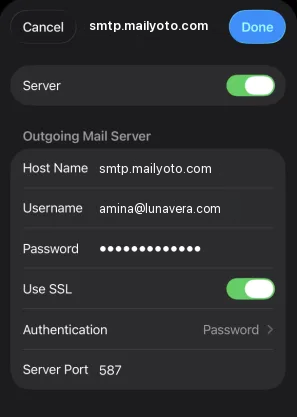
On port 587, Mail turns on encryption with STARTTLS.
Check that it worked#
Write a message from your alias to someone at another provider, such as diego@harborpine.net.
The recipient sees your alias as the sender.
The message appears in your domain’s Usage and logs tab when you choose Sent under Type.
Mail can't verify the account
Check the incoming settings first: your inbox provider’s server, username and password. For Gmail, use an app password from your Google Account, which needs 2-Step Verification.
Messages stay in the Outbox
Open the outgoing server again. The username must be your full alias, the password your credential’s password, and the port 587 with Use SSL on.
Your alias is missing from the From field
You added the alias to an account created with the Google, iCloud or Outlook.com button. Those accounts can’t change their outgoing server. Add the alias as its own account, as in the steps above.