Send as your alias from Gmail
Add your alias under Send mail as in Gmail's settings with a Mailyoto credential. New email and replies then come from your own domain.
Pro or Max plan Updated 31 October 2026
When you finish, Gmail on the web sends as your alias, such as amina@lunavera.com, through Mailyoto.
Important
Google is removing “Send mail as” for addresses it doesn’t host in January 2027, and may refuse new setups before then. See What keeps working when Gmail ends Send mail as.
Settings for Gmail#
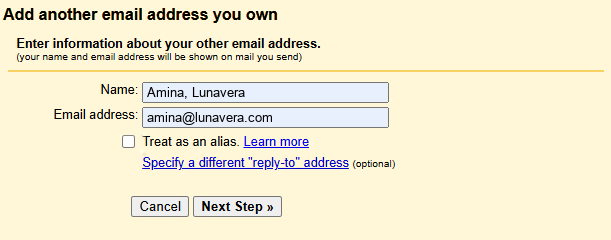
- Name
- Your name
- Email address
- amina@lunavera.com
- Treat as an alias
- Leave it as it is
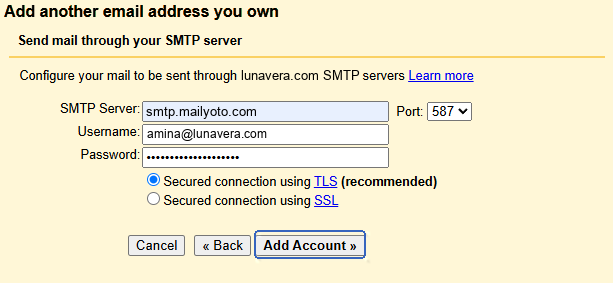
- SMTP Server
- smtp.mailyoto.com
- Port
- 587
- Username
- amina@lunavera.com
- Password
- Your Mailyoto credential's password, not your Google password or an app password
- Security
- Secured connection using TLS, which is STARTTLS on port 587
Before you start
- An alias that forwards to this Gmail address.
- A credential on your domain and its password (create one).
-
Add your alias in Gmail#
In Gmail, open Settings → See all settings → Accounts and Import. Next to Send mail as, choose Add another email address. Type the name and email address from the settings and choose Next Step.
-
Enter Mailyoto’s server#
Fill in the SMTP form from the settings, then choose Add Account.
-
Confirm the address#
Gmail emails a confirmation code to your alias. Mailyoto forwards it to this Gmail inbox. Type the code in the window Gmail left open, or open the link in the email.
Check that it worked#
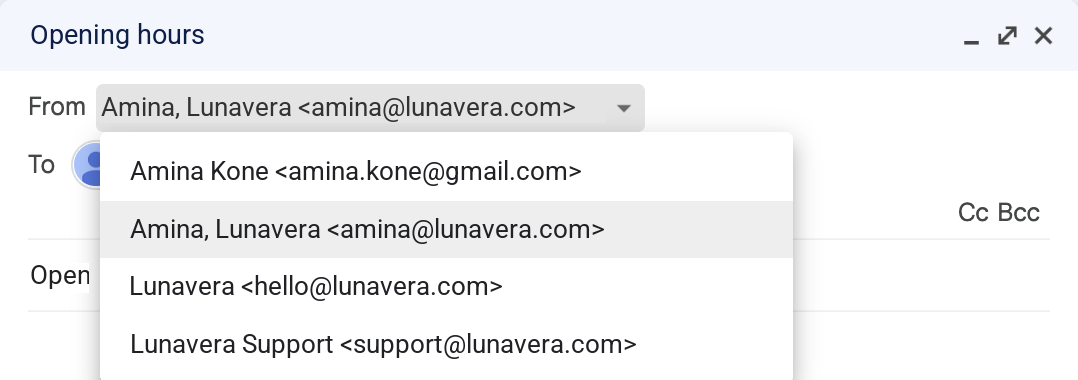
Start a new message and open the From menu. Gmail lists your alias under your Gmail address.
Write from your alias to someone at another provider, such as diego@harborpine.net.
The message appears in your domain’s Usage and logs tab when you choose Sent under Type.
To send from the alias by default, choose make default next to it in Accounts and Import. In Accounts and Import, you can also choose to reply from the same address a message was sent to. That helps when you have several aliases.
Gmail says the username or password is wrong
Use the full alias as the username, such as amina@lunavera.com, and the credential’s password. Google’s 2-Step Verification and app passwords don’t apply here. If the password is lost, reset it and enter the new one.
Gmail can't connect to the server
Set port 587 with Secured connection using TLS. Port 465 with Secured connection using SSL also works.
The confirmation email doesn't arrive
Check that the alias forwards to this Gmail address. Search your domain’s Usage and logs tab for the alias to see whether Mailyoto received and forwarded the email.
Gmail no longer offers Add another email address
Google has started removing the feature. Use one of the setups in What keeps working when Gmail ends Send mail as.