Set up DMARC
Publish a DMARC record for your domain, start with p=none, and tighten it once you know who sends as you.
Updated 29 October 2026
When you finish, your domain publishes a DMARC policy, and you know when to make it stricter.
DMARC tells receiving servers what to do with email that uses your domain in the From line but fails both SPF and DKIM for it.
Without a policy, a stranger can send as amina@lunavera.com, and many servers deliver it anyway.
Before you start
- Access to the DNS provider for your domain.
- A list of the services that send email as your domain: Mailyoto, a newsletter tool, a shop, a contact form.
Choose a policy#
The p= tag sets the policy. Mailyoto’s check accepts all 3 values.
| Policy | What receiving servers do with failing email |
|---|---|
p=none | Deliver it as usual, and send reports if you ask for them. |
p=quarantine | Put it in the spam folder. |
p=reject | Refuse it. |
Start with p=none, the value the DNS tab suggests.
It gives your domain a DMARC record without risking any of your own email.
Mailyoto and your policy#
Email you send through Mailyoto carries a DKIM signature for your domain once you set up DKIM. That signature lets it pass DMARC under any of the 3 policies.
Destinations judge email forwarded to your aliases by the sender’s DMARC policy, never by yours.
-
Add the TXT record#
At your DNS provider, add a TXT record at
_dmarc. Leave the value as below forp=none, or change the policy before you save.- Type
- TXT
- Name
- _dmarc
- Content
- v=DMARC1; p=none;
On Cloudflare, the form looks like this:
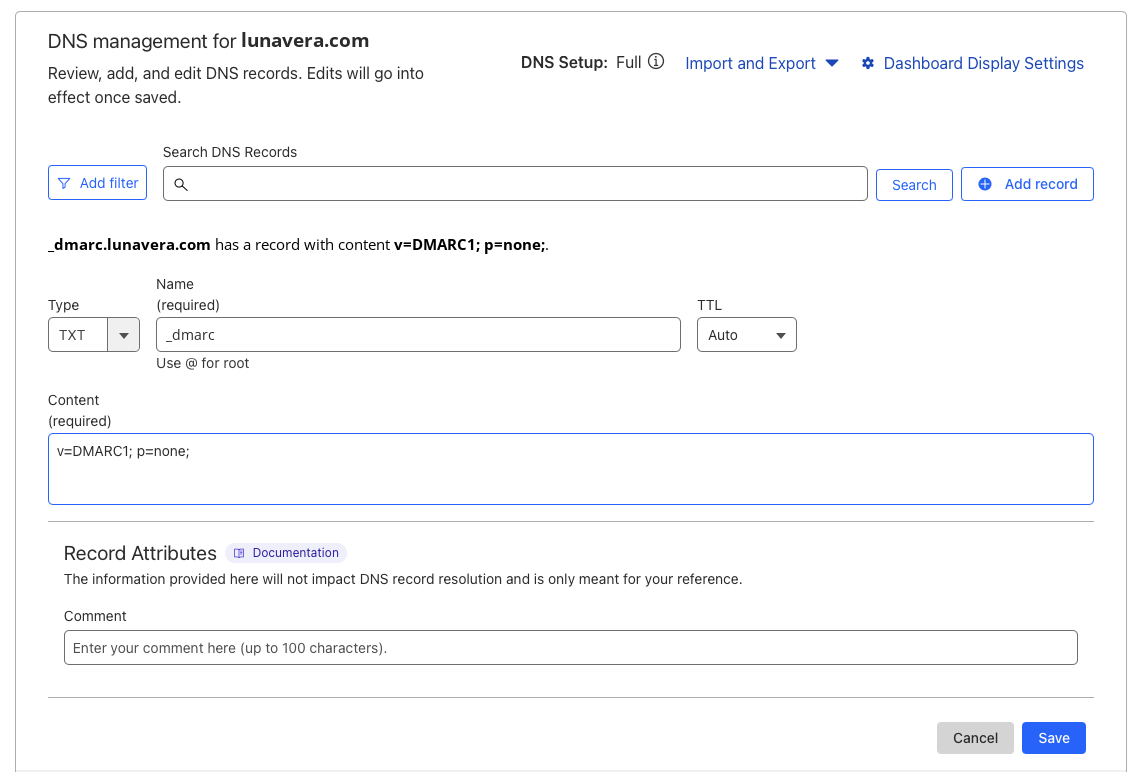
A domain has only 1 DMARC record. If a TXT record at
_dmarcalready exists, edit it. -
Check DNS#
In Mailyoto, open your domain’s DNS tab and select Check DNS. The DMARC row in the Sending table, marked Recommended, shows a tick. On the Free plan the DNS tab doesn’t list this row, but the record still works.
Get reports#
Add a rua tag with an address that collects reports:
v=DMARC1; p=none; rua=mailto:dmarc@lunavera.comLarge mailbox providers then send summary reports as XML attachments. Each report lists the servers that sent as your domain and whether they passed SPF and DKIM. Use them to find a service you forgot before you tighten the policy. The address can be one of your Mailyoto aliases.
Tighten the policy#
Change p=none to p=quarantine once every service that sends as your domain passes SPF or DKIM.
Move to p=reject after the reports stay clean on p=quarantine.
Edit the existing _dmarc record each time, then select Check DNS again.
On Pro and Max, the line under the Sending table then says what the new policy asks receiving servers to do.
Problems#
The DMARC row still shows a cross
- Check that the name is
_dmarc, not_dmarc.lunavera.com.lunavera.com. - Check that the value starts with
v=DMARC1;and has ap=tag set tonone,quarantineorreject. - Check that the record type is TXT.
Then select Check DNS again.
Email from a newsletter tool lands in spam after tightening
That tool sends as your domain without passing SPF or DKIM for it.
Set the policy back to p=none, then add the tool’s own DKIM record from its settings.
Tighten the policy again once its email passes.