Aliases and the catch-all
Create, edit and delete aliases on your domain, and decide what the catch-all does with every other address.
Updated 29 October 2026
An alias is an address on your domain that forwards to an inbox you already use, such as hello@lunavera.com to amina.kone@gmail.com.
Before you start
- A domain in Mailyoto. Add your domain if it isn’t there yet.
- Room on your plan: each domain takes 15 aliases on Free, 200 on Pro and 600 on Max. The catch-all counts as one.
-
Open the domain’s Forwarding tab#
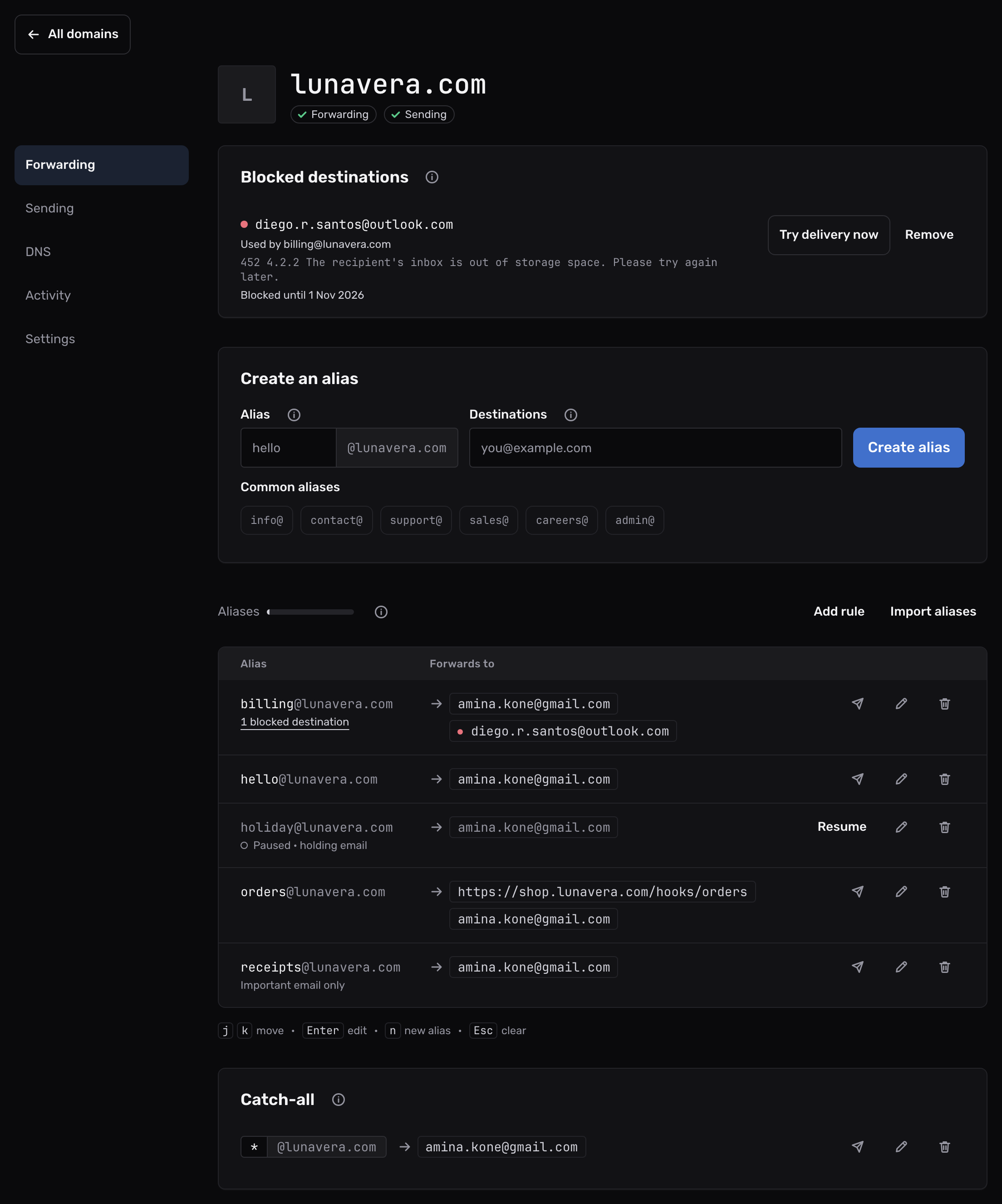
Open Domains, select the domain and stay on its Forwarding tab. Above the table, the Aliases bar shows how much of your plan’s per-domain allowance this domain uses. Its ⓘ gives the numbers.
-
Create the alias#
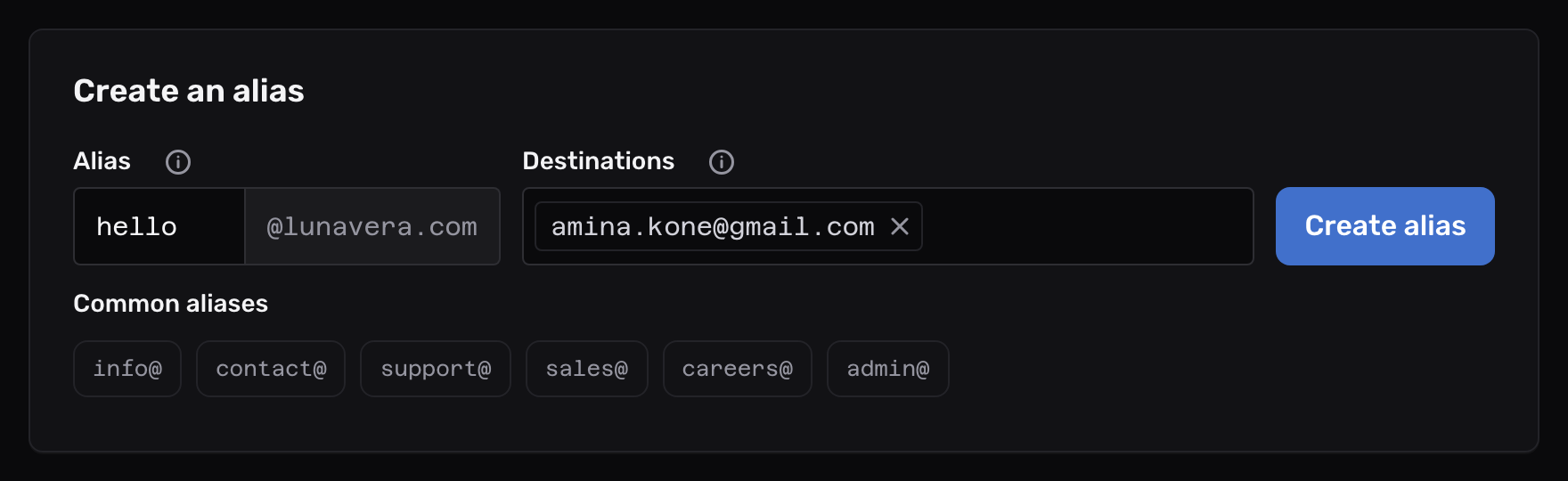
Under Create an alias, enter the part before the
@in Alias and the inbox in Destinations.- Address
- hello
- Destinations
- amina.kone@gmail.com
Or select one of the Common aliases under the form, such as support@. It fills in Alias, and puts your account email in Destinations if that field is empty. Change the destination if the address is for someone else.
Select Create alias. The alias forwards email at once.
An address can’t contain @ or spaces.
To cover a family of addresses with one alias, such as sales-*, see pattern aliases.
To forward one alias to multiple inboxes, see multiple destinations.
Edit or delete an alias#
Each row in the table has its actions on the right.
- Edit (the pencil) opens Edit alias. Change the destinations or the alias’s options, then select Save changes.
- Delete (the bin) asks you to confirm with Delete alias. Forwarding for that address stops at once, and its email then goes to the catch-all if there is one.
The catch-all#
The catch-all forwards email sent to any address on the domain that has no alias of its own. Every domain starts with one, forwarding to your account email, when you add it.

- To send it somewhere else, select Edit on the card and change the destinations.
- To remove it, select Delete on the card. Email to an address without an alias then goes back to the sender, apart from postmaster@ and abuse@.
- To add one, enter its destinations under Catch-all and select Set up catch-all.
A catch-all suits a domain where you hand out a new address to each shop or service, such as shop-mira@lunavera.com.
You see who used which address, and you don’t create anything in advance.
Email to made-up addresses, including spam that passes the spam check, reaches you through it too.
Most spam goes to addresses that senders guess.
To take email only at your aliases, create the ones you use, then delete the catch-all.
Which alias wins#
When an email arrives, Mailyoto picks one alias for it, in this order:
- The alias with exactly that address.
- The address without its tag:
hello+newsgoes tohello(plus-addressing). - A pattern alias that matches the address without its tag. When several match, the one with the most characters besides
*wins. For example,sales-eu-*comes beforesales-*. - The catch-all.
- For
postmaster@andabuse@only, your account email (postmaster and abuse mail).
So an alias of its own always takes an address’s email away from the catch-all. On a domain with routing rules, Mailyoto tests the rules first. Only email that no rule matches goes through this order.
Postmaster and abuse mail#
Mail servers write to postmaster@ about delivery problems with your domain, and people report misuse of it to abuse@.
The email standards ask every domain to take this mail.
When no alias and no catch-all takes postmaster@lunavera.com or abuse@lunavera.com, Mailyoto forwards it to your account email.
To send one somewhere else, create an alias named postmaster or abuse.
Pause an alias#
To stop an alias for a while without deleting it, pause it. Pause an alias explains the 3 ways a paused alias can respond.
More you can do with an alias#
- Confirm that an alias forwards with Send test (the paper plane).
- Keep only important email on an alias you give to shops.
- Block one sender and keep everyone else’s email.
- Import aliases from a list.