Email is not arriving
Find out why an email to your alias didn't reach your inbox, and fix the cause in the right place.
Updated 29 October 2026
Someone sent an email to one of your aliases, and it never reached your inbox.
Why it happens#
An email can stop at 4 places on its way to you:
- Your inbox put it in the spam folder.
- The sender’s server never reached Mailyoto, because your domain’s records point somewhere else.
- Mailyoto turned it away or held it back. The logs say why.
- Your inbox provider refused it when Mailyoto forwarded it.
Work through the checks below in order. Most missing email turns up in the first 3.
1. Check the spam folder#
Inbox providers sometimes treat forwarded email with suspicion, because it arrives from Mailyoto under the original sender’s name.
Look in the spam folder of the inbox your alias forwards to. If the email is there, mark it as not spam so the next one goes to the inbox.
In Gmail, a filter keeps email to your alias out of spam permanently. Set up the filter.
Important
Never report a forwarded email as spam. The complaint counts against Mailyoto, not against the real sender. Here’s why that matters.
2. Check that the domain is forwarding#
Open Domains in the dashboard and find your domain. The Forwarding pill shows a tick when the domain’s MX and SPF records are in place.
If it shows a cross, open the domain’s DNS tab and select Check DNS. The tab marks each record that Mailyoto can’t find, and shows the value to add.
The usual causes:
- The domain has only 1 of the 2 MX records, or one has a typo.
- Another email provider’s MX records are still on the domain.
- You added the records at a DNS provider that your domain doesn’t use.
- A record has a typo in its host name.
Find the steps for your DNS provider, or see why records don’t verify.
3. Check the email logs#
Open Logs in the sidebar and search for the sender’s address. Each email Mailyoto handled has an entry, with a status and the response from each server. Trace an email in your logs explains every part of an entry.
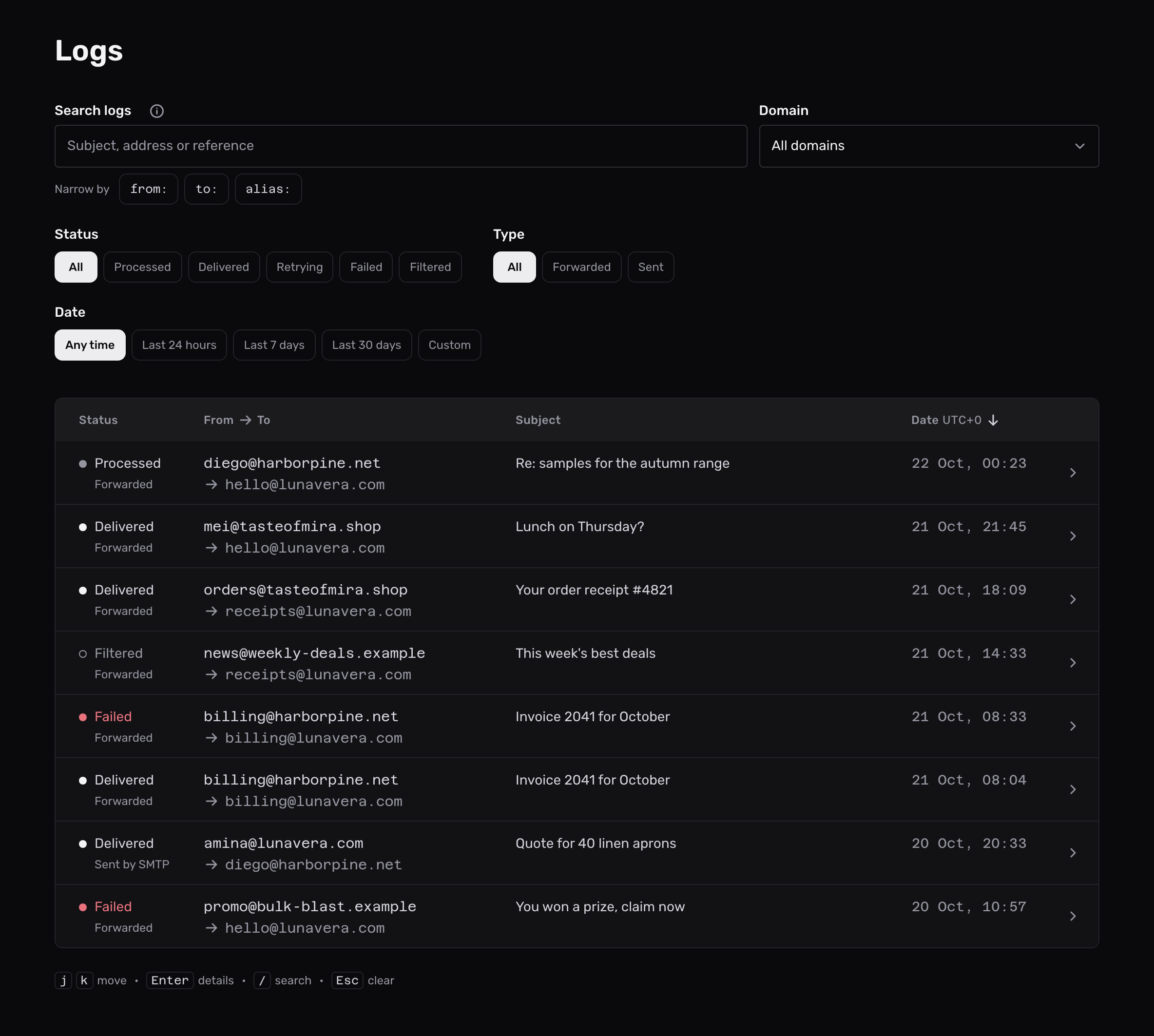
What you find tells you where to look next:
| You see | What happened | What to do |
|---|---|---|
| No entry | The email never reached Mailyoto. | Check the address with the sender, then check step 2. If your account reached its forwarding limit, Mailyoto turned the email away before logging it. |
| Received or Processed | Mailyoto has the email and is forwarding it. | Reload the page later. The status changes once Mailyoto has forwarded it. |
| Retrying | Your inbox provider refused it for now, and Mailyoto keeps trying. | Open the entry to see the response. Most of these clear on their own. See hard and soft bounces. |
| Failed, with a Rejected event | Mailyoto turned the email away when it arrived, for example as spam, or because the destination is blocked. | The event’s response names the cause. See blocked destinations. |
| Failed, and the last event is Failed or Returned | Your inbox provider refused the email permanently. | Go to step 4. |
| Filtered | The alias keeps only important email, and this one looked like a newsletter or a promotion. | Turn the setting off to receive email like it. |
Mailyoto keeps logs for a limited number of days. An older email may have no entry left.
4. The destination refused the email#
When your inbox provider refuses an email, the entry’s Response line quotes its reason. These are the common ones.
The mailbox is full
Free up space in the inbox, then resend the email.
The destination address doesn't exist
Correct the destination on the alias in the Forwarding tab. Mailyoto may have blocked the address after the failure. Blocked destinations at the top of the same tab lists it. Lift the block there.
The email is too large for the destination
The inbox provider’s own size limit applies. Ask the sender to share large files as a link. See message too large.
The destination refused it as spam
The inbox provider decided the email looked like spam. See forwarded mail that lands in spam for what you and the sender can change.
On the Pro and Max plans, you can resend a failed email once you have fixed the cause.
5. Ask the sender for the bounce#
When an email to an alias with 1 destination fails permanently, Mailyoto emails the sender a notice with the subject “Message not delivered”, from no-reply@bounces.mailyoto.net.
Ask the sender to forward that notice, or the bounce their own server sent. It names the server that refused the email and its reason.
Check that it’s fixed#
Ask the sender to send a new email, or send one yourself from another account. Its entry in Logs shows Delivered once your inbox provider accepted it.
Still missing#
Contact us and include:
- your domain
- the sender’s address
- the alias it was sent to
- the time it was sent, with the time zone
We trace it in the logs with you.