Export or clear your logs
Download up to 30 days of a domain's logs as a CSV file, or delete its log history permanently without stopping forwarding.
Updated 31 October 2026
When you finish, you have up to 30 days of a domain’s logs in a spreadsheet, or no log history left for that domain.
Before you start
- Any plan.
- The domain open in the dashboard. Both actions are on the domain’s Usage and logs tab only, not on the Logs page in the sidebar.
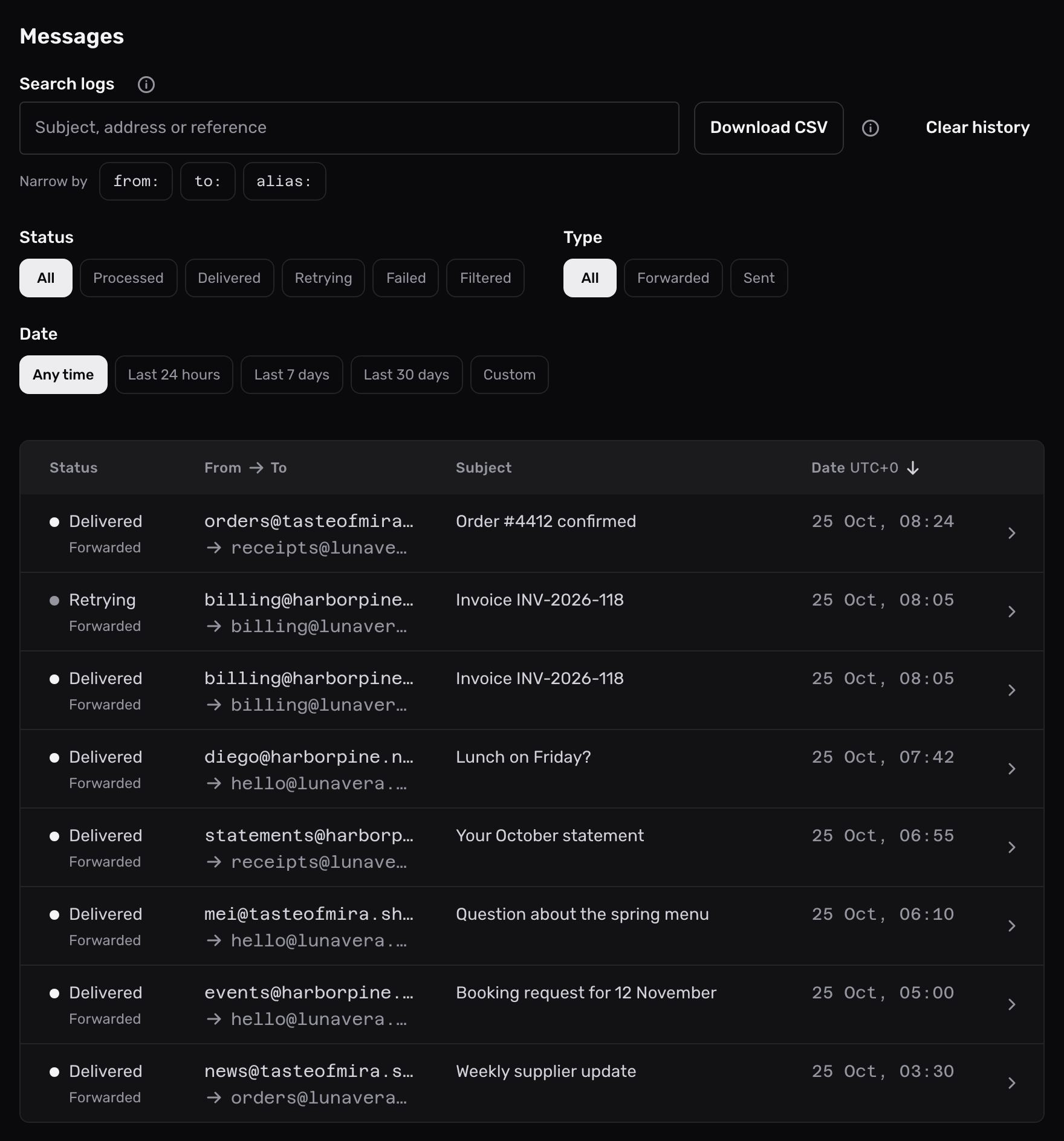
Download the logs as a CSV file#
- Open Domains, select the domain, then select its Usage and logs tab.
- Select Download CSV. Your browser saves a file named after the domain and the days it covers, such as
mailyoto-logs-lunavera.com-2026-10-01-to-2026-10-22.csv.
What the file holds:
- The emails your filters show. The search text doesn’t apply. The ⓘ next to the button says so.
- At most 30 days, ending on the last day of the Date range. With Any time, that is the last 30 days. For an older period, choose a Custom range.
- The newest 10,000 emails at most, newest first.
- One row per email, in the words the log list uses.
- Dates and times in UTC, written as ISO 8601, such as
2026-10-22T09:30:00Z.
The columns, in order:
| Column | What it shows |
|---|---|
| Status | The email’s state now: Received, Processed, Delivered, Retrying, Failed or Filtered |
| Type | Forwarded, Sent by SMTP or Sent by API |
| Domain | The domain the email belongs to |
| From | The sender’s address |
| To | The address the email was sent to, which is your alias for forwarded email |
| Forwarded to | The destination the alias forwarded it to, empty for email you sent |
| Subject | The email’s subject |
| Received at | When Mailyoto received the email |
| Delivered at | When the receiving server accepted it, empty until then |
| Attempts | How many times Mailyoto tried to deliver it |
| Last response | The latest server response, with its code, such as 250 2.0.0 OK |
A subject or address that starts with =, +, - or @ starts with ' in the file. The ' makes a spreadsheet show it as text instead of running it as a formula.
Spreadsheet apps such as Excel, Numbers and Google Sheets open the file.
Clear a domain’s log history#
Clearing deletes every log entry for the domain. Download the CSV first if you need a record.
- On the domain’s Usage and logs tab, select Clear history.
- The dialog asks “Clear the log history for lunavera.com?” and says how many entries it will delete. Select Clear history to confirm.
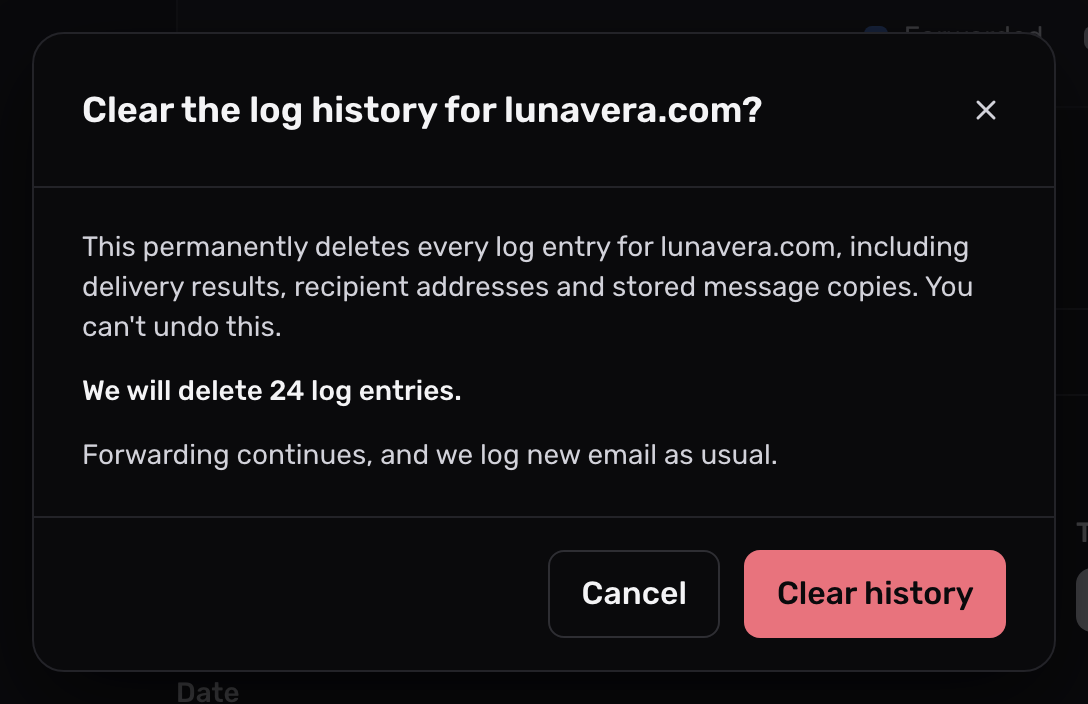
What clearing does:
- It deletes every entry for the domain, with its delivery results, recipient addresses and stored message copies.
- You can’t undo it.
- Forwarding continues, and Mailyoto logs new email as usual.
- Failed email from before can no longer be resent or downloaded, because its copy is gone.
- The domain’s blocked destinations stay as they were.
To keep less in your logs from now on, turn off Keep subjects and addresses or Keep the full content of failed email instead. See log settings.
Problems#
The buttons are greyed out
The domain has no log entries yet. There is nothing to download or clear.