Keep forwarded email out of Gmail spam
A Gmail filter that keeps every email sent to your alias out of Spam and in your inbox.
Updated 27 October 2026
When you finish, Gmail keeps every email sent to your alias out of its Spam folder.
Before you start
- An alias that forwards to a Gmail address, for example
amina@lunavera.comtoamina.kone@gmail.com - Gmail open in a web browser on a computer. The Gmail app on a phone can’t create filters.
-
Open the search options#
In Gmail, choose Show search options at the right end of the search bar.

-
Enter your alias in To#
Type your alias in the To field. Leave the other fields empty.
- To
- amina@lunavera.com
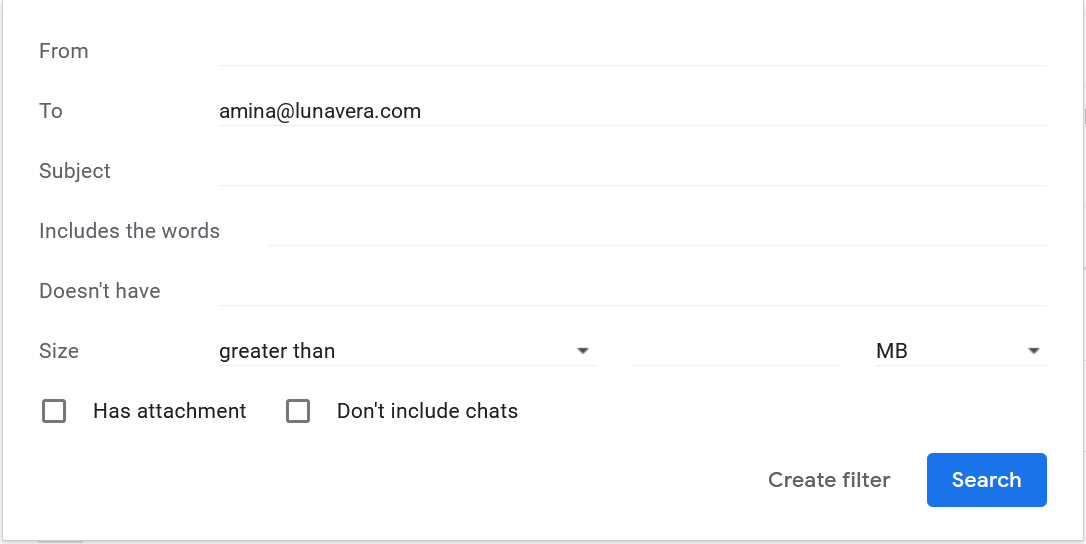
Choose Create filter.
-
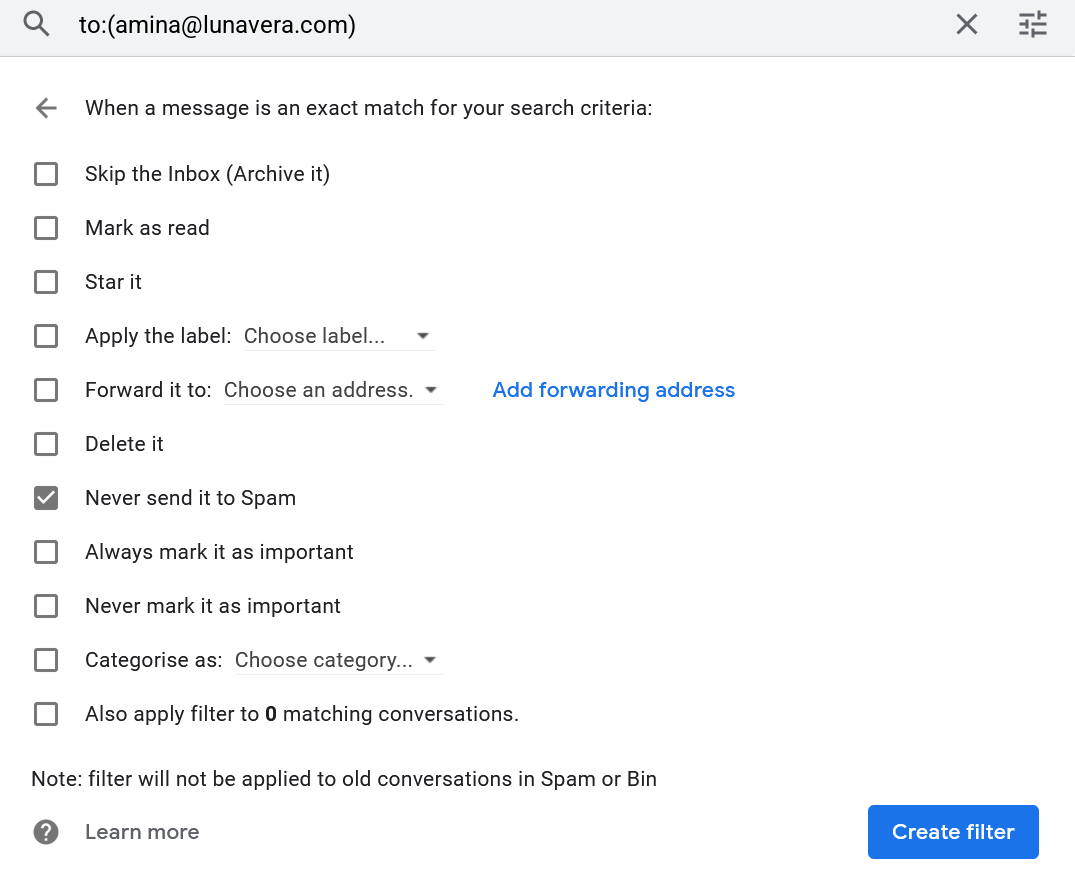
Choose Never send it to Spam#
Tick Never send it to Spam, then choose Create filter.
Check it worked#
Send an email to your alias from another account. It arrives in the Gmail inbox, not in Spam. A test sent from the same Gmail account behaves differently. See Gmail hides a test you send yourself.
I have several aliases that forward to this Gmail
Create one filter for each alias.
Or enter several aliases in the To field, separated by OR, for example amina@lunavera.com OR billing@lunavera.com.
Messages already in Spam stay there
The filter applies to new email only. Open Spam, select the forwarded messages and choose Not spam.
Important
Never choose Report spam on an email that reached you through your alias. The report counts against Mailyoto’s servers, not the original sender. Read why, and what to do instead.