Confirm an alias forwards
Send a test email to an alias, find it in Logs, and read what each status means for the email.
Updated 31 October 2026
When you finish, you know whether the alias forwards, and where to look when it doesn’t.
Before you start
- A domain whose Forwarding pill shows a tick. See Domain status.
- An alias, or the catch-all.
- For the second test, an email account that is not one of the alias’s destinations.
-
Send a test from the dashboard#
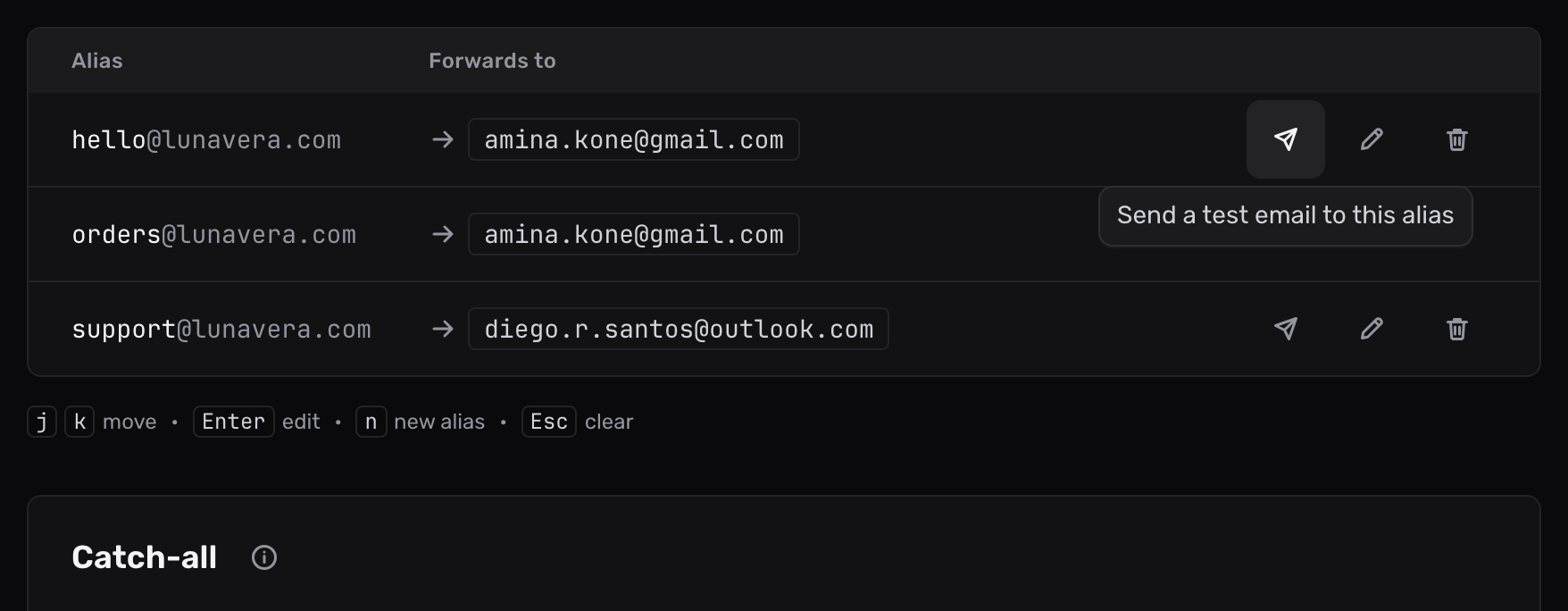
On the domain’s Forwarding tab, select Send test (the paper plane) on the alias’s row. Mailyoto emails the alias, and a message names the inboxes the test goes to. Select Usage and logs in that message to open the test’s log entry. Until the test arrives, the entry says it is waiting for the email. A test usually arrives within seconds, and its details then open. You can send 2 tests a minute.
The test email’s subject is “Test reached” followed by the alias’s address. It lists the address it was sent to, the inboxes it was forwarded to, and when it was sent.
On the Catch-all card, the test goes to a new address that starts with
catchall-test-. The catch-all receives it. On a pattern alias, it goes to a new address the pattern receives, such assales-5c2e1d@lunavera.com. The message names that address. Send test doesn’t appear on paused aliases. Test those with the next step. -
Send one from another account#
A real email shows the whole path, including the spam check. From another account, such as
diego.r.santos@outlook.com, write to the alias, such ashello@lunavera.com.Don’t send from the alias’s own destination. Gmail, for example, hides an email that comes back to the account that sent it (why).
-
Find it in Logs#
Open the domain’s Usage and logs tab, or Logs in the sidebar for all domains. To narrow the list, type
alias:and the alias into Search logs, such asalias:hello, or search for the subject. Select Show details on the email to see each delivery and the response from the destination’s server.
Read the status#
| Status | What it means | What to do |
|---|---|---|
| Received | Mailyoto has the email and hasn’t delivered it yet. | Wait a moment and reload. |
| Processed | The email is queued for delivery. | Wait a moment and reload. |
| Delivered | The destination’s server accepted the email. | If it isn’t in the inbox, look in the spam folder there. |
| Retrying | The destination asked Mailyoto to try later. | Nothing. Mailyoto retries for up to 5 days. |
| Failed | Mailyoto refused the email, or the destination refused it permanently. | Read the response in the details. It names the cause. |
| Filtered | The alias keeps only important email, and this was bulk email. | See Keep only important email. |
Trace an email in your logs covers every column and filter.
If the test fails#
The email is not in Logs at all
The email didn’t reach Mailyoto. Check that the domain’s Forwarding pill shows a tick, and that the address you wrote to is spelled right. If the pill shows a cross, open the DNS tab and fix the records that show a cross.
Logs say Delivered, but the inbox is empty
Look in the destination’s spam folder. If you sent the email from the destination itself, send it from another account.
Logs say Failed
Open Show details and read the response. A refusal by Mailyoto names the reason, such as spam or a blocked sender. A refusal by the destination quotes its server, such as a full or unknown mailbox. Email is not arriving goes through each case.