Keep only important email
Drop newsletters and promotions on an alias you give to shops and services, and still receive receipts, codes and password resets.
Updated 29 October 2026
When you finish, the alias forwards receipts, order updates and sign-in codes, and drops the newsletters and promotions around them. It works on every plan, including Free.
Before you start
- An alias you use for sign-ups, such as
shopping@lunavera.com. See Aliases and the catch-all.
-
Open the alias#
On the domain’s Forwarding tab, select Edit (the pencil) on the alias’s row.
-
Switch it on#
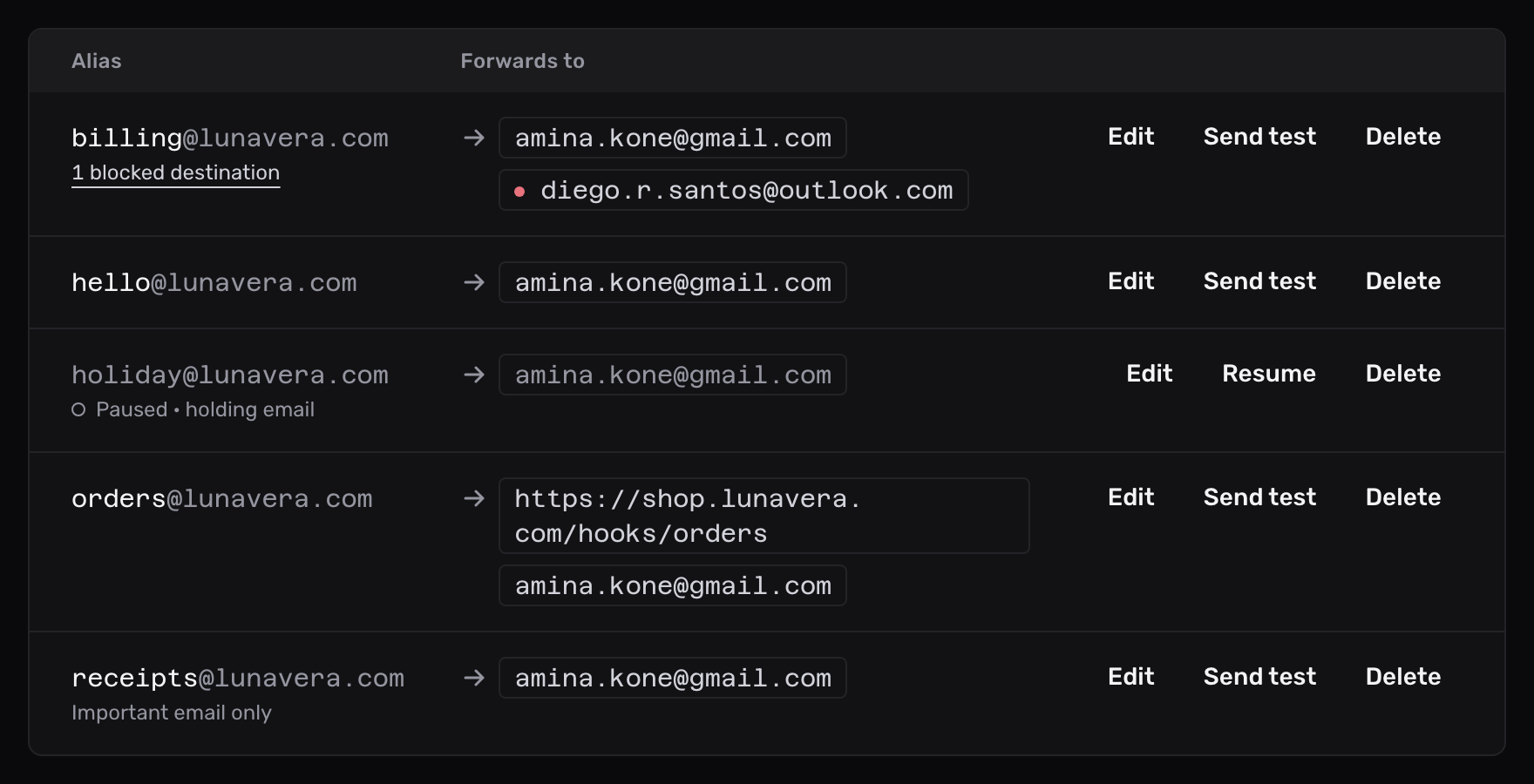
Tick Keep only important email and select Save changes. The row now reads Important email only under the address.
What counts as important#
Mailyoto asks 2 questions about each email to the alias.
Is it bulk email? An email is bulk when it carries a mailing-list header, List-Id or List-Unsubscribe, or a Precedence header set to bulk or list.
Email a person writes to you carries none of these. This setting never drops it.
Does the subject name something you need? Bulk email still arrives when its subject contains one of these words:
receipt · order · invoice · password · code · verify
Case doesn’t matter, but the word has to stand alone. “Your order has shipped” counts. “Orders”, “postcode” and “verification” don’t.
Mailyoto drops only bulk email without one of the words.
| Result | |
|---|---|
| ”Your receipt from Taste of Mira”, sent with an unsubscribe link | Arrives: “receipt" |
| "Your sign-in code”, from a mailing service | Arrives: “code" |
| "New arrivals this week”, a newsletter | Dropped |
| ”Save on your next order”, a promotion | Arrives: “order”, although it is a promotion |
| ”Lunch on Friday?” from Diego | Arrives: not bulk |
Note
The rule is simple on purpose. It sometimes gets an email wrong. Mailyoto drops a shipping notice or a security alert sent with a list header and none of the words. It drops a receipt in another language too, because the words are English. When you miss an email like that, turn the setting off for that alias.
Find the dropped email#
Each dropped email appears in Logs as Filtered, with its sender and subject. Choose Filtered under Status in Filters to list only those.
Mailyoto tells the sender’s server it accepted the email. The sender doesn’t know you didn’t receive it. Mailyoto doesn’t forward a filtered email later. To get it, ask the sender to send it again after you switch the setting off.
Other aliases on the same email#
The setting belongs to one alias.
When a newsletter goes to shopping@lunavera.com and hello@lunavera.com together and only shopping@ keeps only important email, hello@ still gets its copy.
Spam checks are separate and run for every alias. They refuse spam for everyone. This setting drops email you may have signed up for, only on the aliases you choose.
Turn it off#
Open the alias with Edit, untick Keep only important email and select Save changes. Bulk email sent after that arrives as before.
Use the API#
Send "important_only": true or false when you update an alias with PUT /v1/domains/<domain>/aliases/<id>. Every alias in an API response carries the field.
To list what the alias dropped, ask the logs for status=filtered. The API reference has both.