Trace an email in your logs
Find any email your domains forwarded or sent, see what happened to it, and read each server's response.
Updated 31 October 2026
When you finish, you can find any email in your logs and tell what happened to it.
Before you start
- A domain added to Mailyoto. Logs work on every plan.
-
Open the logs#
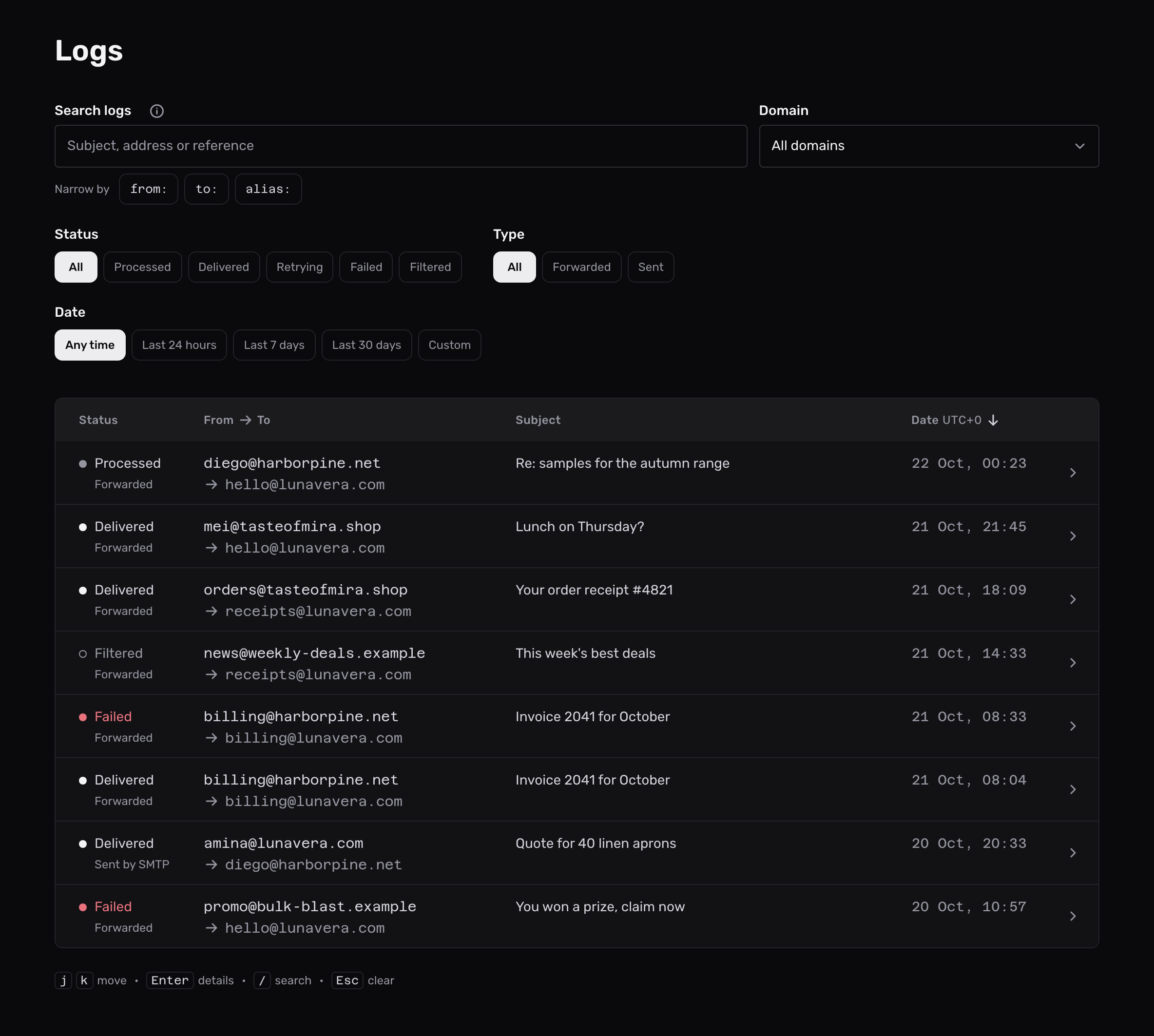
Select Logs in the sidebar to see email for every domain on your account. Use the Domain menu to pick one domain, or keep All domains.
To work with one domain only, open the domain and select its Usage and logs tab. Its list of messages also has Download CSV and Clear history, which the sidebar page doesn’t.
-
Find the email#
Type into Search logs. It searches subjects, email addresses and the metadata of emails sent through the API.
A keyword searches one address by any part of it:
Keyword Searches Example from:The sender’s address. from:aminato:The address the email was sent to, or the inbox it was forwarded to. to:gmail.comalias:The address on your domain the email was sent to. alias:hellometadata:finds the emails sent through the API with one metadata value, matched whole, such asmetadata:order_id=A-1042.Select a keyword under Search logs to add it. Keywords combine with each other and with words, such as
from:amina invoice.The chips under the search narrow the list. On a phone, open Filters to see them.
- Status: what happened to the email, as described below.
- Type: Forwarded email, or email you Sent. With Sent chosen, by SMTP or by API shows one way of sending.
- Date: Last 24 hours, Last 7 days, Last 30 days, or a Custom range from a First day to a Last day.
Clear filters shows every entry again.
-
Open the entry#
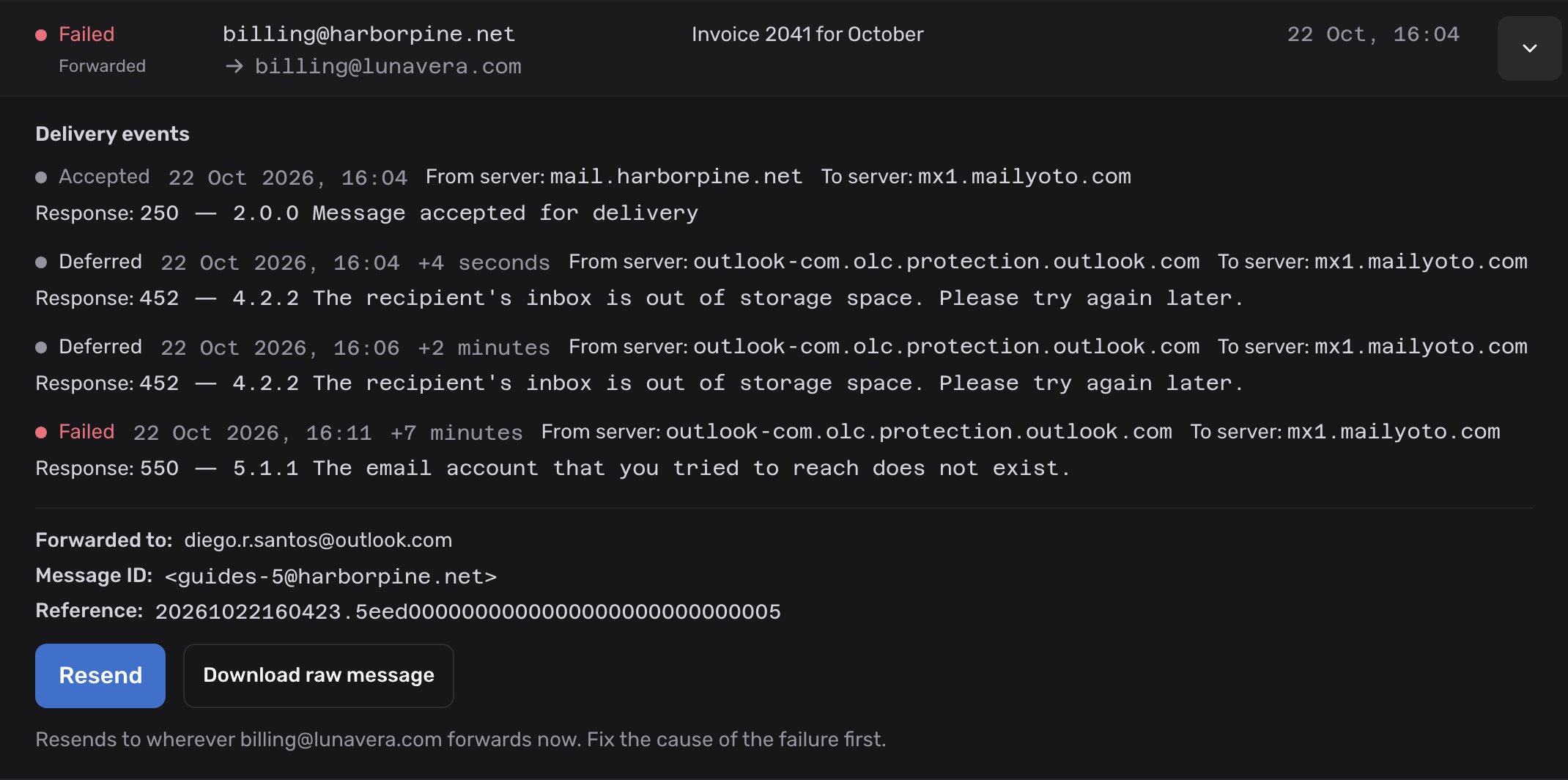
Select a row to open its details. Delivery events lists each step of the email’s journey, with the time since the first event.
What each status means#
The status in the list is the email’s latest state.
| Status | What it means |
|---|---|
| Received | Mailyoto accepted the email and hasn’t processed it yet. |
| Processed | Mailyoto has queued the email for its destinations. |
| Delivered | The destination’s server accepted the email. |
| Retrying | The destination refused the email for now, and Mailyoto tries again. |
| Failed | The email was not delivered: Mailyoto refused it on arrival, or the destination refused it permanently. |
| Filtered | The alias keeps only important email, and Mailyoto stopped this one. See keep only important email. |
Only Failed is shown in red.
What the details show#
Each delivery event has a name:
| Event | What it means |
|---|---|
| Accepted | Mailyoto accepted the email for delivery. |
| Delivered | The destination accepted it. |
| Deferred | The destination refused it for now. Mailyoto tries again. |
| Failed | The destination refused it permanently, or every retry failed. |
| Returned | The destination accepted it, then sent back a bounce report. |
| Rejected | Mailyoto refused the email when it arrived. |
| Filtered | The alias’s important-only setting stopped it. |
Under an event you find:
- how long after the email reached Mailyoto it happened, from the second event on
- the hop, in one sentence: the server that passed the email on, then the server that received it
- the code and text of the receiving server’s response. This is the line that explains a failure. A refusal also says in plain words whether it was temporary or permanent. After a temporary refusal, the sending server tries again.
Above the events, From, Alias and Forwarded to show the full addresses. Below them are the email’s Message ID and its Reference. The reference is the ID Mailyoto gives each email. Paste it into Search logs to show that one email.
An email that came from the Gmail inbox we forwarded it to has a note above its events. Gmail keeps that copy out of the inbox. See Gmail hides a test you send yourself.
Hard and soft bounces explains the difference between the failure events.
Dates and order#
The list shows the newest email first. Select the Date column header to show the oldest first.
Times are in your browser’s time zone, shown next to the date as an offset such as UTC+2.
Save or share a filtered view#
The page address changes with your search and filters. Bookmark it to open the same view later.
How long Mailyoto keeps logs#
| Plan | Delete logs after |
|---|---|
| Free | 1 to 14 days |
| Pro | 1 to 60 days |
| Max | 1 to 365 days |
New accounts start at 14 days. Enter the number under Account → Email logs → Delete logs after.
The same tab sets what each log keeps, with Keep subjects and addresses and Keep the full content of failed email. See log settings.
Problems#
No logs match these filters
Your filters exclude every entry. Select Clear filters, then add them back one at a time.
The date range starts later than you chose
Your plan keeps logs for a set number of days. A range can’t reach further back. The page says where the range now starts. On Free, logs older than 14 days are gone.
An email you expected has no entry
The email never reached Mailyoto, or arrived after your account reached its forwarding limit. See email is not arriving.