Delete a domain
Remove a domain and everything on it from your account, stop its forwarding, and know what you can and can't get back.
Updated 27 October 2026
Deleting a domain removes it from your account at once and stops all email forwarding for it.
Before you start
- The domain is on your account and is not banned.
- If you only want one address to stop, pause or delete that alias instead.
-
Open the domain’s settings#
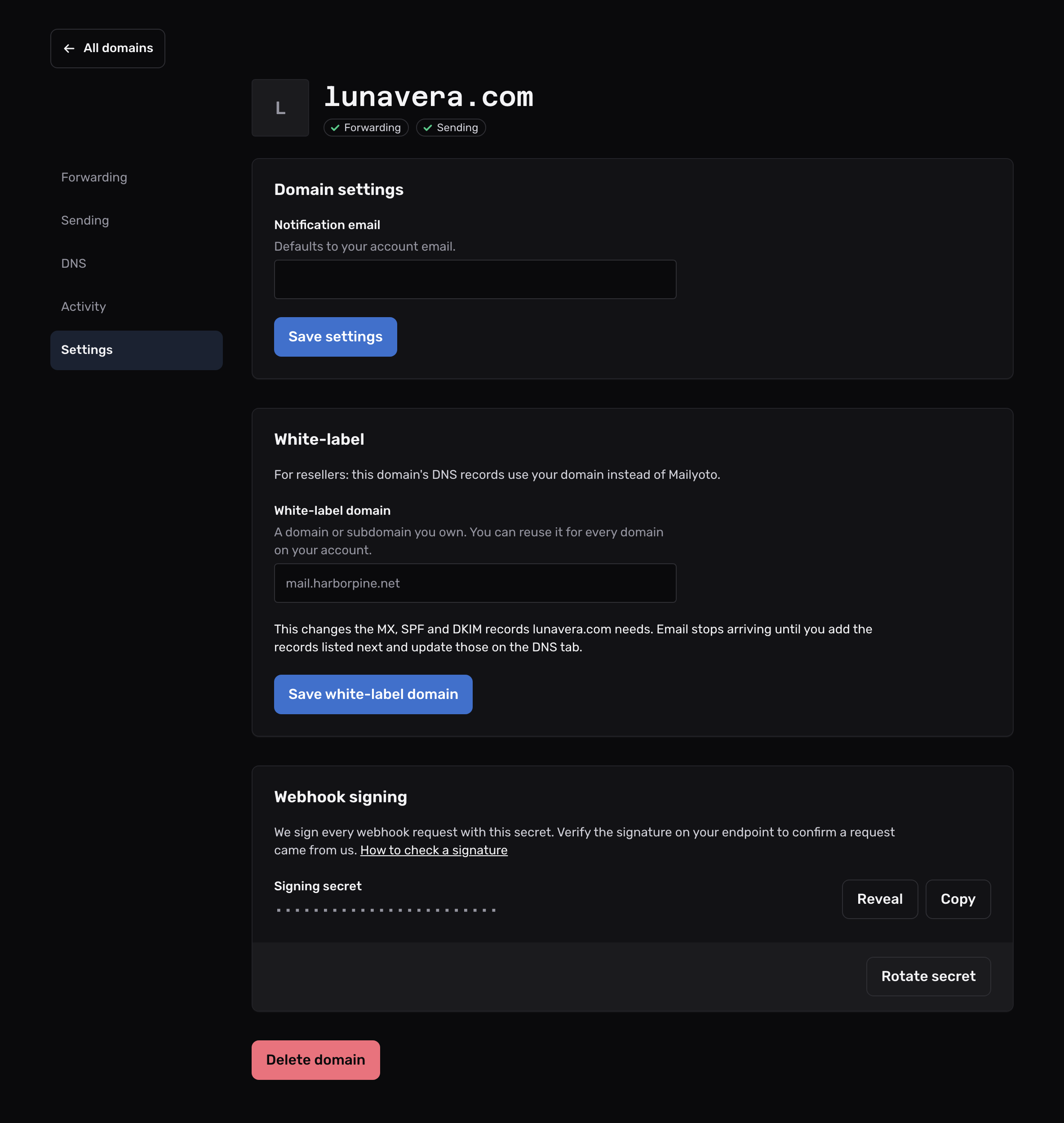
Open Domains, select the domain, then open its Settings tab.
The red Delete domain button is at the end of the tab.
-
Delete it#
Select Delete domain. The dialog lists what goes with the domain: its aliases, logs and sending credentials. Select Delete domain again to confirm.
The dashboard confirms that the domain is deleted and its email is no longer forwarded.
What goes with it#
- every alias on the domain, including the catch-all
- its routing rules
- its SMTP credentials
- its logs, and the stored copies of its messages
Email sent to the domain stops being forwarded at once. You can’t undo the delete.
Adding it back#
You can add the same domain again at once, from Domains. It comes back empty: create its aliases again, and its DNS records must verify again.
Free domains that never receive email#
On the Free plan, a domain that was added more than 7 days ago and has never received an email gets a removal date. It keeps forwarding until that date, and is then removed as if you had deleted it.
The dashboard says you cannot remove a banned domain
The message reads “You cannot remove a banned domain. Please contact support.”
Write to support@mailyoto.com from your account’s email address.