Turn on two-factor authentication
Ask for a 6-digit code from an authenticator app at every sign-in, and keep 10 recovery codes in case you lose your phone.
Updated 27 October 2026
With two-factor authentication on, signing in to Mailyoto takes your password and a 6-digit code from an authenticator app on your phone.
Before you start
- An authenticator app on your phone. Any app that reads a QR code for time-based codes works.
- Your phone and a place to keep 10 recovery codes, such as a password manager or a printed sheet.
-
Open the two-factor card#
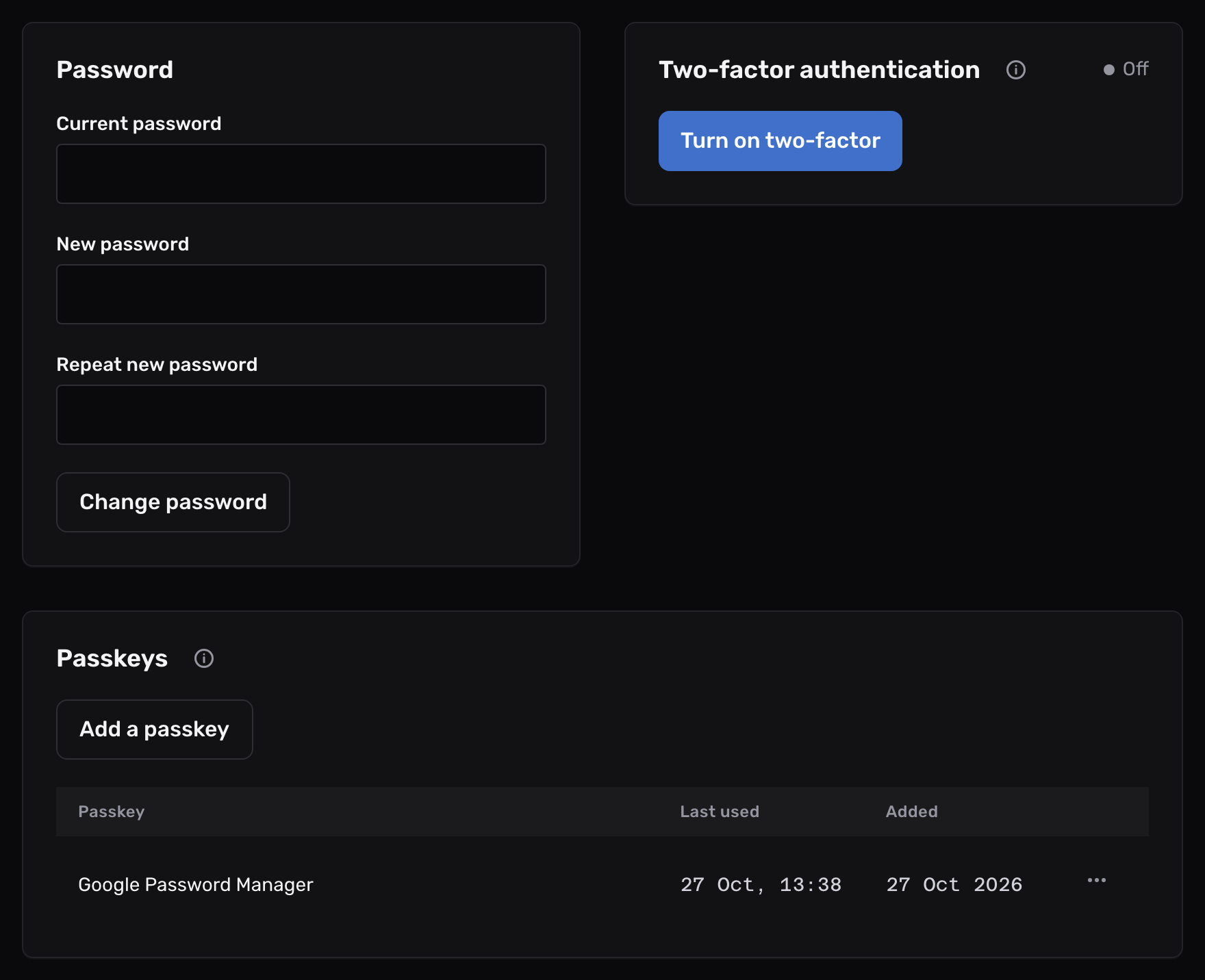
Open Account in the sidebar, then the Security tab.
The Two-factor authentication card shows Off.
-
Scan the QR code#
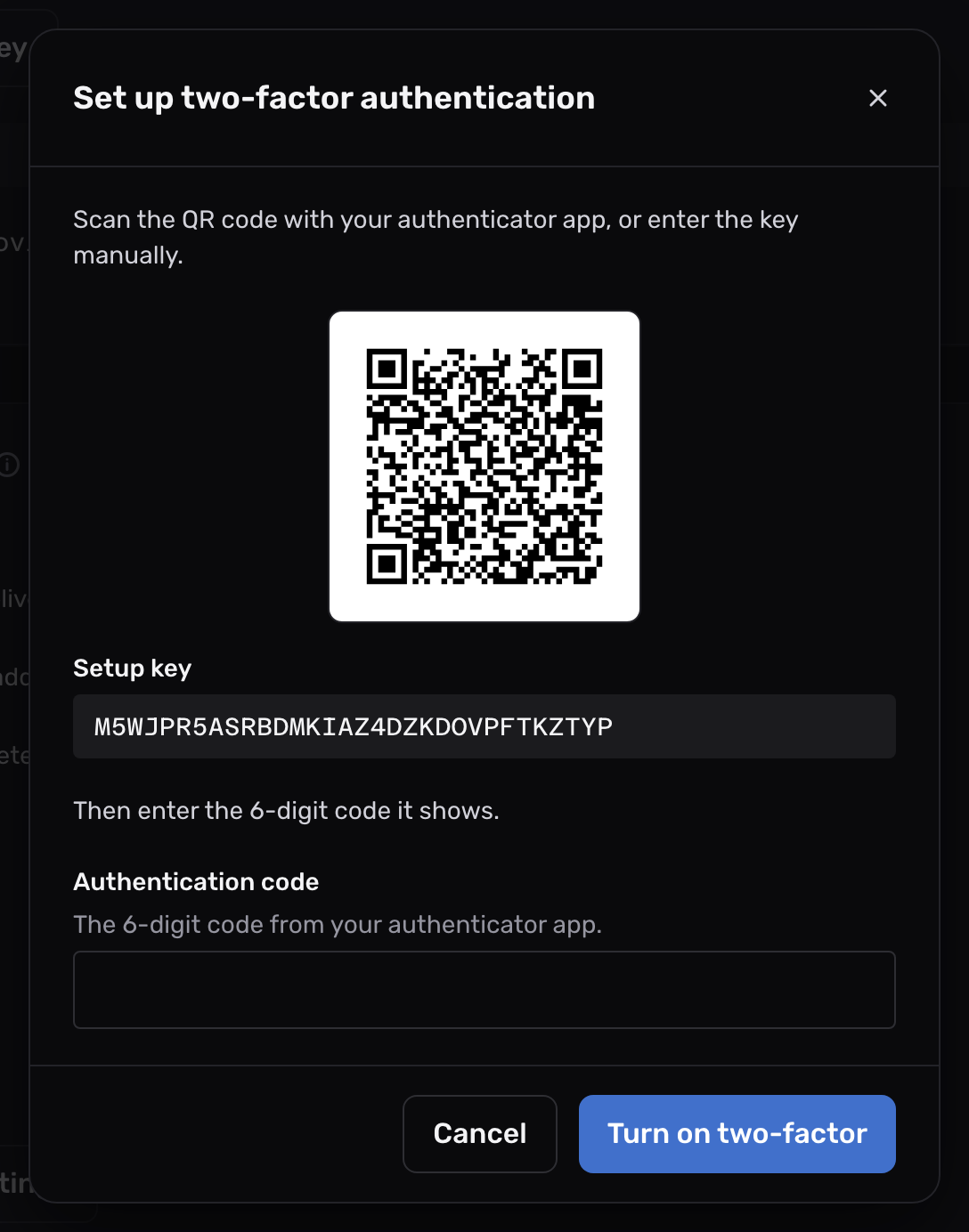
Select Turn on two-factor, then scan the QR code with your authenticator app.
If your phone can’t scan it, type the Setup key under the code into the app instead.
-
Confirm with a code#
Type the 6-digit code the app now shows into Authentication code, then select Turn on two-factor.
The card changes to On, and the dialog moves on to your recovery codes. Mailyoto signs out every other device signed in to your account. This one stays signed in.
-
Save your recovery codes#
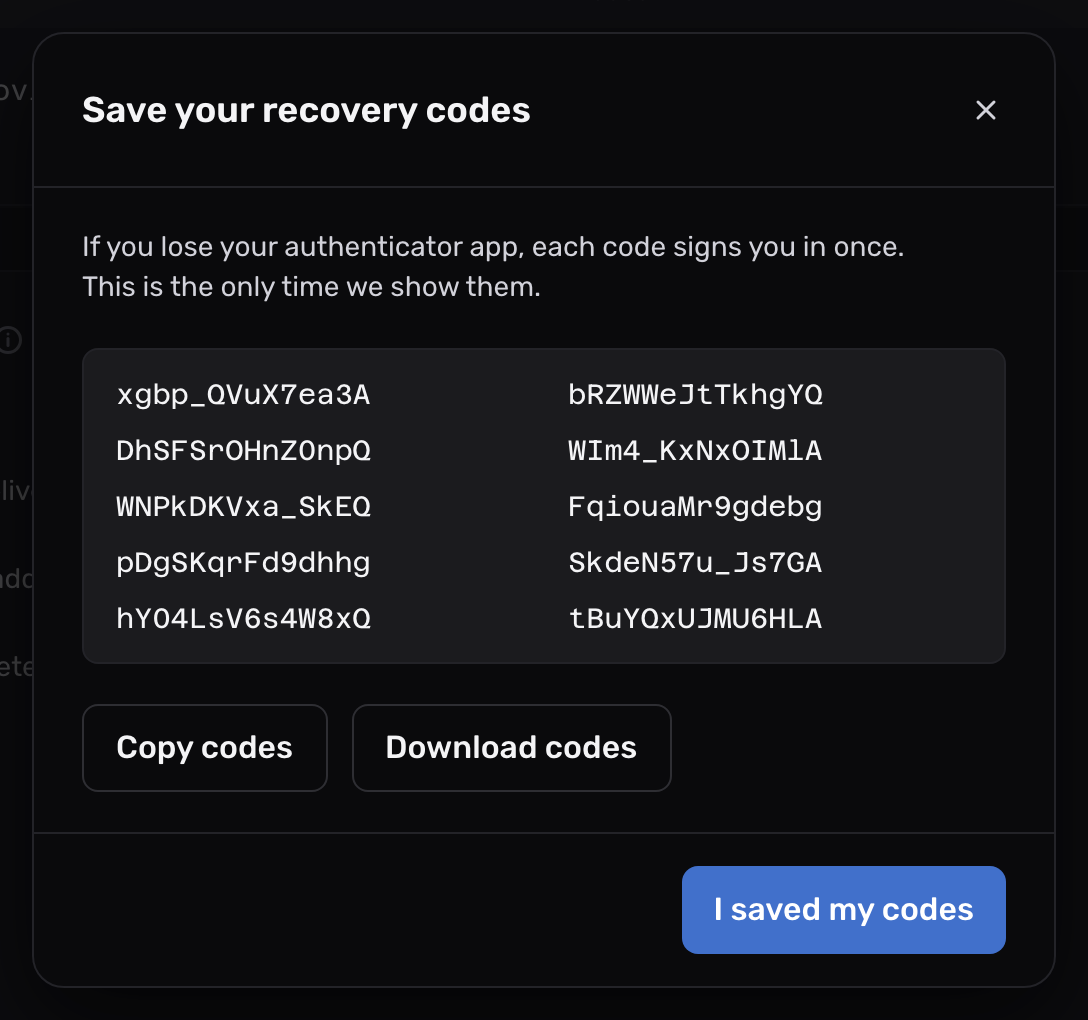
The dialog shows 10 recovery codes. Each one signs you in once, in place of an authenticator code. This is the only time Mailyoto shows them. It stores them in a form it can’t read back.
Select Copy codes to paste them into a password manager, or Download codes to save them as a text file. Then select I saved my codes.
Important
Keep the recovery codes away from your phone. If you lose the phone, you sign in with these codes.
Sign in with two-factor on#
After your password, Mailyoto asks for the 6-digit code from your authenticator app. It asks for the code after a sign-in link from your email too.
The app shows a new code every few moments, and only the current one works.
Sign in with a recovery code#
- Sign in with your email and password as usual.
- On the code step, select Use a recovery code.
- Type one of your saved codes into Recovery code, then select Sign in.
That code is now used up. Mailyoto then tells you how many codes you have left. Once they run out, only your authenticator app can sign you in.
Turn two-factor off#
- On the Two-factor authentication card, select Turn off two-factor.
- Type a current code from your authenticator app into Authentication code.
- Select Turn off two-factor in the dialog.
You sign in with your password alone until you turn it back on. Turning it on again gives you a new QR code and 10 new recovery codes. Any codes you had left from before stop working.
Move two-factor to a new phone#
Turning two-factor off needs a code from the old app. Do this while you still have the old phone.
- Turn two-factor off with a code from the old phone.
- Turn it on again and scan the new QR code with the new phone.
- Save the 10 new recovery codes.
Problems#
The code is refused
The message reads “This authenticator code is wrong or expired, or you already used it.” Each code works once. If you just used the one on screen, wait for the app to show the next. The codes depend on the time. Check that your phone sets its clock automatically. Then type the code the app shows now, not one from a minute ago.
You lost your phone
Sign in with a recovery code, as above.
If you have no codes left either, write to support@mailyoto.com from your account’s email address.
The setup dialog says it could not start
The message reads “We could not start setup. Close this and try again.” Close the dialog, reload the page, and select Turn on two-factor again.