Manage signed-in devices
See every browser signed in to your account, with its country and when it was last used, and sign out one device or all but this one.
Updated 27 October 2026
The Signed-in devices card lists every browser signed in to your Mailyoto account. From there, you can sign out a phone you lost or a device you don’t recognise.
Before you start
- To be signed in to the dashboard.
-
Open the devices card#
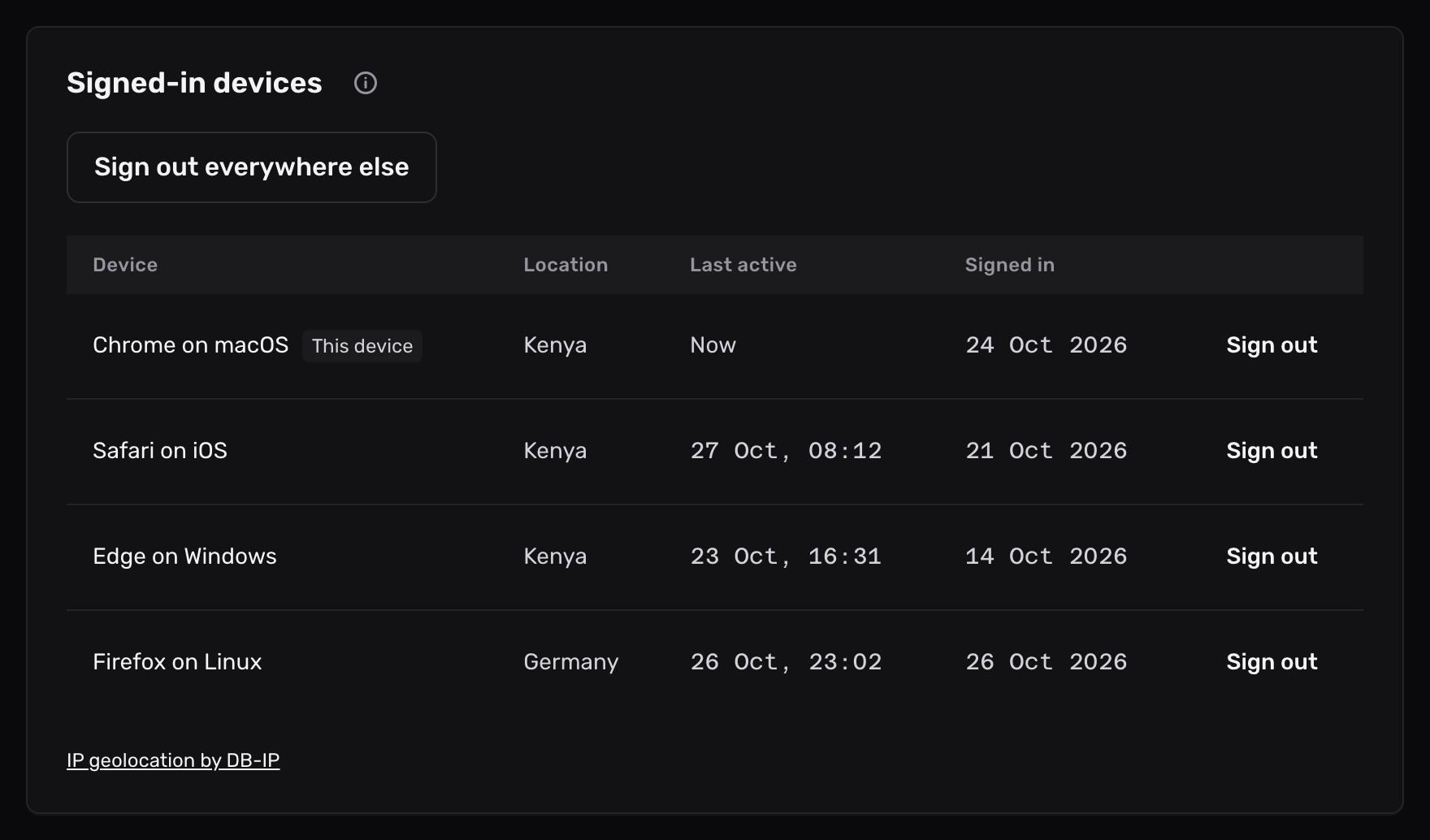
Open Account in the sidebar, then the Security tab, and find the Signed-in devices card under Passkeys.
-
Read the list#
Each row is one sign-in. The browser you are using comes first, marked This device, then the others from the most recently used.
Column What it shows Device The browser and the system it runs on, such as “Safari on iOS” Location The country the device’s latest request came from Last active When the device last used your account, to within 5 minutes. Now on this device Signed in The day the device signed in A sign-in that names no browser, such as one from a script, reads Unknown device.
-
Sign out a device#
Select Sign out on its row.
The device leaves the list, and its next page asks it to sign in again.
Sign out on the row marked This device signs you out of the browser you are using.
Sign out everywhere else#
- Select Sign out everywhere else above the list.
- Select Sign out everywhere else again in the dialog to confirm.
Every device but this one signs out. Signing out everywhere else also cancels an email change still waiting for confirmation. To finish that change, save the new address on the Profile card again for a new link.
The button shows only while another device is signed in.
How long a device stays signed in#
- A device signs out after 7 days unused.
- A device signs out 21 days after it signed in, even if you use it every day.
- Changing your password or turning on two-factor authentication signs out every other device, and keeps this one signed in.
- Resetting a forgotten password from the email signs out every device, then signs in the browser you reset it from.
Where the location comes from#
Mailyoto looks up the country of each device’s IP address in a database on its own servers. The device list keeps the country, not the address. The country data is IP geolocation by DB-IP, under the CC BY 4.0 licence.
A device you don't recognise
Someone else may know your password. Change it on the Password card, which signs out every other device, then turn on two-factor authentication. A VPN or mobile data can show a country you are not in. Compare the browser and the times with your own devices first.
The location reads Unknown
The database has no country for the device’s address, as for a private network. The rest of the row is still right.
Sign out says the device isn't signed in to your account
The device had signed out already, from another browser or after 7 days unused. The list reloads without it.