Change your sign-in email
Move your Mailyoto account to a new email address, confirm it from the new inbox, and check where your notices go afterwards.
Updated 27 October 2026
Your account email is the address you sign in with. It also gets the account’s service notices. Changing it takes a confirmation from the new address.
Before you start
- Access to the new address’s inbox.
-
Open your profile#
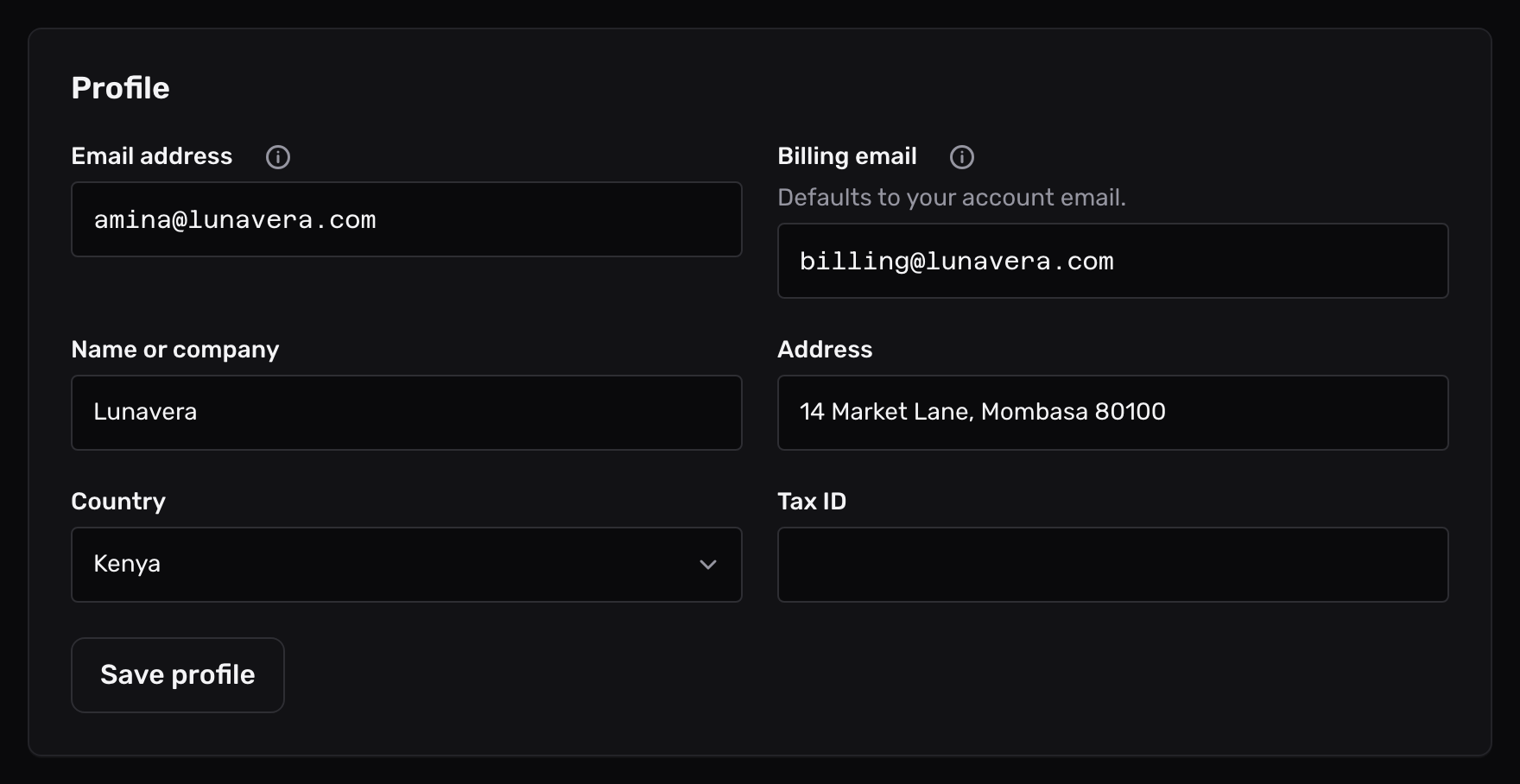
Open Account in the sidebar and find the Profile card.
-
Enter the new address#
Type the new address into Email address, then select Save profile.
The dashboard says it sent a confirmation link to the new address.
-
Confirm from the new inbox#
Open the email Mailyoto sent to the new address and select its link. The link works for 7 days.
Your sign-in address changes once you open it. Until then, keep signing in with the old one.
What changes with it#
- You sign in with the new address. Your password, passkeys and two-factor authentication stay as they were.
- Account notices go to the new address.
- Domain notices go to the new address too, for each domain without its own notification email.
- If you set a billing email, it stays as it is. If it was empty, receipts follow the new address.
The confirmation email never arrives
Check the new inbox’s spam folder. Then save the address again on the Profile card to send a new link.
The link has stopped working
It is more than 7 days old. Save the address again on the Profile card for a new link.