Sign in with a passkey
Add a passkey so you sign in with your fingerprint, face or device PIN instead of typing a password, name each one, and remove one you no longer use.
Updated 1 November 2026
A passkey lets you sign in with the fingerprint, face or PIN you use to open your device. Your password, if you have one, keeps working beside it.
Before you start
- A browser and device, or a password manager, that support passkeys.
- To be signed in to the dashboard on that device.
-
Open the passkeys card#
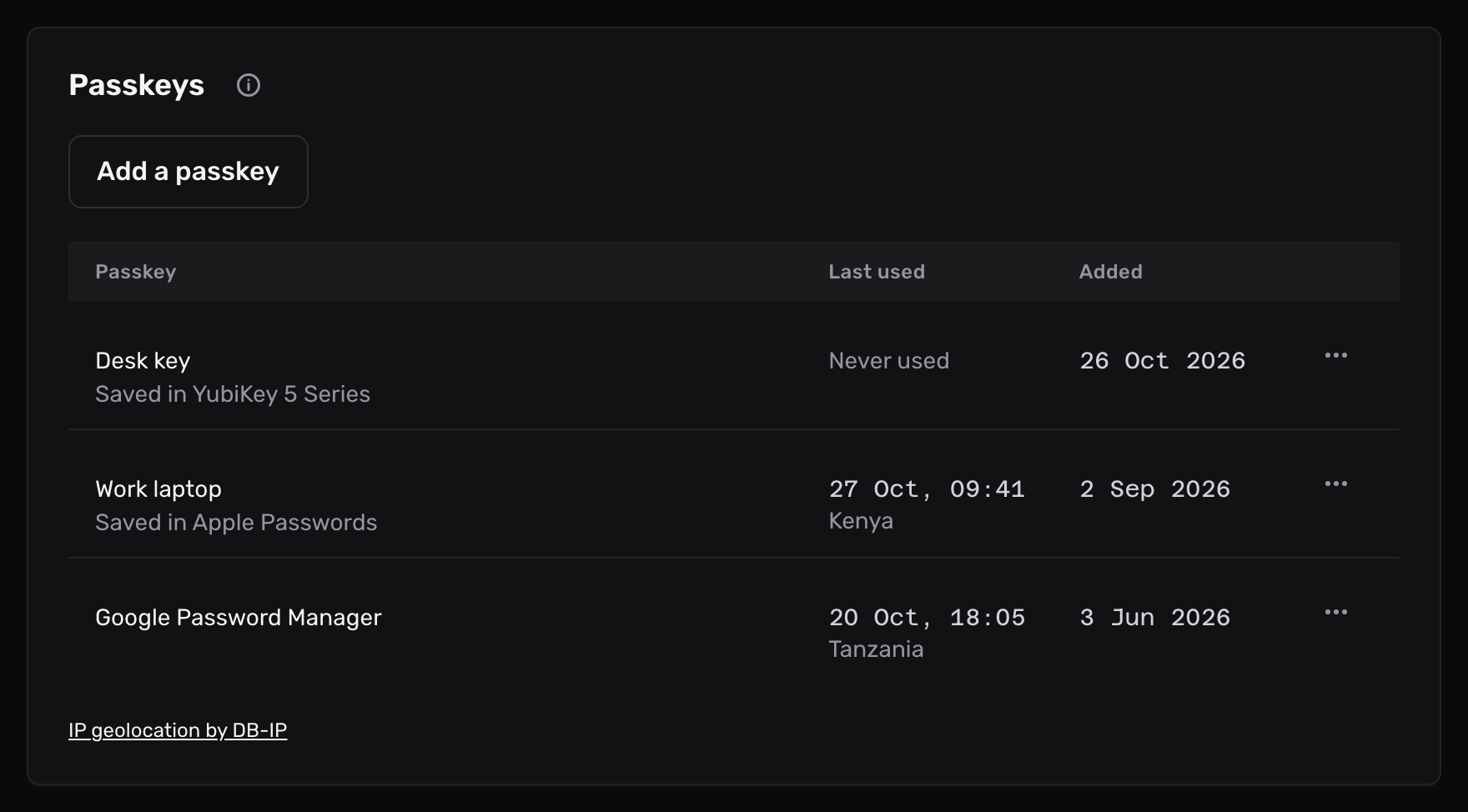
Open Account in the sidebar, then the Security tab, and find the Passkeys card.
-
Add a passkey#
Select Add a passkey.
Your browser or password manager asks where to save it, then asks for your fingerprint, face or PIN.
-
Name it#
The dashboard confirms “Your passkey is ready. You can use it to sign in.” The new passkey’s row then asks for a name.
Type one you will recognise, such as “Work laptop”, and select Save name. Select Skip to keep the name of the device or app that holds it.
What the card shows#
| Column | What it shows |
|---|---|
| Passkey | Its name, with the device or app that holds it under the name. A passkey you haven’t named goes by that device or app |
| Last used | When it last signed you in, and the country the sign-in came from. Never used until its first sign-in |
| Added | The day you added it |
The country comes from IP geolocation by DB-IP, under the CC BY 4.0 licence.
Add a passkey on each device you sign in from, or keep one in a password manager that syncs across them.
Sign in with it#
On the sign-in page, select Sign in with a passkey. You don’t need to type your email first.
Your browser may also suggest the passkey when you select the email field.
Rename a passkey#
- On the Passkeys card, select the ⋯ button at the end of its row, then Rename.
- Type the new name, up to 60 characters, and select Save name.
Leave the name empty to go back to the name of the device or app that holds it. Press Escape to keep the old name.
Remove a passkey#
- Check its name and Last used to make sure you remove the right one.
- Select the ⋯ button at the end of its row, then Remove.
- Select Remove passkey to confirm.
You can’t sign in with it again. Remove a passkey as soon as you lose the device that holds it.
The browser does not support passkeys
The dashboard says “This browser does not support passkeys.” Update the browser, or add the passkey from another browser or device.
Passkey setup was cancelled
The prompt closed before the passkey was saved. Select Add a passkey again and finish the steps your device shows.
Sign-in says the passkey prompt closed
The device you are on may hold no passkey for your account. Use a device that does, or sign in with an email link or your password.