Add your domain
Add your domain to Mailyoto, copy its MX and SPF records into your DNS provider, and verify that forwarding works.
Updated 31 October 2026
When you finish, email to your domain reaches your inbox through Mailyoto.
Before you start
- A domain you own, such as
lunavera.com. Buy a domain at Namecheap if you don’t have one yet. - Access to the DNS provider that manages the domain’s records. This is often the company you bought the domain from.
- Your plan’s room for another domain: 1 on Free, 15 on Pro, 45 on Max.
-
Add the domain#
Open Domains in the sidebar. In Add a domain, type the domain in Domain name and select Add domain.

The domain starts with a catch-all. Email to any address on it reaches your account email. To give an address such as
support@its own destination, create it as an alias on the domain’s Forwarding tab. Common aliases there offers the usual ones.The dashboard opens the domain’s DNS tab, which lists the records to add.
-
Remove other MX records#
At your DNS provider, open the domain’s DNS records and delete every MX record that does not point to Mailyoto. Other MX records send part of your email elsewhere, and Mailyoto does not verify a domain while they exist.
If the DNS tab already found MX records, it lists them under “Your current MX records”.
-
Add the 2 MX records#
Add both records from the Forwarding table. The Copy button next to each value copies it.
- Type
- MX
- Host
- @
- Value
- mx1.mailyoto.com
- Priority
- 10
- Type
- MX
- Host
- @
- Value
- mx2.mailyoto.com
- Priority
- 20
@stands for the domain itself. If your DNS provider refuses@, leave the host blank or enter the domain name. -
Add the SPF record#
Add 1 TXT record.
- Type
- TXT
- Host
- @
- Value
- v=spf1 include:spf.mailyoto.com ~all
Important
A domain can have only 1 SPF record. If a TXT record starting with
v=spf1exists, addinclude:spf.mailyoto.comto it, before the final~allor-all. Merging SPF records shows how. -
Check the records#
Back on the DNS tab, select Check DNS. Each record shows a tick when Mailyoto finds it, or a cross when it doesn’t.
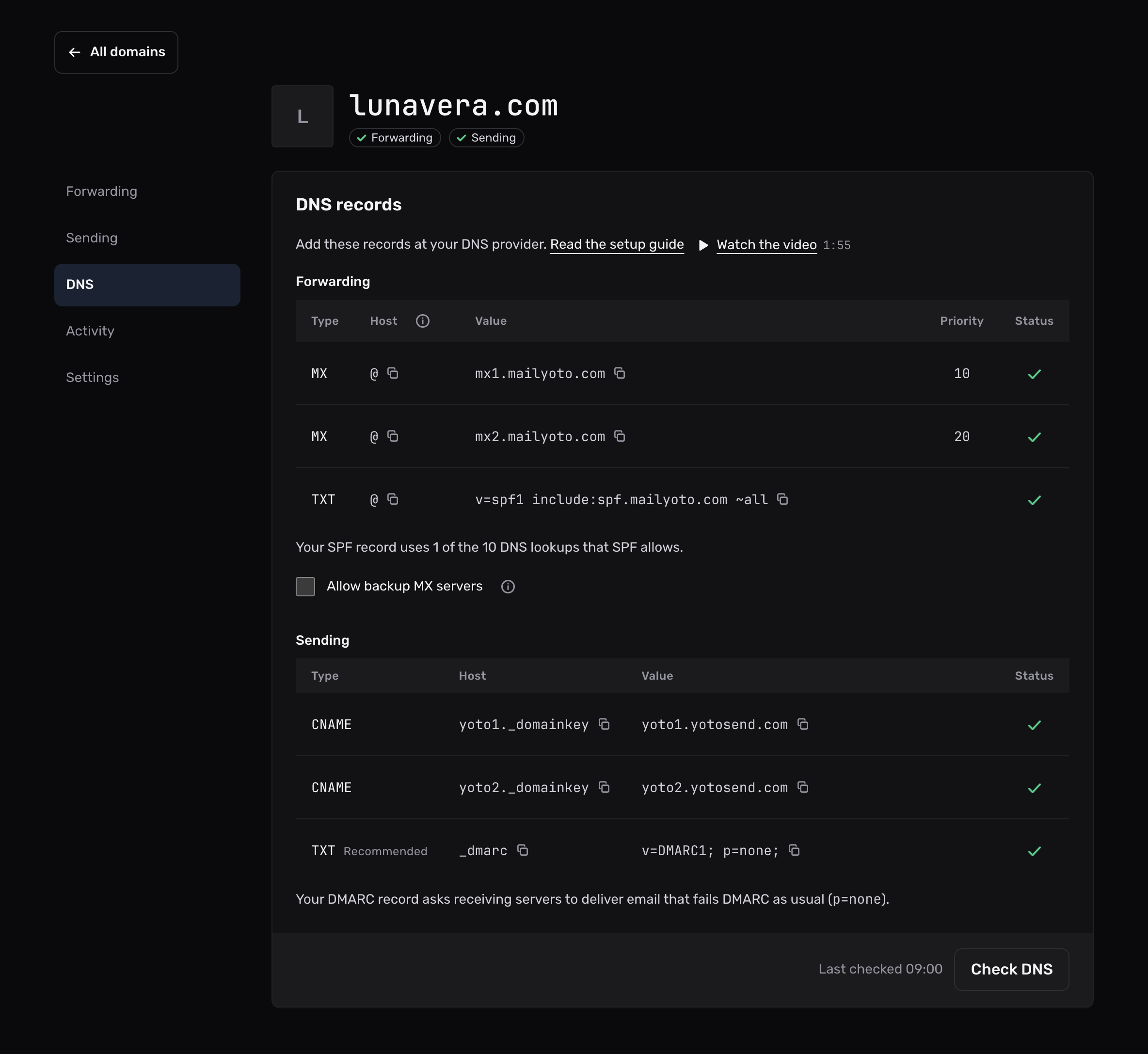
When Mailyoto finds both MX records and the SPF record, the domain is verified and the Forwarding pill at the top shows a tick. DNS changes can take a while to reach every server. If a record shows a cross, check it at your DNS provider, then select Check DNS again later.
Check that it works#
Send an email from another account, such as diego.r.santos@outlook.com, to any address on the domain.
It arrives at your account email through the catch-all.
Confirm an alias forwards shows how to read the result in Logs.
Next, create aliases for the addresses you use. Step-by-step guides for common DNS providers are in DNS providers.
If the domain does not verify#
The MX records show a cross
Check that both records have the host @ (or blank) and the exact values above.
The priorities must be 10 and 20. Mailyoto does not verify other numbers.
Delete any MX record that points somewhere else, then select Check DNS.
The SPF record shows a cross
Look for a second TXT record that starts with v=spf1.
A domain with 2 SPF records fails SPF checks. Merge them into one, as Merging SPF records describes.
The DNS provider adds the domain name twice
Some providers add the domain to whatever you type as the host. If you type lunavera.com, the host becomes lunavera.com.lunavera.com.
Enter @ or leave the host blank.
Mailyoto refuses to add the domain
Read the message under the field. It names the cause, such as a domain over your plan’s limit or a domain ending Mailyoto does not accept. Domains Mailyoto does not accept lists the refused endings.
If another account already uses the domain#
The message under the field says another Mailyoto account uses it. If you own the domain, select I own this domain. The card shows a TXT record. Add it at your DNS provider, then select Check now. The domain moves to your account once we find the record, and we keep checking for 7 days. It arrives with a catch-all, without the other account’s aliases, rules or logs.