Pause an alias
Stop an alias from forwarding until you resume it, and choose whether its email returns to the sender, waits, or is discarded.
Updated 29 October 2026
When you finish, the alias stops forwarding until you resume it, and senders get the response you chose. Pausing works on every plan.
Before you start
- An alias on a domain that routes with aliases. The catch-all can be paused too.
-
Open the alias#
On the domain’s Forwarding tab, select Edit (the pencil) on the alias’s row, or on the Catch-all card.
-
Pause it#
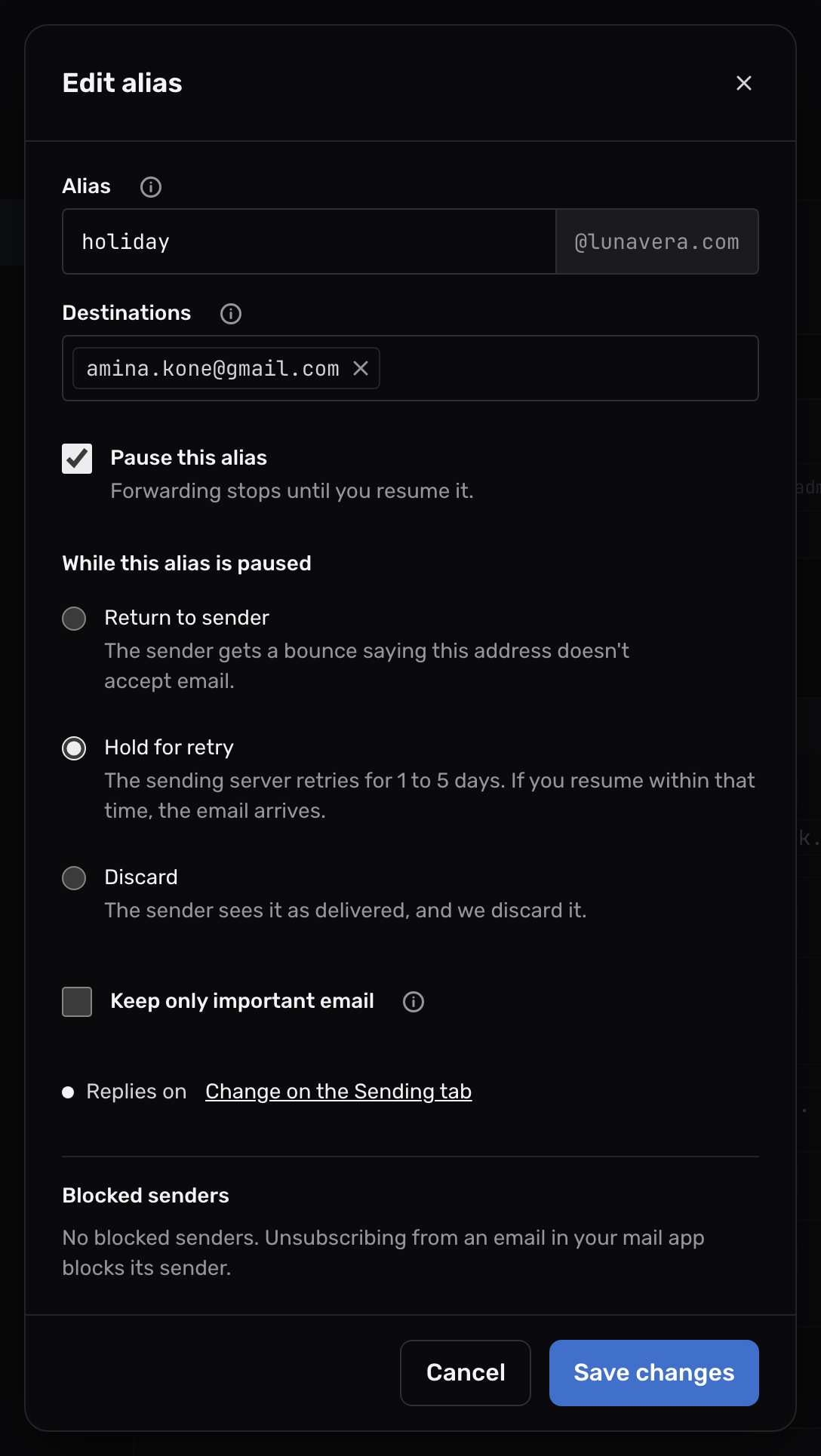
Tick Pause this alias.
-
Choose what senders get#
Under While this alias is paused, choose one of the 3 responses described below.
-
Save#
Select Save changes. The alias’s row now shows “Paused” with the response you chose, and a Resume button.
The 3 responses#
| Response | What the sender sees | What happens to the email |
|---|---|---|
| Return to sender (the default) | A bounce saying the address doesn’t accept email, as if it never existed. | Mailyoto refuses it. Nothing reaches you later. |
| Hold for retry | Usually nothing at first. Their mail server keeps the email and tries again. | Mailyoto asks the server to wait. When you resume in time, Mailyoto forwards the next try. |
| Discard | The email looks delivered. | Mailyoto accepts it and deletes it. Nobody can recover it. |
Return to sender suits an address you don’t want to use any more but may need again, such as one given to a shop.
The sending server receives 550 5.1.0 Mail to <...> is not deliverable at this domain.
Hold for retry suits a short break, such as a holiday or a move to a new inbox.
The sending server receives 450 4.2.1 Mail to <...> is on hold for now.
Each server decides how long to keep trying. The dashboard gives 1 to 5 days as a guide.
Email still waiting when you resume arrives with the server’s next try. A server that gave up returns the email to its sender.
Discard suits an address that only receives email you never want, where a bounce would tell the sender the address is inactive. Discarded email leaves no entry in Logs.
What you see in Logs#
- Return to sender: each refused email shows as Failed, with the refusal.
- Hold for retry: the first attempt from each sender on each day shows as Failed. The forwarded email appears as a new entry once you resume.
- Discard: nothing.
Resume the alias#
Select Resume on the alias’s row. The alias forwards again at once, with its destinations and options as they were.
Pause or delete#
| Paused alias | Deleted alias | |
|---|---|---|
| Its address | Stays reserved. The catch-all and pattern aliases don’t receive its email. | Is free. The catch-all or a pattern alias receives its email, if there is one. With neither, the sender gets a bounce. |
| Its settings and blocked senders | Kept | Gone |
| Your plan’s alias count | Still counts | Frees a place |
To stop an alias permanently and keep its email out of the catch-all, pause it with Return to sender rather than deleting it.
If something looks wrong#
A paused alias still forwards email
Check that the row shows “Paused”. If it doesn’t, open Edit, tick Pause this alias again and select Save changes. Check that the email isn’t reaching you through another alias, such as a pattern alias for a tagged address.
Email sent during the pause never arrived after I resumed
With Hold for retry, only email whose sending server was still retrying arrives. With the other 2 responses, email sent during the pause is gone. Ask the sender to send it again.