Route email with rules
Add rules that Mailyoto applies before a domain's aliases. Each one looks at the sender, the address, the subject or the body, then forwards, drops or rejects the email.
Pro or Max plan Updated 1 November 2026
When you finish, a list of rules sorts the domain’s email before its aliases do, in order from the top.
With aliases, the address alone decides the destination. A rule can also look at the sender, the subject and the body. It then forwards the email, drops it or rejects it. So one address can send invoices to your accountant and everything else to you.
Before you start
- A Pro plan, with 6 rules per domain, or a Max plan, with 18.
- A domain whose Forwarding pill shows a tick.
-
Add a rule#
Open the domain’s Forwarding tab and select Add rule, beside Import aliases. Under Add a rule, keep Condition under Match with. Choose a Field and an Operator, and type the Value, such as From, ends with,
@harborpine.net. Under Then, choose what happens to the email. For Forward, fill in the Destinations. Then select Add rule.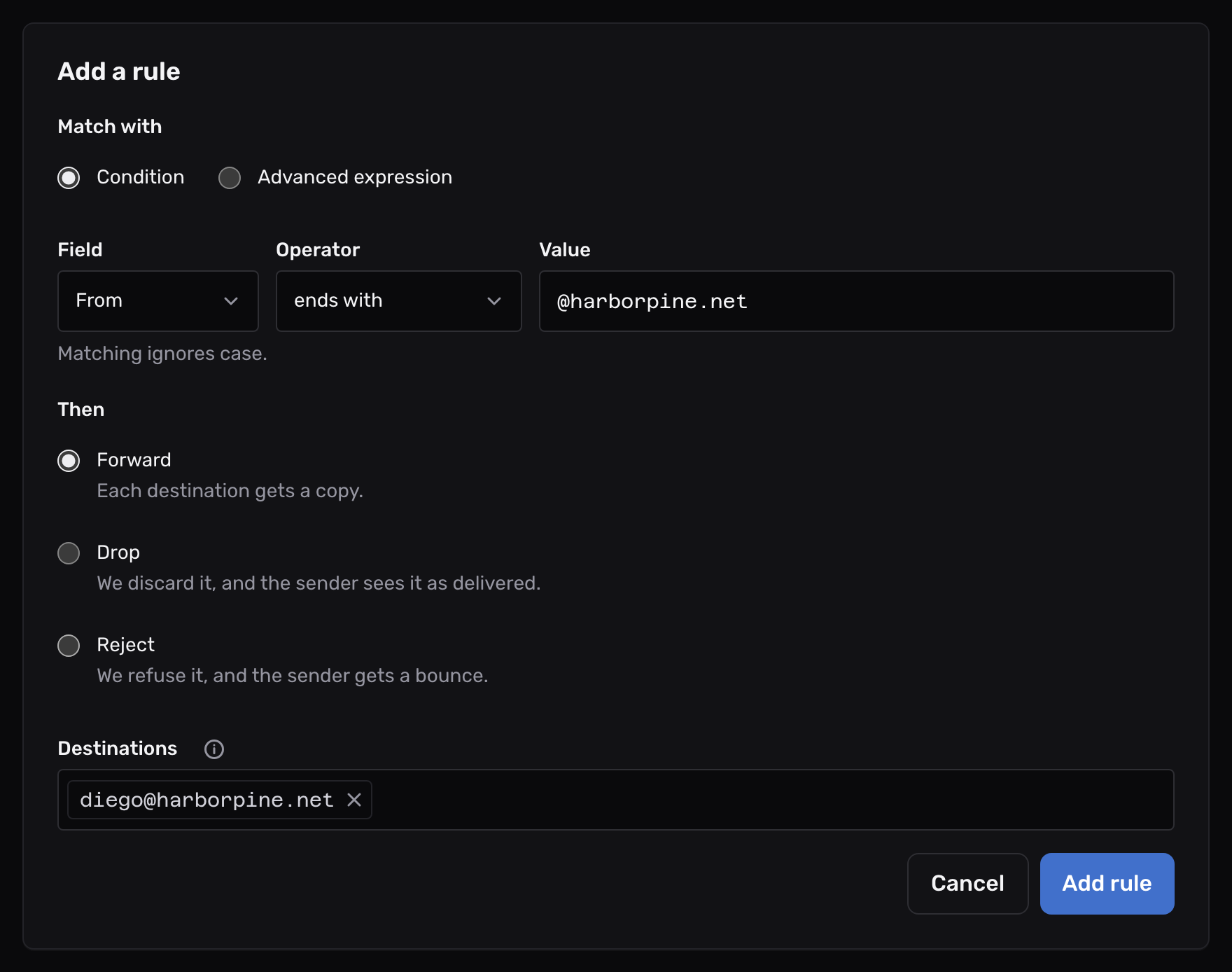
The Rules section appears above the aliases, with the new rule at the bottom of its list.
-
Put the rules in order#
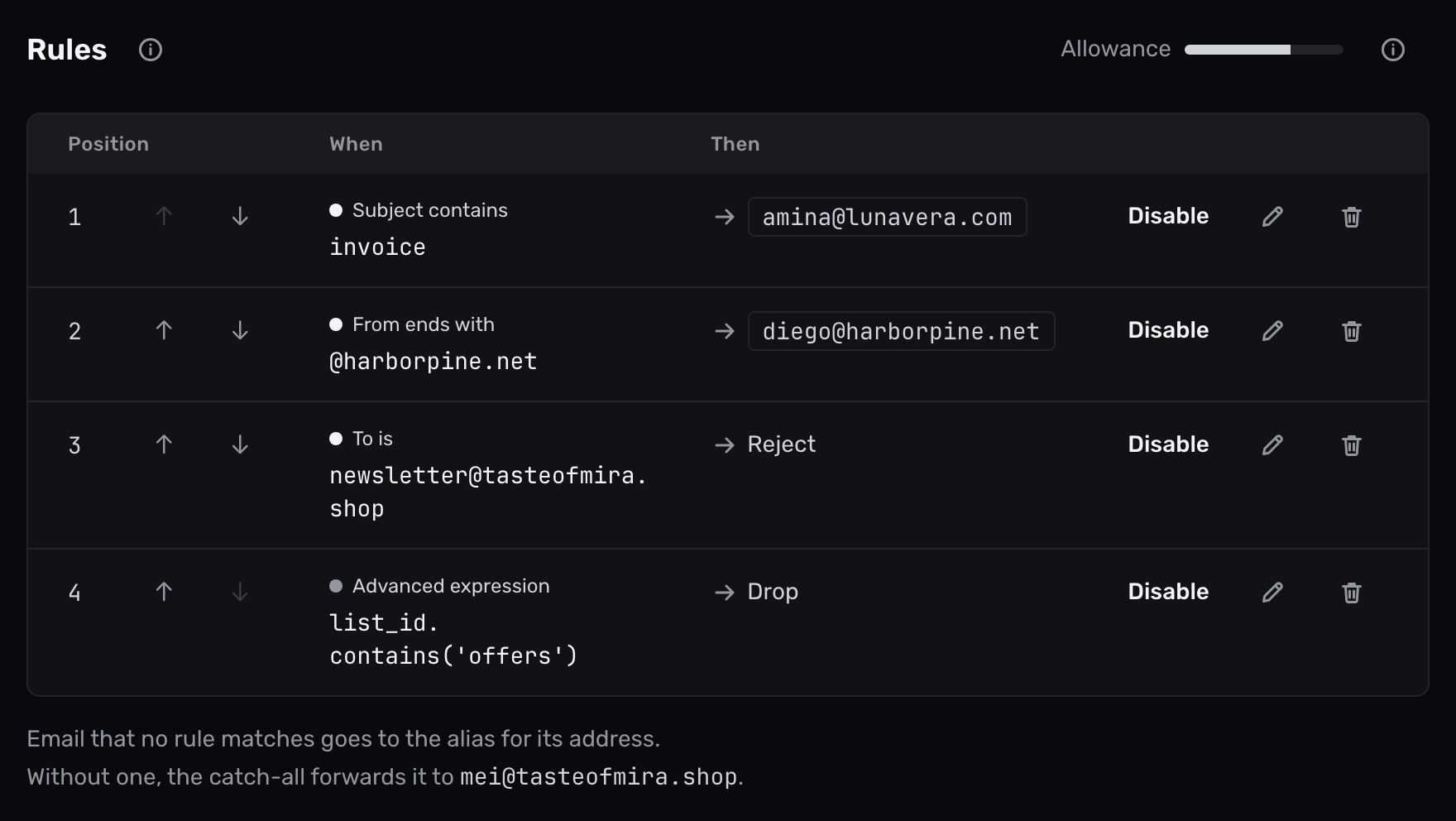
The Position column gives the order. Mailyoto tests rules from position 1 down. Move a rule with the up and down arrows on its row.
Conditions#
A condition reads one field of the email and compares it with your value.
| Field | What it reads |
|---|---|
| From | The sender’s address on the From line |
| To | Your address on the domain that the email came to, such as orders@tasteofmira.shop |
| Subject | The subject line |
| Body | The text of the email |
A rule reads the first 50,000 characters of the subject, of each header and of each text part of the body, and no more than 200,000 characters of the body in all. Advanced expressions read the same. Text past that point never matches.
| Operator | It matches when the field |
|---|---|
| contains | holds the value anywhere |
| starts with | begins with the value |
| ends with | ends with the value |
| is | is exactly the value |
| matches pattern | has a match for the value read as a regular expression |
- The first 4 ignore case:
invoicematches “Your Invoice”. They read the value as plain text:.and*mean themselves. - matches pattern searches the whole field. Case counts unless the pattern starts with
(?i). - matches pattern uses RE2 syntax, which has no lookarounds or backreferences.
Advanced expressions#
Choose Advanced expression under Match with to test several fields at once. An expression reads these names, each a piece of text:
| Name | Holds |
|---|---|
subject | The subject line |
body | The text of the email |
from | The sender’s address on the From line |
to | Your address on the domain that the email came to |
cc | The Cc line |
reply_to | The Reply-To line |
list_id | The List-Id line that mailing lists add |
Combine tests with && (and), || (or) and ! (not). Text has contains, startsWith, endsWith and matches, such as from.endsWith('@harborpine.net') && subject.contains('quote').
The expression has to give true or false. Mailyoto checks it when you save the rule.
Actions#
Every rule has one action under Then.
| Action | What happens to the email |
|---|---|
| Forward | Each destination gets a copy. |
| Drop | Mailyoto discards it. The sender sees it as delivered. |
| Reject | Mailyoto refuses it for that address with 550 5.7.1, and the sender gets a bounce. Its other addresses still get it. |
Forward takes up to 10 addresses in Destinations. Press Enter or type a comma after each one. The empty field shows your account email until you type in it. On Pro and Max, a destination can also be a webhook URL. If that URL stops working, Mailyoto pauses the rule and emails you. The rule then holds the email it matches until you select Resume on it. See When your endpoint stops working.
How Mailyoto applies the rules#
- Mailyoto tests the rules before the aliases, each recipient address on its own, from position 1 down.
- The first rule that matches decides what happens. Later rules are not tested for that address.
- Mailyoto skips a rule you switched off with Disable. Enable switches it back on.
- When no rule matches, the address goes to its alias, then to the catch-all, as on a domain without rules.
The 2 lines under the rules say what happens to email that no rule matches. They follow the catch-all:
- The catch-all forwards it to its destinations.
- A paused catch-all drops it, or holds it while the sending server retries, as its pause setting says.
- With no catch-all, or a catch-all paused to return email, Mailyoto rejects it.
So put narrow rules above broad ones. A rule To ends with @lunavera.com at position 1 would match every email before any other rule or alias.
Worked examples#
Amina adds 4 rules to lunavera.com, above her aliases. Her accountant, Diego, gets the invoices, a supplier’s email reaches both of them, an old address is closed and list offers are silenced.
| Position | When | Then |
|---|---|---|
| 1 | Subject contains invoice | Forward to diego.r.santos@outlook.com |
| 2 | From ends with @harborpine.net | Forward to amina.kone@gmail.com and diego.r.santos@outlook.com |
| 3 | To is newsletter@lunavera.com | Reject |
| 4 | Advanced expression list_id.contains('offers') | Drop |
- An invoice from the supplier goes to Diego only: position 1 matches first.
- Any other email from
harborpine.netgoes to both of them. - Senders who write to
newsletter@lunavera.comget a bounce. - Mailyoto discards mailing-list email whose List-Id holds
offers. - All other email follows her aliases. Her catch-all sends it to
amina.kone@gmail.com.
To treat email differently when Amina is only copied on it, test whether the Cc line holds the address it came to: cc.contains(to).
Send to addresses outside the domain. A rule that forwards to an address on the same domain sends the email through the rules again.
While the domain has rules#
- The Rules section on the Forwarding tab lists them above the aliases. Delete the last rule and the section goes away.
- Resending a failed email is off while the domain has an active rule, since a rule may have sent the original elsewhere.
- Reply from your alias works for email an alias forwards. Email that a rule forwards has no reply address.
- The Allowance bar beside the Rules heading shows how much of your plan’s per-domain allowance this domain uses. Its ⓘ gives the numbers.
If a rule doesn’t match#
Email goes to an alias instead of a rule
Check the rule’s Position: an earlier rule may match first.
For a condition, check the Field. To is your address on the domain, not the whole To line.
With matches pattern, case counts unless the pattern starts with (?i).
Check that the text the rule looks for is in the first 50,000 characters of the field.
For an advanced expression, check what it gives for that email. An expression that fails on an email, or takes too long on it, matches nothing. The email then goes to the aliases.
Senders get a bounce
A rule with Reject matched the email, or the address has no alias and the domain has no catch-all. Check the rules from position 1 down. Then add an alias for the address, or a catch-all.
Add rule is missing from the Forwarding tab
The Free plan doesn’t include rules. See the plans. On Pro and Max, the domain uses every rule its plan allows, and the Rules section says so. Delete a rule, or upgrade.