Block a sender from an alias
Stop one sender reaching an alias with the Unsubscribe button in your mail app, keep everyone else's email, and undo it later.
Updated 29 October 2026
When you finish, Mailyoto refuses one sender’s email to the alias, and everyone else’s email keeps arriving. It works on every plan, including Free.
Before you start
- An email from that sender that Mailyoto forwarded to you.
-
Select Unsubscribe in your mail app#
When a forwarded email has no unsubscribe link of its own, Mailyoto adds one that blocks the sender. Many mail apps show it as an Unsubscribe button or link next to the sender’s name. Open an email from the sender and select it.
-
Confirm the block#
Some mail apps block the sender at once. Others open a Mailyoto page titled Block this sender?, which shows the sender’s address and your alias. Select Block sender. The page then reads Sender blocked.
What the block does#
- Mailyoto refuses email from that sender to that alias. Their server receives
550 5.7.1 The recipient has blocked mail from this sender. - Each refused email shows in Logs as Failed, with its sender and subject.
- Everyone else’s email to the alias still arrives.
- The block covers one alias. The sender can still reach your other aliases. When one email goes to the blocked alias and another alias together, the other alias still gets its copy.
- If the email reached you through the catch-all, the block covers the catch-all: every address on the domain without an alias of its own.
Which address is blocked#
The block follows the address in the email’s From line, the one your mail app shows. If the sender also writes from another address, block that one too.
Note
Most newsletters carry their own unsubscribe link. Mailyoto leaves that link alone, because changing the email would break the sender’s signature. The Unsubscribe button then takes you off their list instead of blocking them. To quieten a sender like that without unsubscribing, use Keep only important email.
See and undo blocks#
On the domain’s Forwarding tab, select Edit (the pencil) on the alias’s row. Blocked senders lists every address the alias refuses.
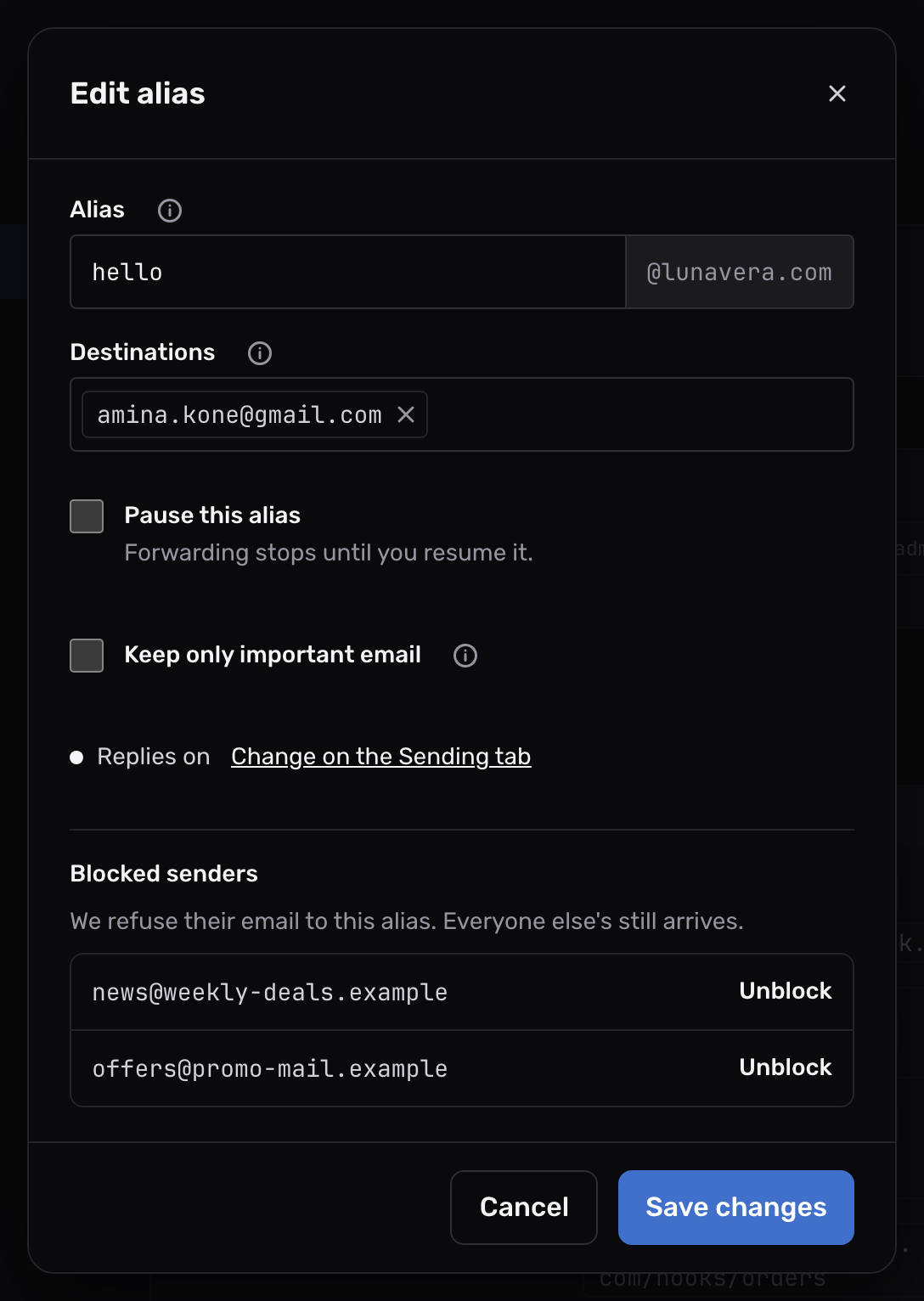
Select Unblock next to an address. Their email reaches the alias again from then on. Mailyoto refused the email they sent while blocked. It can’t forward that email later. Ask them to send it again.
Blocked destinations on the Forwarding tab is a different list: destinations Mailyoto stopped delivering to after they refused email. See blocked destinations.
Use the API#
List an alias’s blocked senders with GET /v1/domains/<domain>/aliases/<id>/blocked-senders.
Unblock one with DELETE /v1/domains/<domain>/aliases/<id>/blocked-senders/<blocked-sender-id>.
The API reference shows the responses.
The Unsubscribe button didn't block the sender
The email probably carried the sender’s own unsubscribe link, which unsubscribes you from their list. Check Blocked senders on the alias. If the sender is not listed, use Keep only important email or pause the alias.
The page says the link doesn't work
The link may be cut short, or the alias no longer exists. Use the Unsubscribe button on a newer email from the same sender.