Forward an alias to multiple inboxes
Give a shared address such as orders@ up to 10 destinations, one for each person who needs its email.
Updated 29 October 2026
When you finish, each email to the alias arrives as its own copy in every inbox you list.
Before you start
- An alias, or the address you want to create. See Aliases and the catch-all.
- The destination addresses, up to 10 per alias.
-
Open the alias#
On the domain’s Forwarding tab, select Edit (the pencil) on the alias’s row. To start a new alias, use Create an alias instead. The same field takes multiple addresses.
-
List the destinations#
In Destinations, type an address and press Enter, or type a comma after it. Each address becomes its own entry, with a × to remove it. A list you paste becomes one entry per address.
- Address
- orders
- Destinations
- amina.kone@gmail.com, diego.r.santos@outlook.com
To fix an address, press Backspace in the empty field. The last entry goes back to text you can edit.
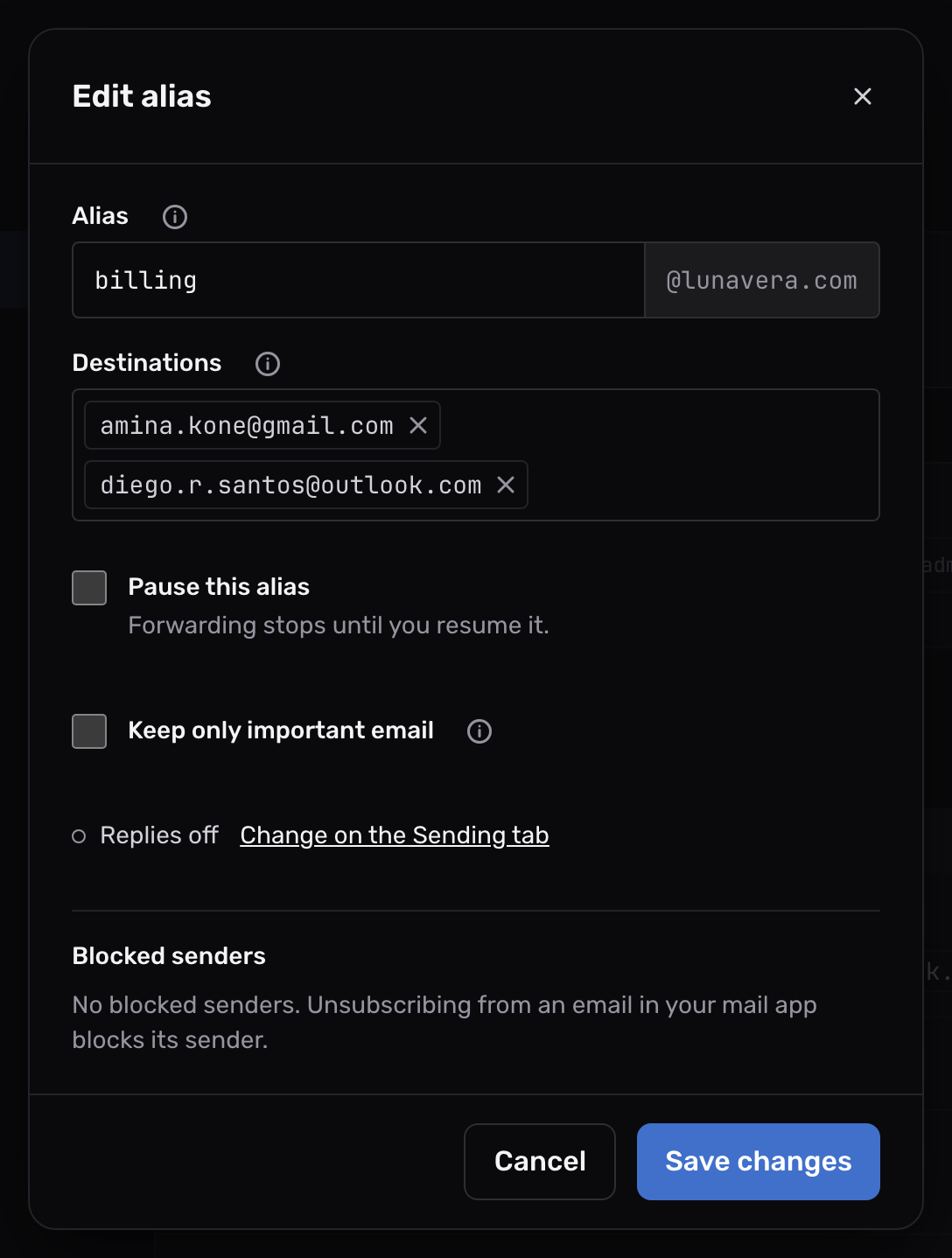
-
Save#
Select Save changes, or Create alias for a new one. The Forwards to column lists every destination.
On Pro and Max, a destination can also be a webhook URL, which receives each email as data. See webhooks.
Check it worked#
Select Send test (the paper plane) on the alias’s row, then look for the test email in each inbox. In Logs, the email has one row for each destination, with that destination under To. Confirm an alias forwards shows how to read them.
When one destination fails#
Mailyoto delivers to each destination on its own. If one inbox is full, deleted or refuses the email, the others still receive their copy. The failed delivery shows in Logs with the destination’s response.
When an address refuses email, Mailyoto may block it. It then shows under Blocked destinations at the top of the Forwarding tab, and a red dot marks it on the alias. The alias’s other destinations still get its email. See blocked destinations to remove an address from that list.
More than 10 destinations#
Mailyoto refuses a 7th destination, and the error names the limit.
To reach more people, write to support@mailyoto.com to ask for a higher limit, or forward the alias to a group address at your email provider.
If some copies are missing#
Only some destinations get the email
Open Logs. Each destination has its own row with its own status. A destination with Failed shows the response its server gave. Fix the address, or ask its owner to make room in the inbox.
The dashboard says a destination is not valid
The dashboard marks the entry it can’t read in red, and the message under the field names it.
Check that the address has an @, or that a URL starts with https:// or http://.
A webhook URL needs a paid plan.