Use your own domain in DNS records
Set a white-label domain so your customers' MX, SPF and DKIM records name your domain instead of Mailyoto.
Pro or Max plan Updated 29 October 2026
When you finish, a domain’s MX, SPF and DKIM records name your own white-label domain instead of Mailyoto.
White-label is for resellers and agencies who set up email for other people’s domains.
You choose a domain or subdomain you own, such as mail.tasteofmira.shop, and point 5 CNAME records on it at Mailyoto.
Your customers’ domains then use names like mx1.mail.tasteofmira.shop in their records.
White-label changes only the record names. Email still flows through Mailyoto. It isn’t a custom domain for bounces or replies.
Before you start
- A Pro or Max plan. On Free, the White-label card is hidden.
- Access to the DNS provider for your white-label domain.
- Access to the DNS provider for each domain that will use it.
Important
Setting a white-label domain changes the records a domain needs. Email to that domain stops arriving until both sets of records below are in place. For a domain that already receives email, prepare the white-label records first, then switch.
-
Set the white-label domain#
In Mailyoto, open the domain, select the Settings tab and find the White-label card. Enter your domain in White-label domain and select Save white-label domain.
The card also lists the white-label domains you already set on other domains. Choose one to reuse it.
-
Add the 5 CNAME records on the white-label domain#
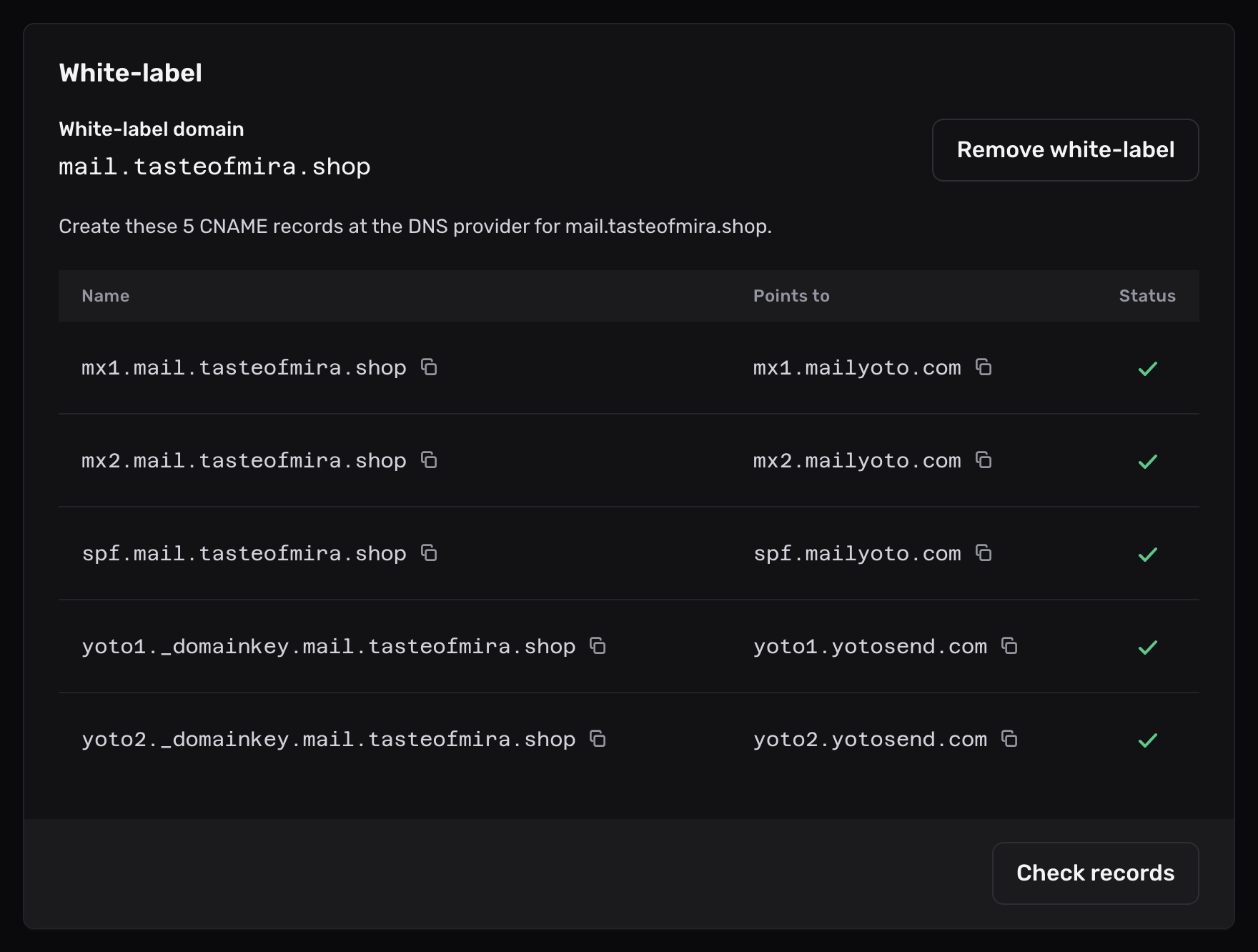
The card lists 5 CNAME records. Add them at the DNS provider for your white-label domain.
Name Points to mx1.mail.tasteofmira.shopmx1.mailyoto.commx2.mail.tasteofmira.shopmx2.mailyoto.comspf.mail.tasteofmira.shopspf.mailyoto.comyoto1._domainkey.mail.tasteofmira.shopyoto1.yotosend.comyoto2._domainkey.mail.tasteofmira.shopyoto2.yotosend.comYou add these once. Every domain that uses the same white-label domain shares them.
-
Check the records#
Select Check records on the card. Each row shows a tick once your DNS provider publishes it.
-
Update the domain’s own records#
Open the domain’s DNS tab. Its records now name your white-label domain:
- MX, priority 10
- mx1.mail.tasteofmira.shop
- MX, priority 20
- mx2.mail.tasteofmira.shop
- SPF (TXT)
- v=spf1 include:spf.mail.tasteofmira.shop ~all
- DKIM 1 (CNAME)
- yoto1._domainkey.mail.tasteofmira.shop
- DKIM 2 (CNAME)
- yoto2._domainkey.mail.tasteofmira.shop
At the domain’s DNS provider, replace the old Mailyoto values with these. The DKIM records keep their names,
yoto1._domainkeyandyoto2._domainkey. Only their targets change. The DKIM records apply only on Pro and Max, for sending. -
Check DNS#
Select Check DNS. Every row and the Forwarding pill show a tick.
Things to know#
- A single white-label domain can serve every domain on your account.
- If your plan changes to Free, the white-label domain stays in place, and you can still change or remove it.
- To go back, select Remove white-label domain on the card. Then put the standard Mailyoto values back on the DNS tab, or email stops arriving.
Problems#
A white-label record shows a cross
- Check that each name sits on the white-label domain, such as
mx1.mail.tasteofmira.shop, not on the customer’s domain. - Check that each record is a CNAME and points exactly at the value in the card.
- On Cloudflare, set each record to DNS only.
Then select Check records again.
Email stopped arriving after setting the white-label domain
The domain’s records still name Mailyoto, or the 5 CNAME records aren’t published yet. Finish both, then select Check DNS on the domain’s DNS tab.