Add DNS records at any provider
The exact records Mailyoto needs, what your DNS provider calls each field, and how to check the records yourself.
Updated 29 October 2026
Choose a different DNS provider
Domain registrars
Web hosts
DNS and cloud services
Website platforms
Every DNS provider takes the same 3 records for forwarding. Only the names of the form fields change, and the field name translation below covers the common ones.
Before you start
- The domain added in Mailyoto. See Add your domain.
- Access to your account at the company that runs your domain’s DNS. That is the company its nameservers belong to. It is often, but not always, where you bought the domain.
-
Delete the other MX records#
At your DNS provider, delete every MX record that doesn’t point to Mailyoto, such as one left from an earlier email service.
Mailyoto verifies the domain only when all of its MX records are Mailyoto’s. The DNS tab lists the ones it still finds.
-
Add the MX records#
Add 1 MX record per row below. Mailyoto checks for priority 10 on the first and 20 on the second.
MX records Type Host Value Priority MX @ mx1.mailyoto.com 10 MX @ mx2.mailyoto.com 20 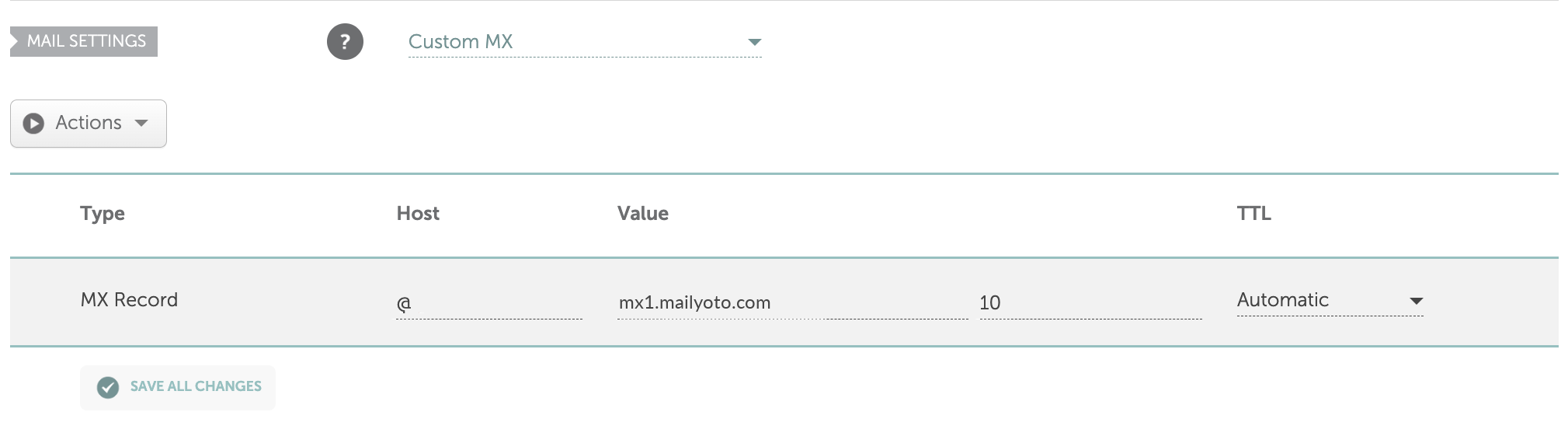
The same record at one DNS provider. Your provider's form may look different. -
Add the SPF record#
Add 1 TXT record.
- Type
- TXT
- Host
- @
- Value
- v=spf1 include:spf.mailyoto.com ~all
Important
A domain can have only 1 SPF record. If a TXT record starting with
v=spf1already exists, edit it instead: addinclude:spf.mailyoto.combefore its final~allor-all. See Merging SPF records. -
Add the DKIM records (optional)#
You need these only to send email from your domain. Sending is on the Pro and Max plans. Add 2 CNAME records.
- Type
- CNAME
- Host
- yoto1._domainkey
- Value
- yoto1.yotosend.com
- Type
- CNAME
- Host
- yoto2._domainkey
- Value
- yoto2.yotosend.com
Setting up DKIM explains what these records do.
-
Check the records in Mailyoto#
On the DNS tab, choose Check DNS. Each record shows a tick once Mailyoto sees it.
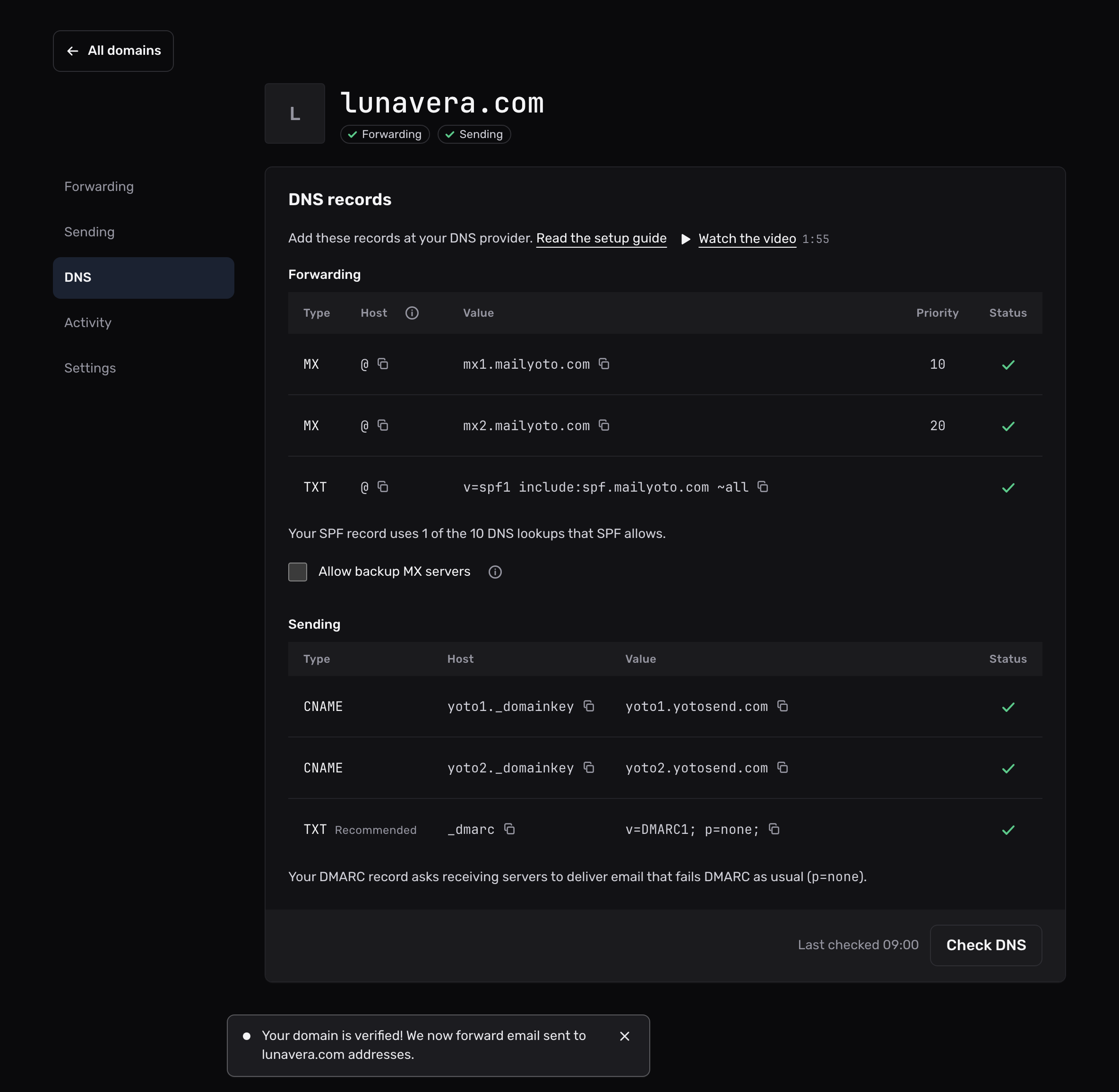
When Mailyoto finds the MX and SPF records, the Forwarding pill at the top of the domain shows a tick. If a record still shows a cross, check it again later. Mailyoto also checks every domain each day at 02:00 UTC.
Field name translation#
Providers name the same fields in different ways.
| Field | Other names you may see | What to enter |
|---|---|---|
| Host | Name, Hostname, Subdomain | @. If the form refuses @, leave it empty or enter your domain, such as lunavera.com. |
| Type | Record type | MX, TXT or CNAME |
| Value | Mail server, Answer, Content, Data, Points to, Target, Text | The server name or the SPF text |
| Priority | Preference, MX priority, Distance | 10 for mx1, 20 for mx2 |
| TTL | Time to live | Keep the provider’s default |
Forms differ in 2 more ways that often cause mistakes:
- Some forms add your domain to whatever you type in Host. On those, enter
@or leave the field empty, neverlunavera.com, or the record ends up onlunavera.com.lunavera.com. - Some forms add your domain to the end of the Value too. If a saved MX record reads
mx1.mailyoto.com.lunavera.com, enter the value again with a dot at the end:mx1.mailyoto.com.
Check the records yourself#
From a terminal on macOS or Linux, dig shows the public DNS records for your domain.
dig MX lunavera.com +shortThe response should list 10 mx1.mailyoto.com. and 20 mx2.mailyoto.com. and nothing else.
dig TXT lunavera.com +shortExactly 1 line should start with v=spf1 and contain include:spf.mailyoto.com.
dig NS lunavera.com +shortThis lists your domain’s nameservers. They show which company’s DNS records count.
If the domain doesn’t verify#
The records are at the wrong company
Records count only at the company the nameservers belong to. Run dig NS as above, then add the records there.
The priorities are different
Mailyoto accepts priority 10 for mx1.mailyoto.com and 20 for mx2.mailyoto.com. Edit any record with another number.
The SPF record doesn't name Mailyoto
The SPF record must contain include:spf.mailyoto.com. A tool that flattens SPF into a list of IP addresses removes that include. Mailyoto then can’t find it.
You still can't find the cause
Email support@mailyoto.com. Name your DNS provider and attach a screenshot of the records you added.