Allow backup MX servers
Choose whether your domain may keep another mail server's MX records next to Mailyoto's, and what the DNS check accepts either way.
Updated 27 October 2026
When you finish, your domain’s MX check matches the way you route its email.
Allow backup MX servers is a switch on every domain’s DNS tab, under the Forwarding records. It’s off by default. It decides whether Mailyoto’s check accepts MX records that point at another mail server.
What the check accepts#
| Off (default) | On | |
|---|---|---|
| Other MX records | Not allowed. Every MX record must point at Mailyoto, at a spam-filter service Mailyoto accepts, or at the filtering service you name. | Allowed. Mailyoto ignores them. |
| Mailyoto MX records needed | At least 1 | Both: mx1.mailyoto.com and mx2.mailyoto.com |
| Priorities of Mailyoto’s records | 10 for mx1 and 20 for mx2 | 10 for mx1 and 20 for mx2 |
The SPF check is the same in both positions.
When to switch it on#
Leave it off when Mailyoto is the only service that receives email for the domain. A stray MX record from an old email service then shows up as a cross on the Forwarding pill.
Switch it on when you keep another mail server on purpose:
- Split delivery. Your mail host, such as Google Workspace, Zoho Mail or Microsoft 365, keeps some inboxes and passes every other address to Mailyoto. See Share a domain with your mail host.
- A backup mail server. Another server keeps an MX record with a higher number than
20. It receives email only while Mailyoto’s servers are down.
Sending servers try the MX record with the lowest number first.
A record with a number lower than 10 receives your email before Mailyoto does.
Name your filtering service#
When a spam-filter service receives your email first and passes it on to Mailyoto, its MX records stay, and the switch can stay off.
After a check finds them, the DNS tab lists them under your current MX records.
Select Mark them as my filtering service, enter the domain the service’s hosts sit under in Filtering service domain, and select Save filtering service.
MX records under that domain then count as pointing at Mailyoto.
Set the service to deliver your email to mx1.mailyoto.com and mx2.mailyoto.com.
To undo it, select Remove filtering service.
-
Open the DNS tab#
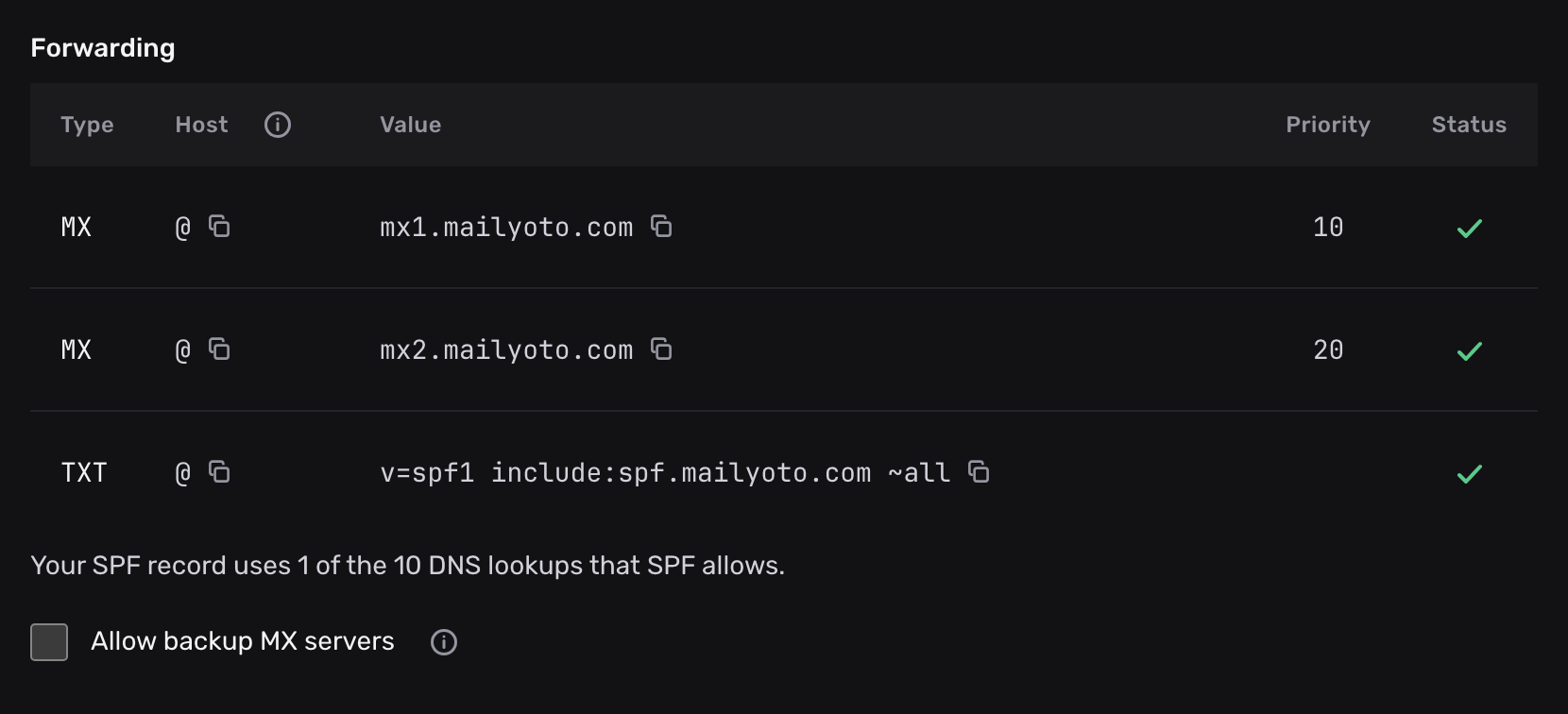
In Mailyoto, open your domain and select the DNS tab. Allow backup MX servers sits under the Forwarding records.
-
Change the setting#
Select or clear Allow backup MX servers. Mailyoto saves the change at once and checks your records again.
-
Read the result#
With backup MX servers allowed, the Forwarding pill shows a tick once both Mailyoto MX records and the SPF include are in place. Your other MX records can stay.
Problems#
Backup MX servers are allowed, and the Forwarding pill still shows a cross
With backup MX servers allowed, Mailyoto needs both of its MX records.
Add the missing one from the Forwarding table on the DNS tab, with its priority: 10 for mx1.mailyoto.com and 20 for mx2.mailyoto.com.
Then select Check DNS.
The MX records point at Mailyoto, and the pill still shows a cross
Check the priorities.
Mailyoto accepts 10 and 20 on its own records.
Any other pair, such as 5 and 10, fails the check.
Change them at your DNS provider, then select Check DNS.
Email reaches the other server instead of Mailyoto
Another MX record now has a lower number than Mailyoto’s.
That server receives your email first.
Give it a number higher than 20, or delete it.
For split delivery, set up the routing at that provider, as its guide describes.