Share a domain with your mail host
Keep inboxes at Google Workspace, Zoho Mail, Microsoft 365 or another mail host for some people, and send every other address on your domain to Mailyoto aliases.
Updated 27 October 2026
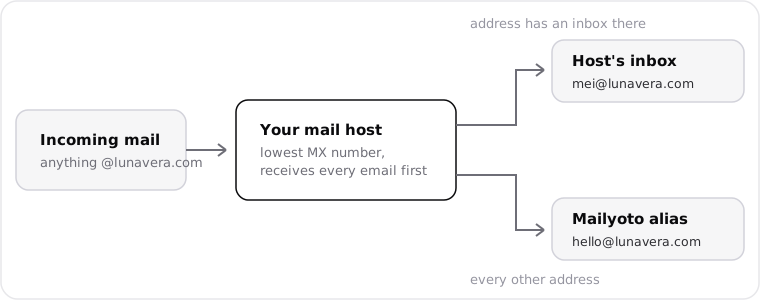
When you finish, your mail host delivers email for its own inboxes and passes every other address on your domain to Mailyoto.
Your mail host receives each email first, because its MX records keep the lowest numbers. Mailyoto’s 2 MX records sit behind them, which lets Mailyoto verify the domain.
Before you start
- Administrator access to your mail host’s admin console.
- Your domain added in Mailyoto, with the aliases you want. The catch-all handles any address without its own alias.
- Access to the DNS provider for your domain.
-
Pass unknown addresses to Mailyoto#
Set your mail host to pass email for addresses without an inbox there to Mailyoto’s servers.
Google Workspace
-
In the Google Admin console, open Apps, then Google Workspace, Gmail and Hosts, and select Add route.
-
Name the route
Mailyoto, choose Multiple hosts, and add both Mailyoto servers as primary hosts on port25, with the load split evenly.- Name
- Mailyoto
- Primary host
- mx1.mailyoto.com
- Primary host
- mx2.mailyoto.com
- Port
- 25
-
Open Apps, then Google Workspace, Gmail and Routing, and add a routing setting:
- Under the messages to affect, select Inbound and Internal - receiving.
- Under the account types to affect, select only Unrecognized / Catch-all.
- Under the route, choose Change route and pick
Mailyoto.
-
Save the setting. Only addresses without a Workspace account now leave Google.
You can turn on Google’s TLS options for the route. Mailyoto’s servers offer TLS with a certificate issued for
mx1.mailyoto.comandmx2.mailyoto.com.Zoho Mail
-
In the Zoho Mail Admin Console, open Mail Settings, then Email Routing, and add a routing configuration.
- Domain
- lunavera.com
- Destination host
- mx1.mailyoto.com
- Verification email
- hello@lunavera.com
For the verification email, enter an address that has a Mailyoto alias and no Zoho account.
-
Zoho sends a verification email to that address. Mailyoto forwards it to the alias’s destination, such as
amina.kone@gmail.com. Open it there and follow Zoho’s confirmation link. -
Open the routing configuration’s basic settings, set the type of email delivery to Split delivery, and save.
Microsoft 365
-
In the Exchange admin center, open Mail flow, then Accepted domains, and select
lunavera.com. Change the domain type to Internal relay and save. Microsoft then relays email for unknown addresses instead of refusing it. -
Open Mail flow, then Connectors, and add a connector:
- Choose Office 365 as the source and Partner organization as the destination.
- Name it
Mailyoto. - Choose to use it only for email sent to these domains, and enter
lunavera.com. - Choose to route email through these smart hosts, and add both Mailyoto servers.
- Keep Always use Transport Layer Security (TLS) on, with a certificate issued by a trusted certificate authority. Mailyoto’s servers hold a certificate for their names.
- Name
- Mailyoto
- Domain
- lunavera.com
- Smart host
- mx1.mailyoto.com
- Smart host
- mx2.mailyoto.com
-
Microsoft asks for an address to validate the connector. Enter an address that has a Mailyoto alias and no Microsoft mailbox, such as
hello@lunavera.com. The test email arrives at that alias’s destination.
Another mail host
-
In your mail host’s admin console, look for a setting that sends email for unknown addresses to another server. Hosts call it split delivery, dual delivery, a route for unknown recipients, or a relay for unknown users.
-
Enter Mailyoto’s servers as the destination, on port
25. If the setting takes one server, entermx1.mailyoto.com.- Destination server
- mx1.mailyoto.com
- Second server, if it asks
- mx2.mailyoto.com
- Port
- 25
-
If the host asks for an address to test with, enter one that has a Mailyoto alias and no inbox at the host, such as
hello@lunavera.com.
If your host has no such setting, it can’t share the domain. Add a subdomain to Mailyoto instead, such as
team.lunavera.com, and keep the main domain at your host. -
-
Add Mailyoto’s records next to your host’s#
At your DNS provider, keep your host’s MX records. Each of them must have a number lower than
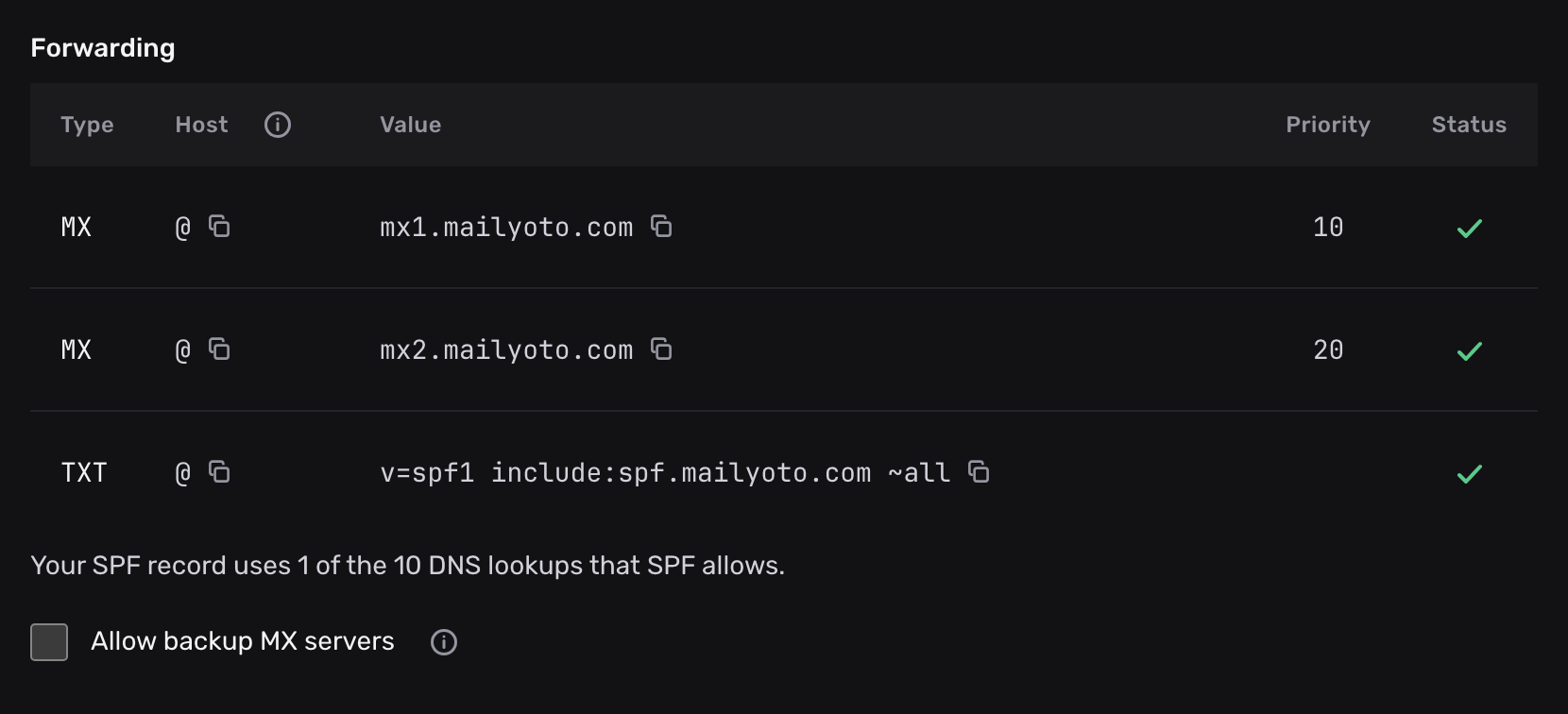
10. Change any that don’t, keeping their order.Add Mailyoto’s 2 MX records:
MX records Type Name Mail server Priority MX @ mx1.mailyoto.com 10 MX @ mx2.mailyoto.com 20 Then add
include:spf.mailyoto.comto your existing SPF record, before the final~all. Don’t create a second record. For Google Workspace, the record becomes:- Content
- v=spf1 include:_spf.google.com include:spf.mailyoto.com ~all
Keep your host’s include exactly as your host gave it. The SPF merging guide covers records with more services.
-
Allow backup MX servers#
In Mailyoto, open your domain’s DNS tab and select Allow backup MX servers under the Forwarding records. Mailyoto saves the change at once, and then accepts your host’s MX records next to its own. See Allow backup MX servers.
-
Check DNS#
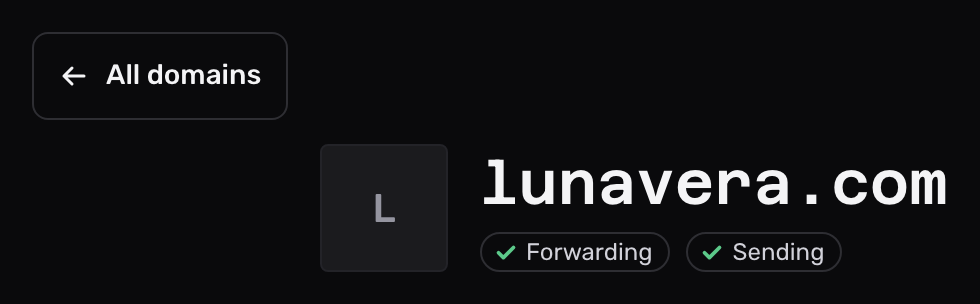
Open the DNS tab and select Check DNS. Both MX rows, the SPF row and the Forwarding pill show a tick.
Test it#
From an account outside your domain, send 2 emails: one to an inbox at your host, one to a Mailyoto alias such as hello@lunavera.com.
- The inbox at your host receives the first email.
- The second reaches the alias’s destination, and it appears under Logs in Mailyoto.
Things to know#
- An address lives on one side only. When
mei@lunavera.comhas an inbox at your host, your host delivers it, and a Mailyoto alias with the same name never receives email. - Mailyoto’s logs show only the email your host passes on. For a message that seems lost, search your host’s own email log first: Google’s email log search, or a message trace in Microsoft’s Exchange admin center.
- New aliases need no change at your host. Its setting already covers every address without an inbox.
- With Microsoft 365, don’t point an alias at an address on
lunavera.comthat has no Microsoft mailbox. Microsoft would relay it back to Mailyoto. - If your host is down, sending servers deliver to Mailyoto’s MX records instead. Mailyoto then handles every address like any other: an alias or the catch-all forwards it, and Mailyoto refuses an address with neither.
Problems#
The verification or test email never arrives
Mailyoto refused it because the address has no alias. Microsoft shows this response when the connector’s validation fails:
550 5.1.0 Mail to <hello@lunavera.com> is not deliverable at this domain. Confirm the address with the recipient before resending.Create an alias for that address on the Forwarding tab, or set up a catch-all, then ask your host to send the email again.
Email to an alias never reaches Mailyoto
Your host is delivering it, or refusing it, before its routing setting applies.
- Check that the setting covers unknown addresses (in Google Workspace, Unrecognized / Catch-all accounts) and sends them to Mailyoto.
- Check that no user or group at your host has the alias’s address.
- Check that every one of your host’s MX records has a number lower than
10.
Senders get a refusal for an inbox at your host
That email reached Mailyoto, not your host, and the address has no alias or catch-all in Mailyoto.
Usually one of your host’s MX records has a number of 10 or higher.
Lower it below 10, then ask the sender to send again.
Mailyoto refuses forwarded email to an Outlook.com or iCloud mailbox
The sender’s domain has a strict DMARC policy (p=reject), and the email carries no valid DKIM signature for that domain.
Microsoft and Apple mailboxes refuse such a forward.
When SPF passes for the sender’s domain, Mailyoto delivers the email from a reply address on reply.yotosend.com
instead, with the sender’s name and address in its display name.
Otherwise Mailyoto refuses it with this response:
550 5.7.1 Delivery refused: the destination mailbox provider requires DMARC-aligned mail and this message is not aligned.Ask the sender to sign their email with DKIM, or point the alias at a mailbox at another provider. See Email refused because of DKIM.
The Forwarding pill shows a cross
Check 3 things:
- You selected Allow backup MX servers on the DNS tab.
- Both
mx1.mailyoto.com(10) andmx2.mailyoto.com(20) are in place. - Your one SPF record includes
spf.mailyoto.com.
Then select Check DNS.