Add DNS records in Amazon Route 53
Add the MX and SPF records to your Route 53 hosted zone so email sent to your domain reaches your inbox through Mailyoto.
Updated 29 October 2026
Choose a different DNS provider
Domain registrars
Web hosts
DNS and cloud services
Website platforms
Add Mailyoto’s records in Amazon Route 53 if the domain’s DNS is a hosted zone there.
Before you start
- Your domain added in Mailyoto
- Access to the AWS account that holds the hosted zone, with permission to edit Route 53 records
-
Open the hosted zone#
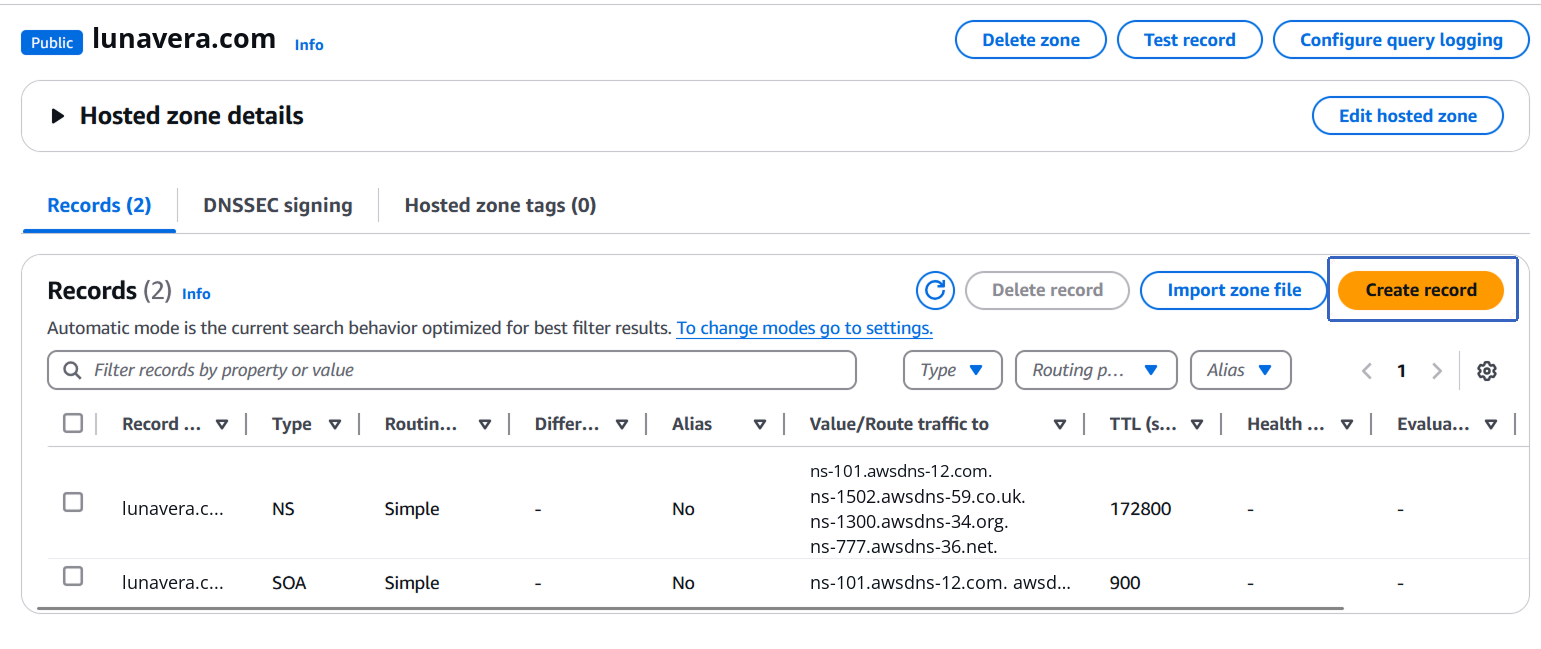
In the AWS console, open Route 53 → Hosted zones and select your domain, for example
lunavera.com.
Important
Use the hosted zone whose name servers your registrar lists for the domain. Route 53 allows 2 or more hosted zones with the same name. Records in any other zone with that name have no effect.
-
Remove other MX values#
Route 53 keeps all MX values for a name in 1 record set.
If the zone already has an MX record set on the root, select it and choose Edit record. Remove every value that doesn’t point to Mailyoto, then go to the next step and type Mailyoto’s values into that same set. Mailyoto checks that every MX record on the domain is one of its own.
If there is no MX record set yet, select Create record.
-
Add both MX values in one record#
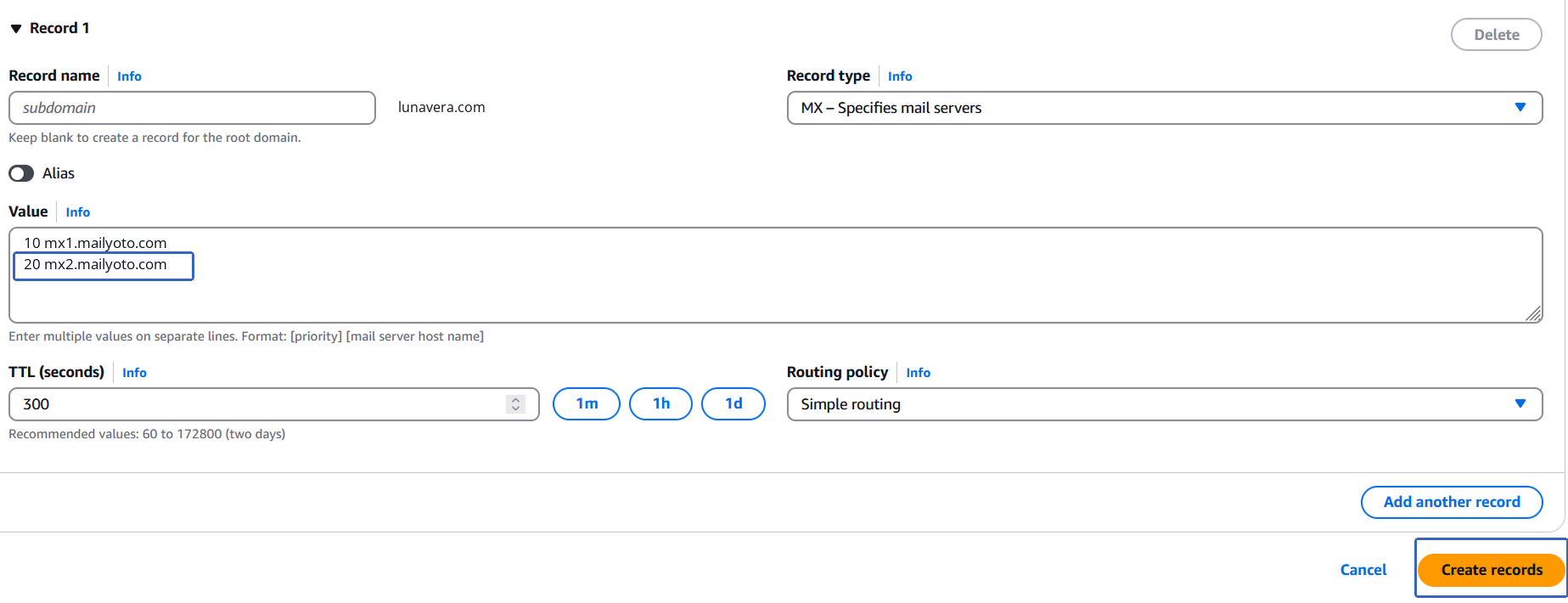
Leave Record name blank. The record is then on the root of the domain.
Choose MX as the Record type and type both values in Value, 1 per line. Then select Create records, or Save when you are editing an existing set.
- Record name
- Leave blank
- Record type
- MX
- Value, line 1
- 10 mx1.mailyoto.com
- Value, line 2
- 20 mx2.mailyoto.com
- TTL (seconds)
- Leave the default
-
Add the SPF record#
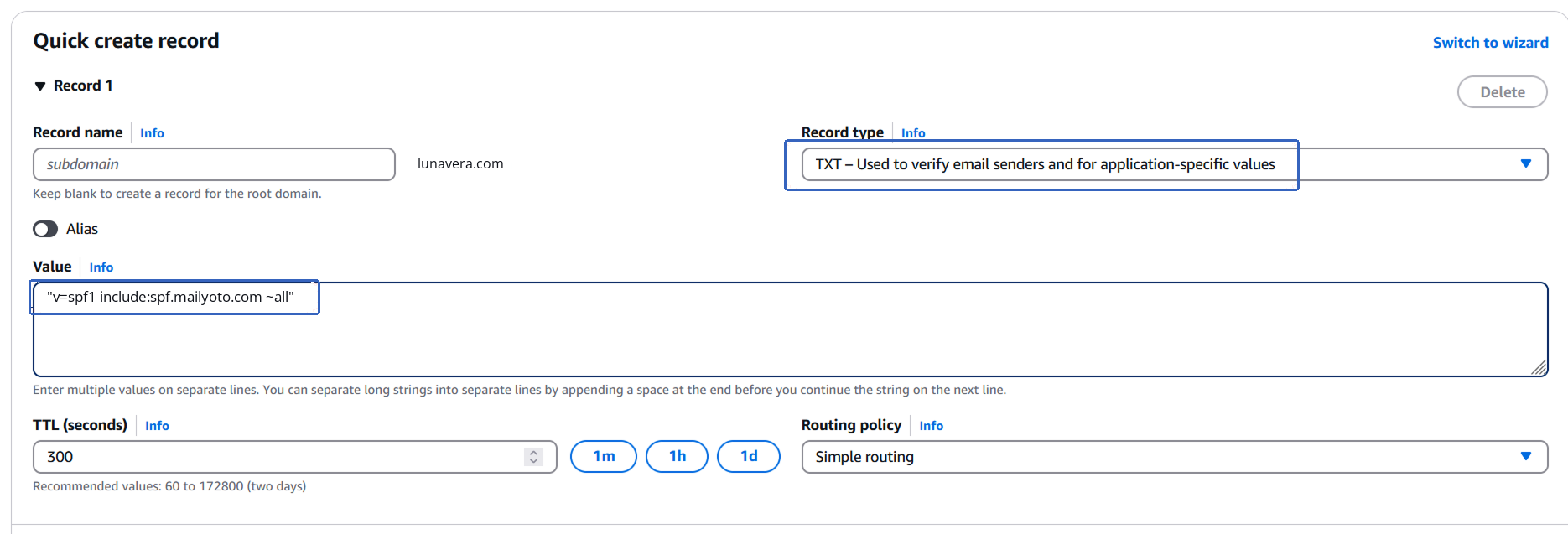
Create a record with Record name blank and Record type TXT.
Type the value with the double quotes around it.
- Record name
- Leave blank
- Record type
- TXT
- Value
- "v=spf1 include:spf.mailyoto.com ~all"
Important
Route 53 keeps 1 TXT record set per name. If the root already has a TXT record set, edit it and add the SPF value as a new line. If one of its lines already starts with
"v=spf1, addinclude:spf.mailyoto.comto that line before its final~allor-allinstead, as Merging SPF records shows. -
Add the DKIM records to send email#
Skip this step if you only receive email. To send from your domain on Pro or Max, create these 2 CNAME records.
- Record name
- yoto1._domainkey
- Record type
- CNAME
- Value
- yoto1.yotosend.com
- Record name
- yoto2._domainkey
- Record type
- CNAME
- Value
- yoto2.yotosend.com
Setting up DKIM explains what these records do.
-
Check the records in Mailyoto#
In Mailyoto, open Domains, choose your domain, then open the DNS tab.
Select Check DNS. Each record shows a tick when Mailyoto finds it, or a cross when it doesn’t.
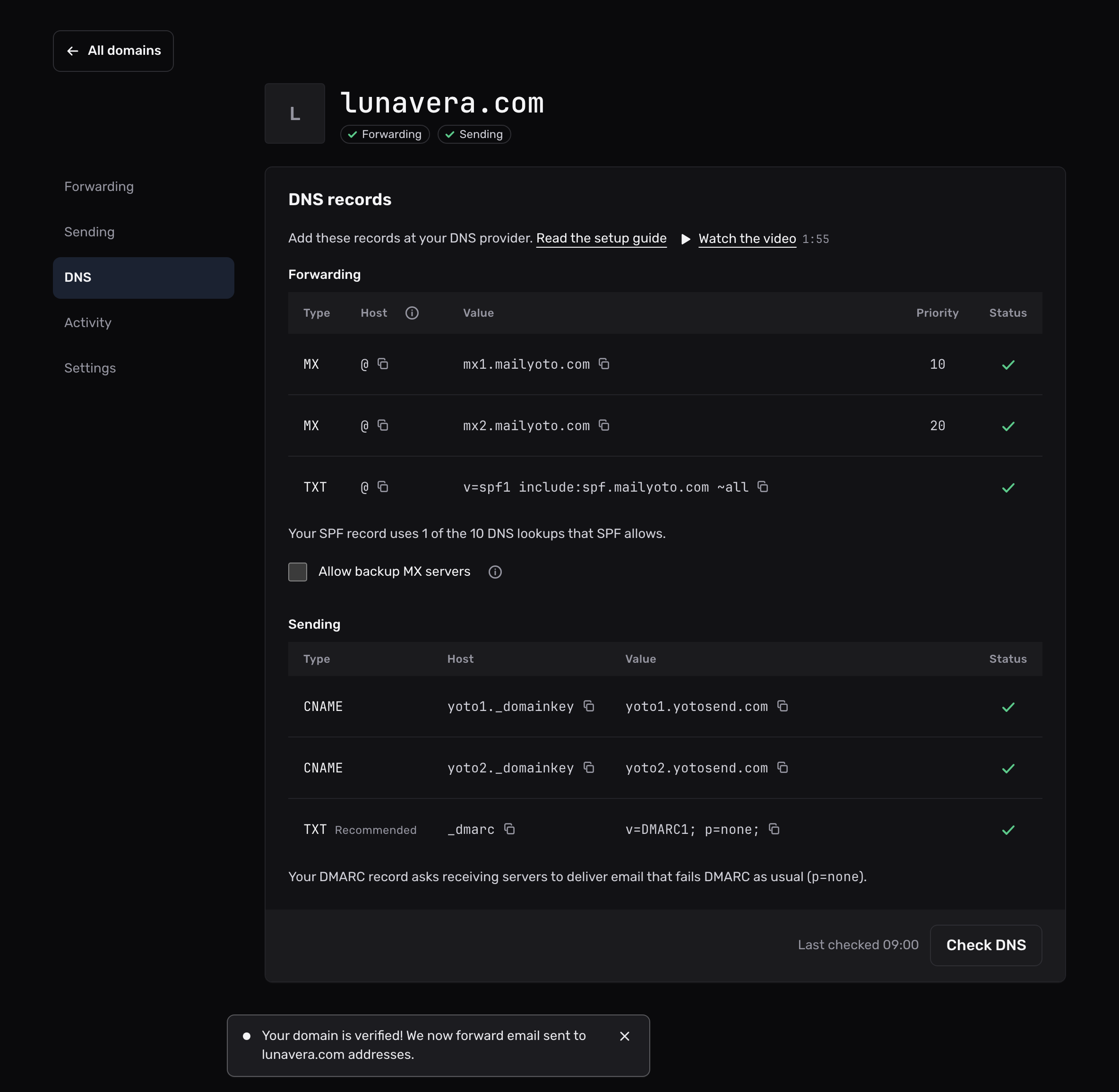
Mailyoto forwards email once it finds both MX records and the SPF record. The Forwarding pill at the top of the domain then shows a tick.
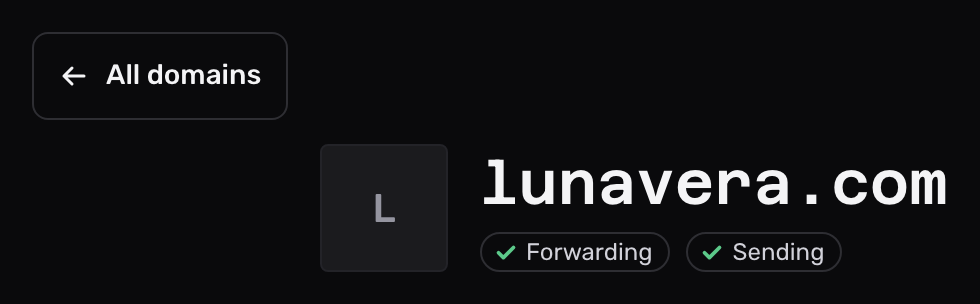
Mailyoto also checks every domain again each day at 02:00 UTC. To watch an email arrive, use Send test (the paper plane) on an alias in the Forwarding tab.
If the domain doesn’t verify#
Route 53 says the record set already exists
The zone already has an MX or TXT record set on the root. Cancel, select the existing set, choose Edit record, and add Mailyoto’s values to it as new lines.
Route 53 refuses the TXT value
Route 53 needs each TXT value inside double quotes.
Type "v=spf1 include:spf.mailyoto.com ~all" with the quotes, then save again.
The records are on the wrong name
Route 53 adds the domain to whatever you type in Record name.
Typing lunavera.com there creates lunavera.com.lunavera.com.
Edit the record and leave Record name blank.
Every record shows a cross
The records are probably in a hosted zone the domain doesn’t use. Compare the zone’s NS record with the name servers at your registrar, and add the records to the zone that matches.