Add DNS records in HostGator
Add the MX and SPF records in HostGator's advanced DNS records so email sent to your domain reaches your inbox through Mailyoto.
Updated 29 October 2026
Choose a different DNS provider
Domain registrars
Web hosts
DNS and cloud services
Website platforms
Add Mailyoto’s records in HostGator if the domain uses HostGator for its DNS.
Before you start
- Your domain added in Mailyoto
- Access to the HostGator account that holds the domain
-
Open the advanced DNS records#
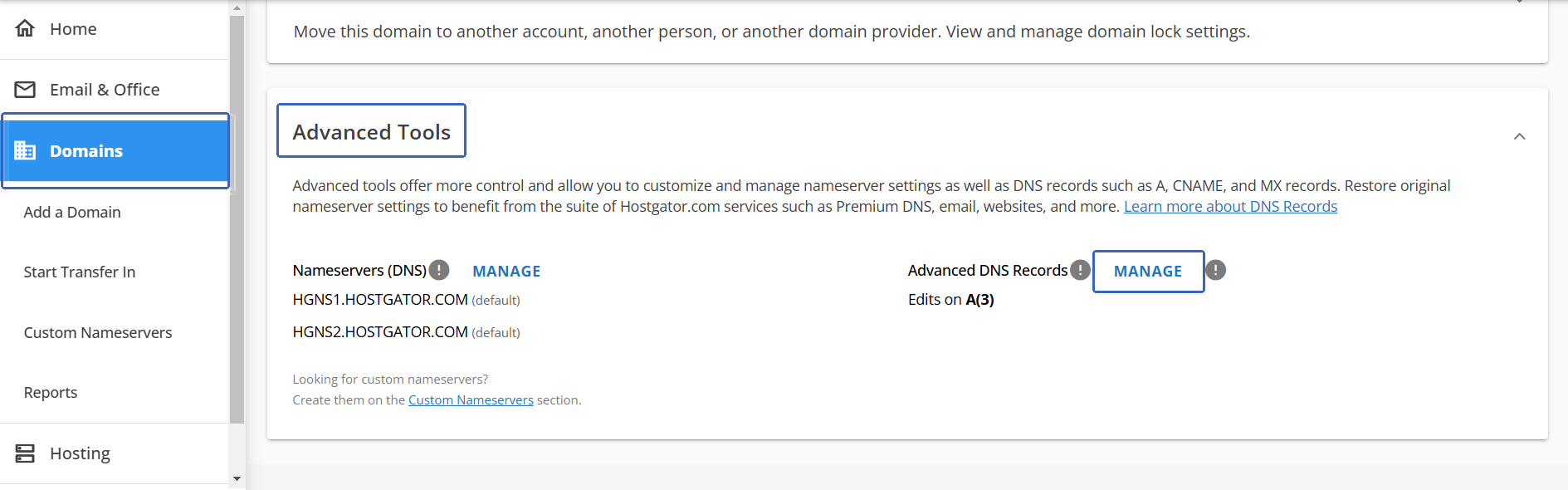
Sign in to your HostGator account, open Domains in the left menu and choose your domain, for example
lunavera.com.In the Advanced Tools section, select MANAGE beside Advanced DNS Records.
-
Delete other MX records#
In the MX section, delete every record that doesn’t point to
mx1.mailyoto.comormx2.mailyoto.com. Mailyoto checks that every MX record on the domain is one of its own.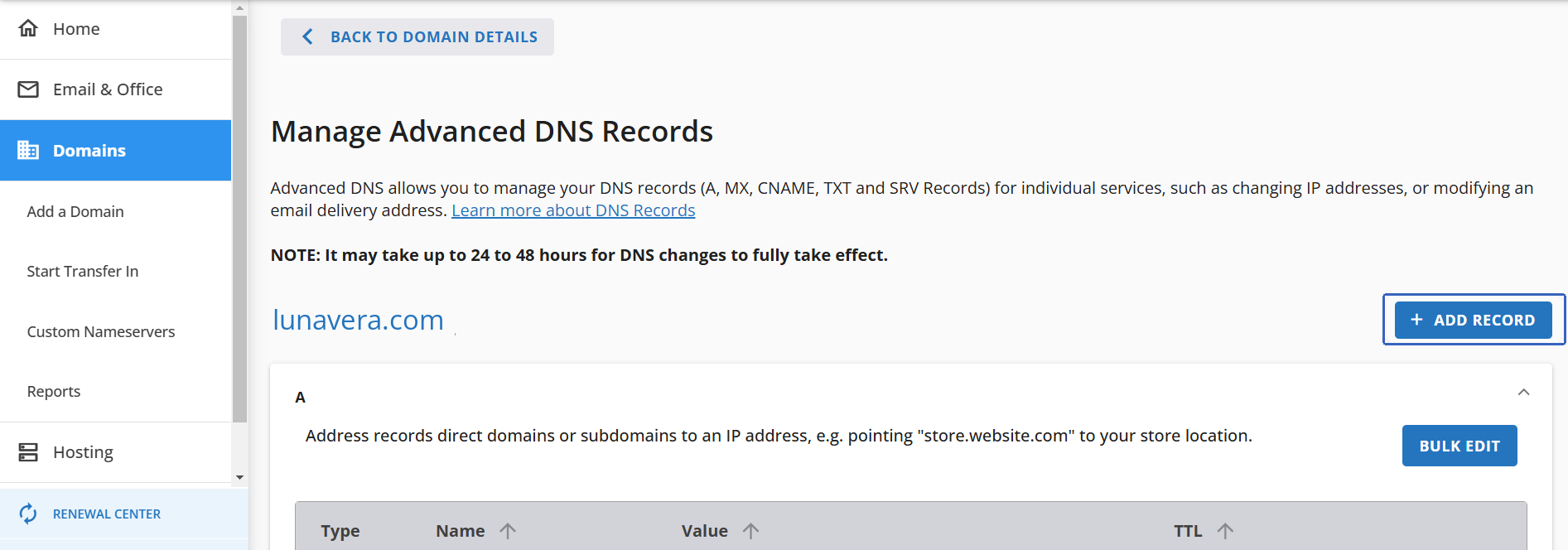
-
Add the MX records#
Each row below is 1 MX record. Select ADD RECORD for each, fill in the form, then select ADD.
MX records Type Refers to Mail Server Priority MX @ mx1.mailyoto.com 10 MX @ mx2.mailyoto.com 20 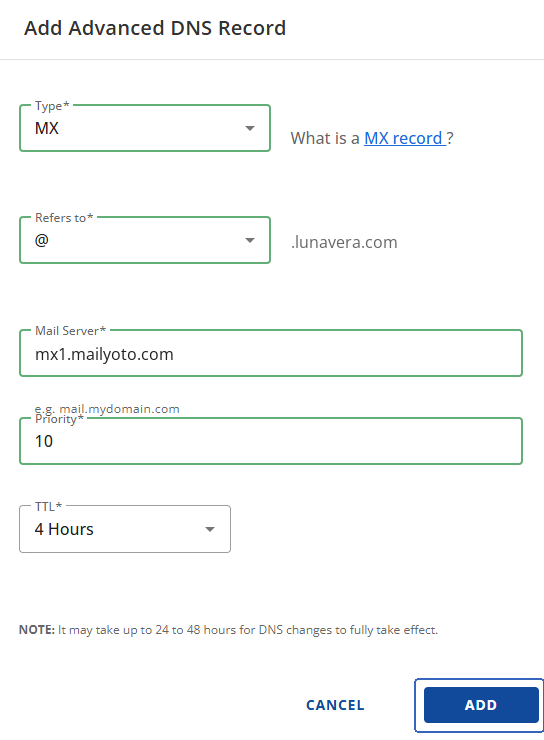
Leave TTL as HostGator sets it.
-
Add the SPF record#
Select ADD RECORD and choose TXT as the type.
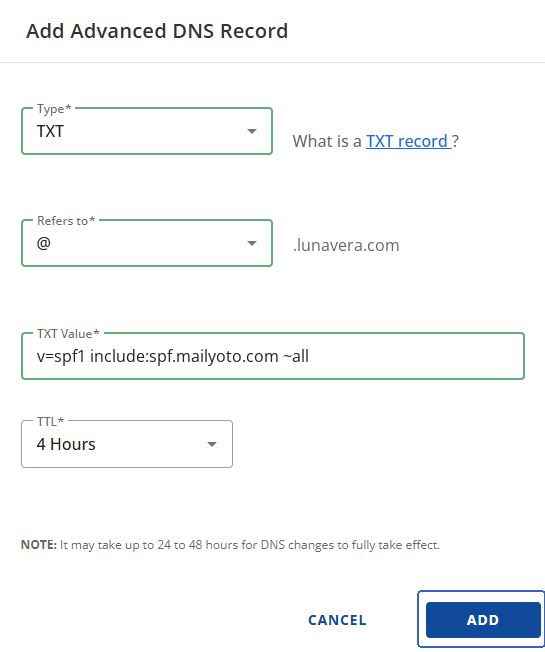
- Type
- TXT
- Refers to
- @
- TXT Value
- v=spf1 include:spf.mailyoto.com ~all
Important
A domain can have only 1 SPF record. If a TXT record starting with
v=spf1is already there, edit it instead of adding a second one. Putinclude:spf.mailyoto.combefore its final~allor-all, as Merging SPF records shows. -
Set email routing to remote#
Skip this step if the domain has no HostGator hosting.
If it does, open cPanel, then Email Routing, and choose Remote Mail Exchanger for the domain. With local routing, email that your own website sends to your domain stays on HostGator’s server and never reaches Mailyoto.
-
Add the DKIM records to send email#
Skip this step if you only receive email. To send from your domain on Pro or Max, add these 2 records with CNAME as the type.
- Type
- CNAME
- Host name
- yoto1._domainkey
- Points to
- yoto1.yotosend.com
- Type
- CNAME
- Host name
- yoto2._domainkey
- Points to
- yoto2.yotosend.com
Setting up DKIM explains what these records do.
-
Check the records in Mailyoto#
In Mailyoto, open Domains, choose your domain, then open the DNS tab.
Select Check DNS. Each record shows a tick when Mailyoto finds it, or a cross when it doesn’t.
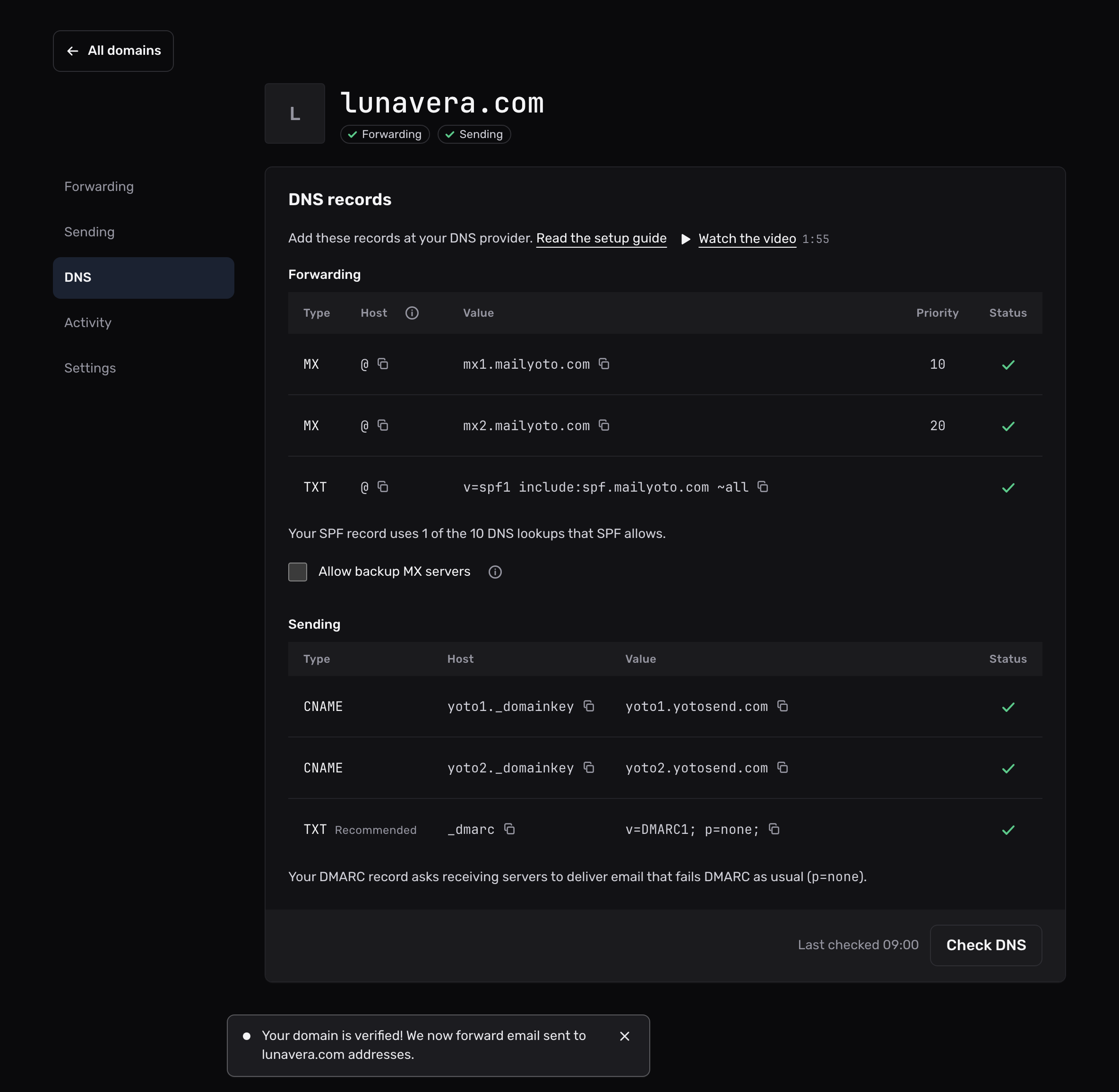
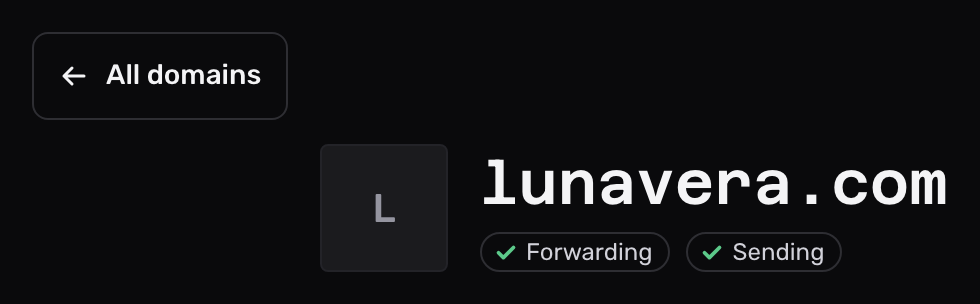
Mailyoto forwards email once it finds both MX records and the SPF record. The Forwarding pill at the top of the domain then shows a tick.
Mailyoto also checks every domain again each day at 02:00 UTC. To watch an email arrive, use Send test (the paper plane) on an alias in the Forwarding tab.
If the domain doesn’t verify#
Email from your own website never arrives
cPanel still routes the domain’s email locally. Set Email Routing to Remote Mail Exchanger, as in the routing step above.
The MX records show a cross
Check that the priorities are exactly 10 for mx1.mailyoto.com and 20 for mx2.mailyoto.com.
Mailyoto doesn’t accept other numbers.
Also delete any MX record that still points to HostGator or another provider.
The SPF record shows a cross
Look for a second TXT record starting with v=spf1.
A domain with 2 SPF records fails the SPF check. Merge them into one.