Add DNS records in Hover
Point your Hover domain's email to Mailyoto with 2 MX records and 1 SPF record on Hover's DNS tab.
Updated 29 October 2026
Choose a different DNS provider
Domain registrars
Web hosts
DNS and cloud services
Website platforms
Hover keeps each domain’s records on a DNS tab in its control panel.
Before you start
- The domain added in Mailyoto. See Add your domain.
- Access to the Hover account that holds the domain.
-
Open the DNS tab#
Sign in to Hover and choose your domain, for example
lunavera.com. Open the DNS tab.
Note
These records count only if the domain uses Hover’s nameservers. If they point to another company, add the records there.
-
Delete the other MX records#
In the list of records, delete every MX record that doesn’t point to Mailyoto, such as the ones Hover adds for its own email.
Mailyoto verifies the domain only when all of its MX records are Mailyoto’s.
-
Add the MX records#
On the DNS tab, create 1 record per row below. Set Type to MX, fill in the fields and choose New Record.
MX records Type Hostname Mail server Priority MX @ mx1.mailyoto.com 10 MX @ mx2.mailyoto.com 20 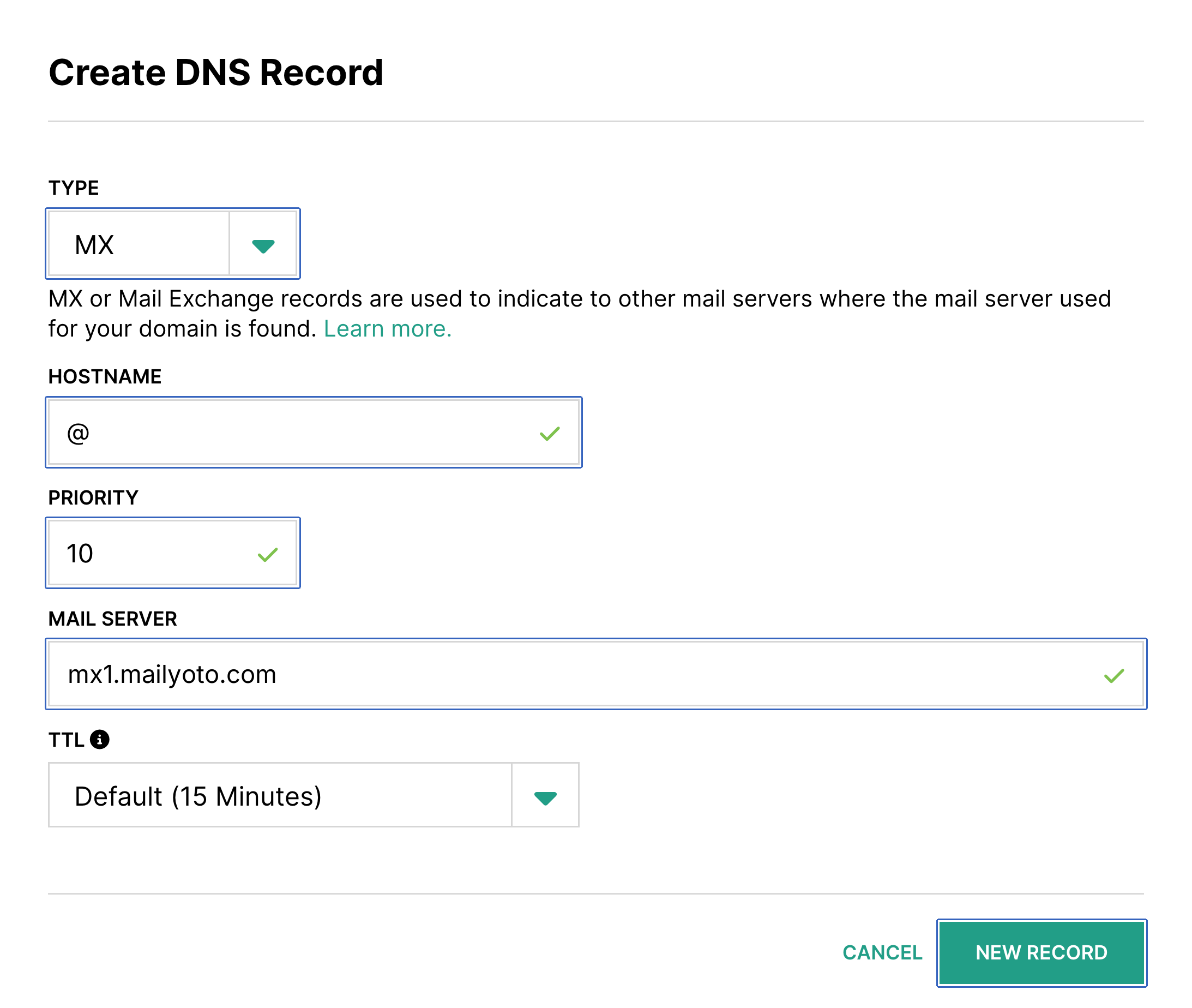
Leave TTL on its default.
-
Add the SPF record#
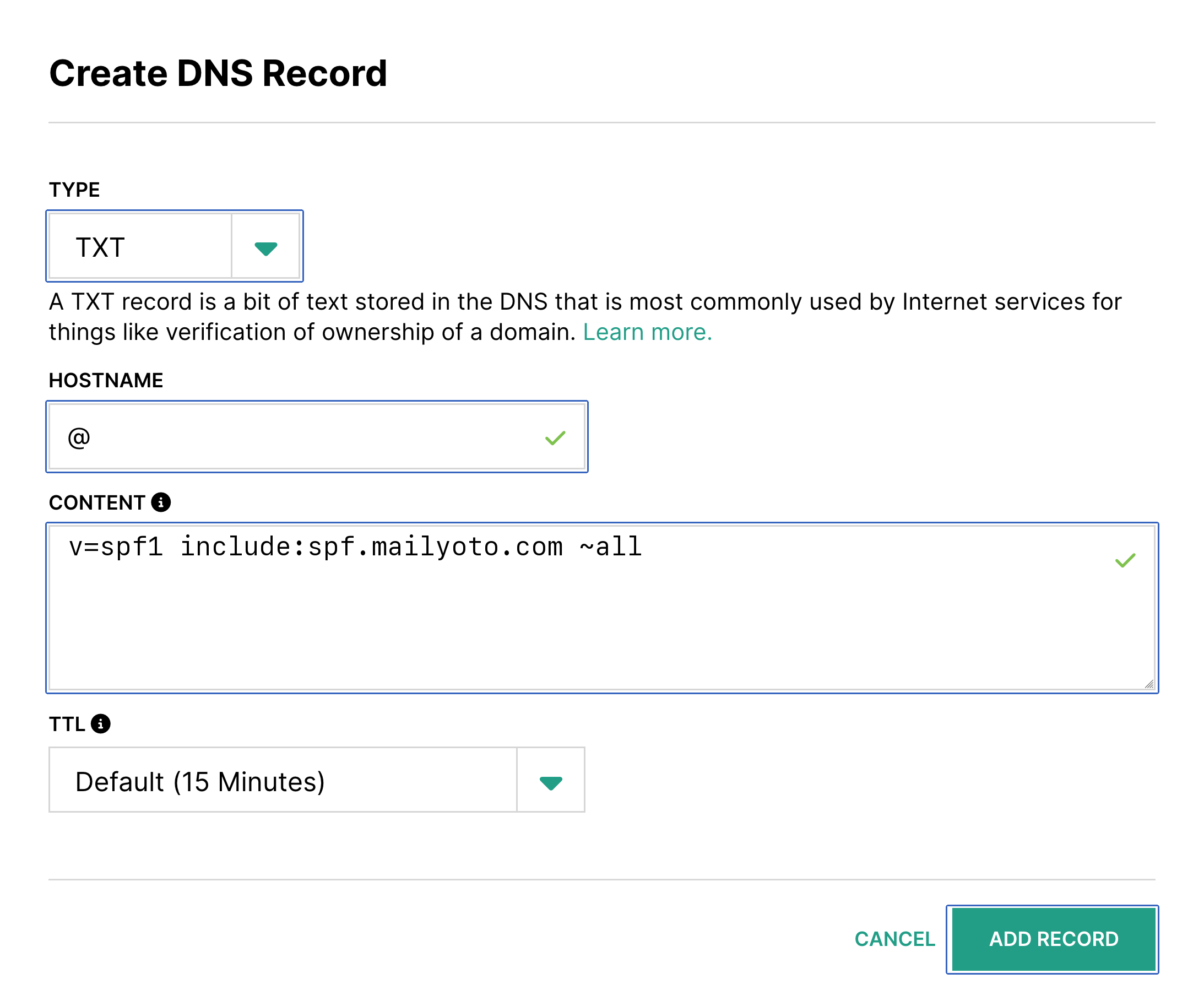
Start another new record. Set Type to TXT, fill in the fields and choose Add Record.
- Type
- TXT
- Hostname
- @
- Content
- v=spf1 include:spf.mailyoto.com ~all
Important
A domain can have only 1 SPF record. If the list already has a TXT record starting with
v=spf1, edit it instead: addinclude:spf.mailyoto.combefore its final~allor-all. See Merging SPF records. -
Add the DKIM records (optional)#
You need these only to send email from your domain. Sending is on the Pro and Max plans. Add 2 records with Type CNAME.
- Hostname
- yoto1._domainkey
- Target name
- yoto1.yotosend.com
- Hostname
- yoto2._domainkey
- Target name
- yoto2.yotosend.com
Setting up DKIM explains what these records do.
Check the records in Mailyoto#
In Mailyoto, open Domains, choose your domain and open the DNS tab. Choose Check DNS.
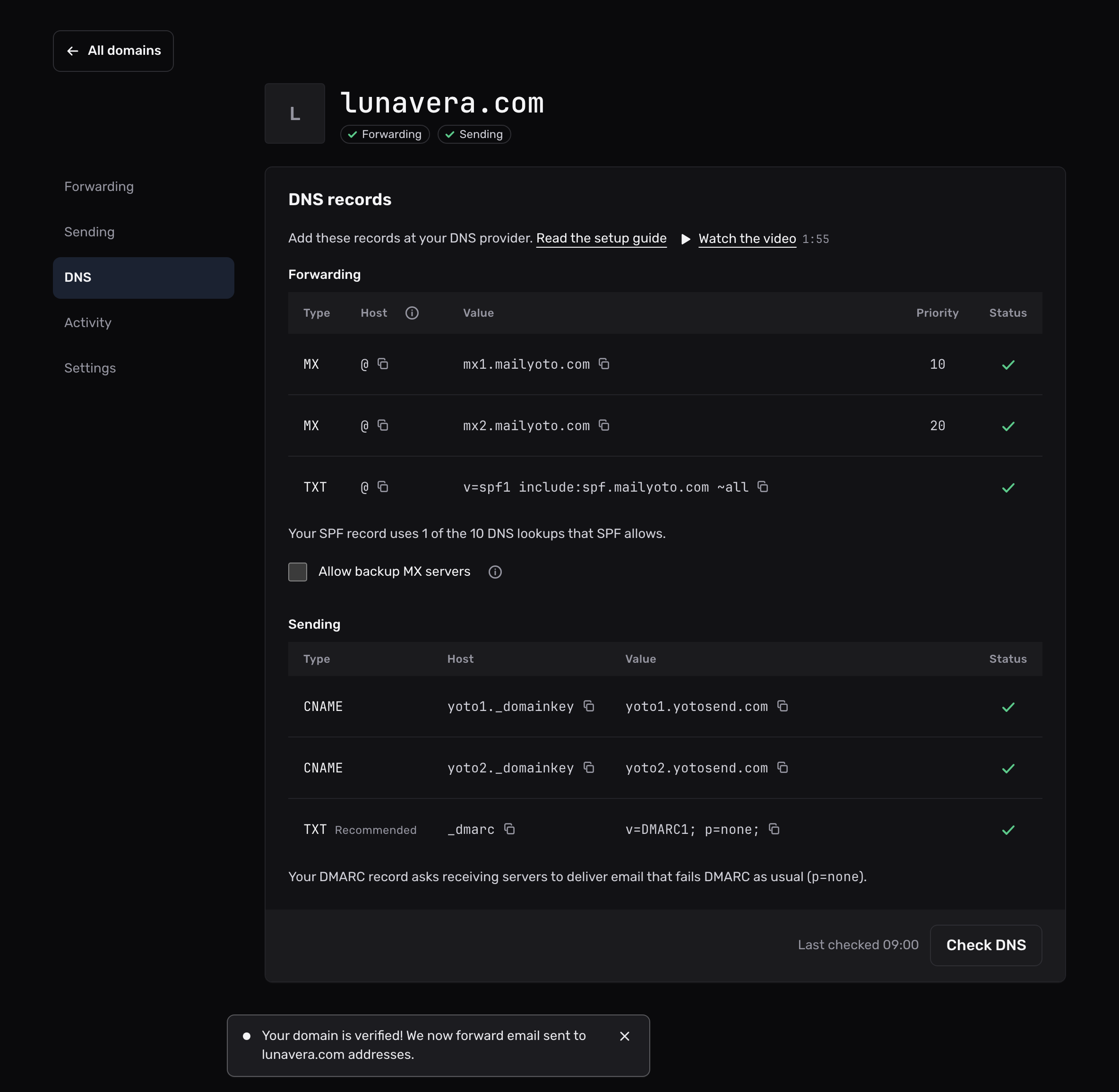
Each record shows a tick once Mailyoto sees it. When Mailyoto finds the MX and SPF records, the Forwarding pill at the top of the domain shows a tick.
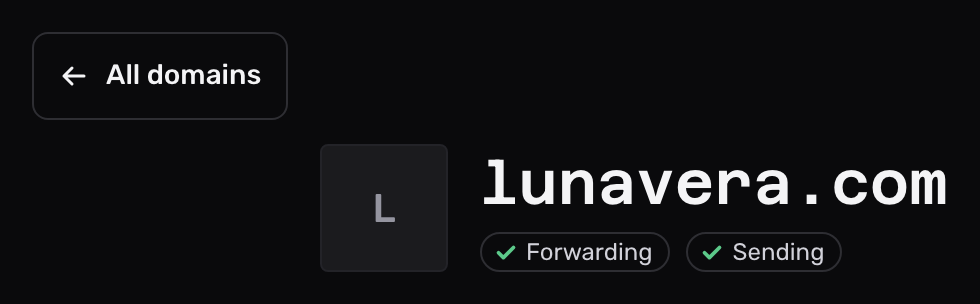
If a record still shows a cross, check it again later. Mailyoto also checks every domain each day at 02:00 UTC.
If the domain doesn’t verify#
Hover's mail records are still there
The DNS tab lists every MX record that isn’t Mailyoto’s. Delete each one on Hover’s DNS tab, then choose Check DNS again.
The records are in the wrong place
If the domain’s nameservers belong to another company, Hover’s records have no effect. Add the records at that company instead.
There are 2 SPF records
A domain can have only 1 TXT record that starts with v=spf1. Merge them into one, as in Merging SPF records.