Import many domains
Add a list of domains at once, read the result for each domain, then add each domain's DNS records.
Updated 29 October 2026
When you finish, every domain on your list is in your account, ready for its DNS records.
Before you start
- Room on your plan for the domains: 1 on Free, 15 on Pro, 45 on Max.
- Your domains as a list, one per line.
-
Open the import page#
Open Domains in the sidebar and select Import domains. The Import domains page opens.
-
Paste the domains#
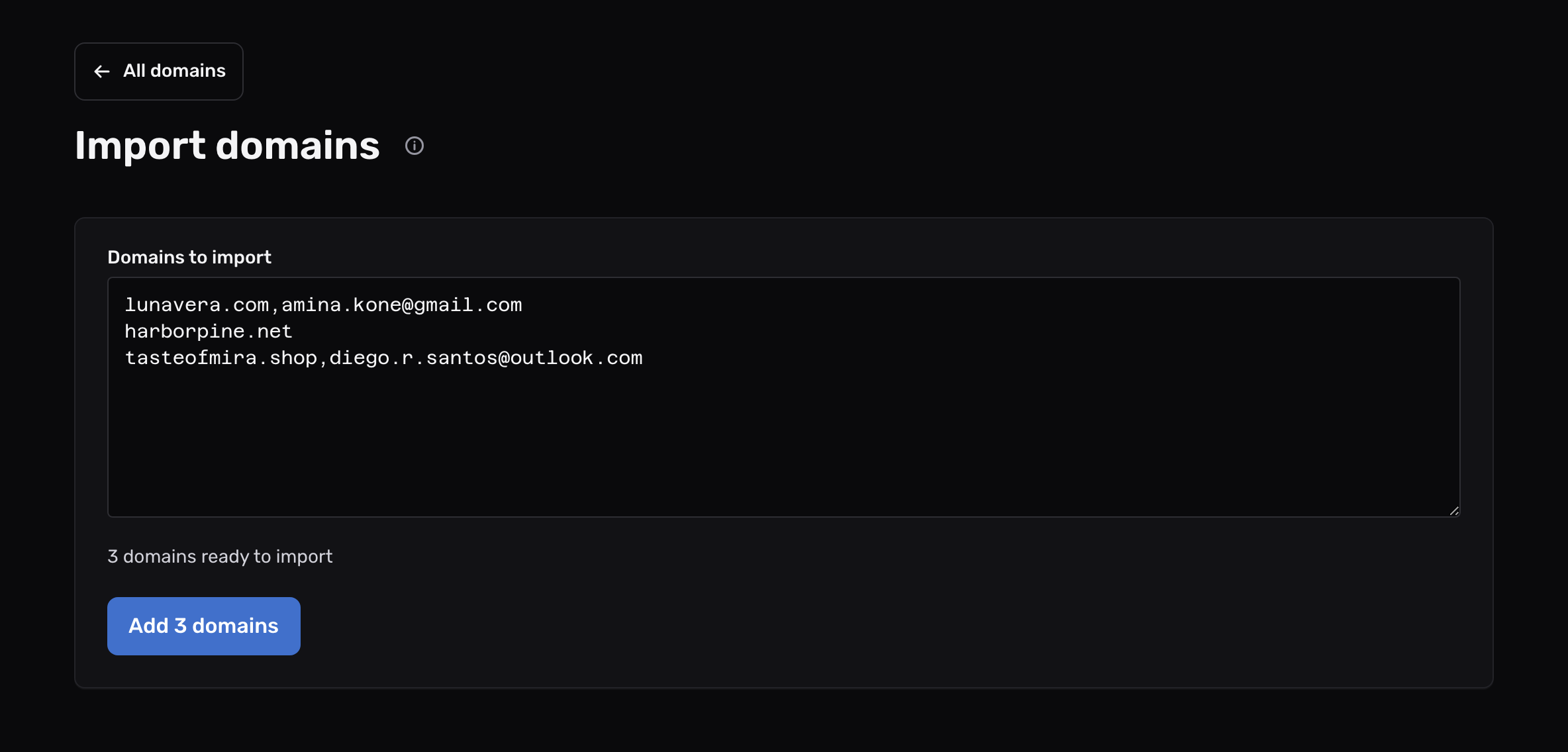
In Domains to import, put one domain per line. Each domain gets a catch-all, which forwards email to any address on it. After a domain, you can list where its email goes, separated by commas, semicolons or tabs. Spreadsheet columns paste as they are:
lunavera.com,amina.kone@gmail.com
harborpine.net
tasteofmira.shop,diego.r.santos@outlook.com,https://tasteofmira.shop/hooks/mail
A domain without destinations forwards to your account email. The page checks each line as you type, names any line it can’t use, and leaves that line out until you fix it. The page imports a domain that appears twice only once.
-
Import#
Select the button under the list. It names the count, such as “Add 3 domains”.
Read the result#
When the import finishes, a table gives one result per domain:
| Result | What it means |
|---|---|
| Added | The domain is in your account, with its catch-all. |
| Refused | Mailyoto didn’t add the domain. The row says why, such as a domain ending Mailyoto does not accept. |
| Skipped | The line had a problem the page found before sending it. |
| Not sent | The import stopped before this domain, usually because the account reached its plan’s domain limit. |
Fix the cause of any Not sent or Refused row, then import those domains again.
Add each domain’s DNS records#
Imported domains forward email only once their records are in place. For each one, open the domain, go to its DNS tab and add the records, as in Add your domain. On the Domains list, the Forwarding pill of each domain shows a tick once Mailyoto finds its records.
To set up aliases on many addresses at once, see Import aliases from a list.