Dashboard shortcuts
Every keyboard shortcut in the Mailyoto dashboard, the command palette, and how the log search reads what you type.
Updated 31 October 2026
The dashboard works from the keyboard. These tables list each shortcut and where it works. On Windows and Linux, use Ctrl where a Mac uses ⌘.
Command palette#
Press ⌘K (Mac) or Ctrl K anywhere in the dashboard, or select Search in the sidebar.
Type part of a name to filter the list. Letters don’t need to be next to each other.
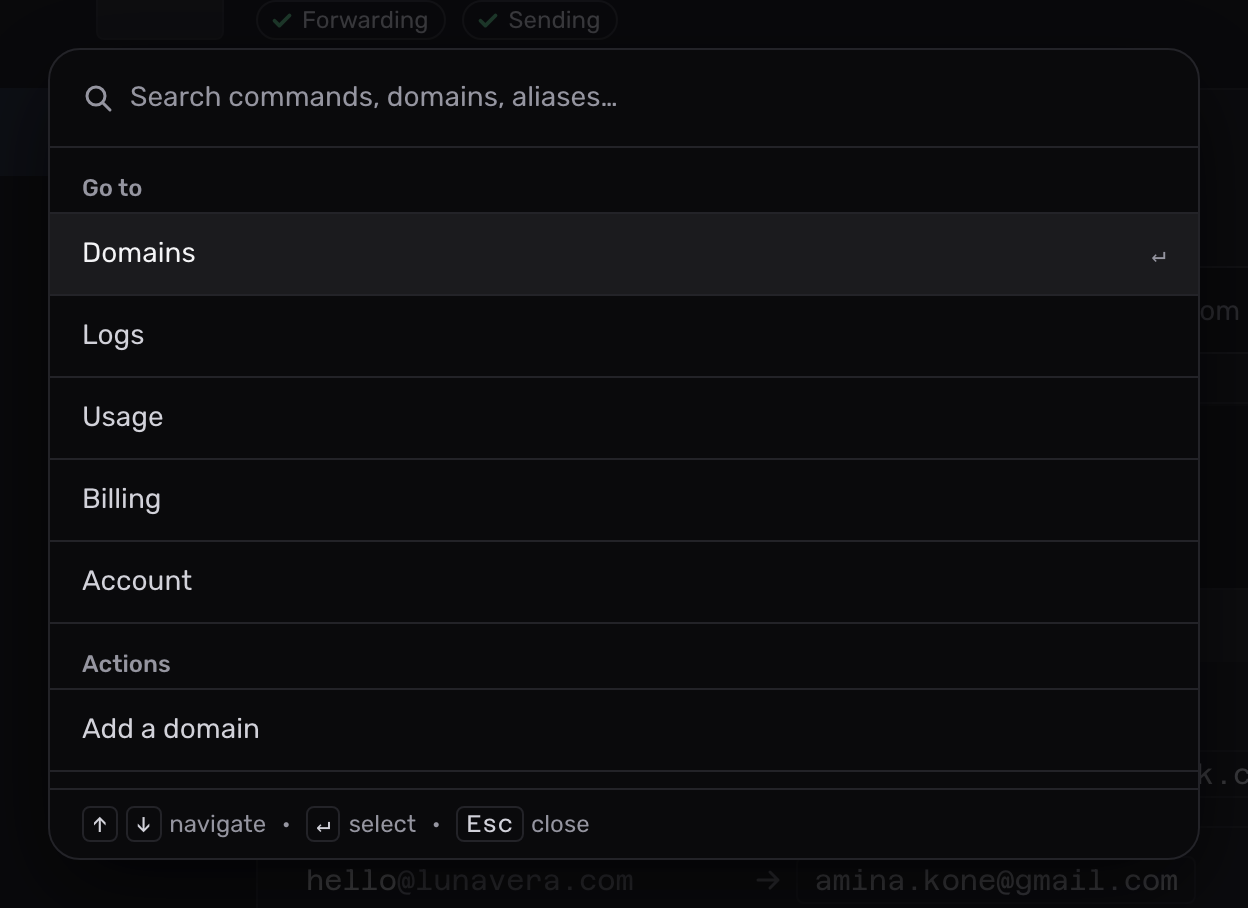
| Group | What it offers |
|---|---|
| Go to | Domains, Logs, Usage, Billing and Account |
| Actions | Add a domain. Inside a domain, also adding an alias to it, and Copy domain name |
| Domains | Each domain. Type a query to also see each domain’s tabs, such as lunavera.com DNS |
| Aliases | The open domain’s aliases, each with its destination |
| Key | In the palette |
|---|---|
↑ ↓ | Move through the list |
Enter | Run the selected command |
Esc | Close the palette |
⌘K / Ctrl K | Close the palette when it is open |
List shortcuts#
These work on the pages in the table below, whenever the cursor is not in a text field.
| Key | Action |
|---|---|
j or ↓ | Move to the next row |
k or ↑ | Move to the previous row |
Esc | Clear the highlighted row |
The other keys depend on the page:
| Page | Enter | n | / |
|---|---|---|---|
| Domains | Open the domain | Go to Add a domain | Go to the domain search |
| A domain’s Forwarding tab | Edit the alias | Go to Create an alias | Not used |
| Logs, or a domain’s Usage and logs tab | Show the entry’s details | Not used | Go to Search logs |
Log search#
Search logs looks for words in subjects, in email addresses and in the metadata of emails sent through the API, such as invoice or diego.r.santos@outlook.com.
3 keywords search one address by any part of it:
from:the sender, such asfrom:diego.to:the address the email was sent to, or the inbox it was forwarded to, such asto:outlook.com.alias:the address on your domain the email was sent to, such asalias:hello.
metadata: finds the emails sent through the API with one metadata value, matched whole, such as metadata:order_id=A-1042.
Any other word, such as status:, is plain text.
Paste a message reference instead, and the logs show only that message. The logs ignore the other filters while a reference is in the box. A reference is the ID Mailyoto gives each message, shown in the entry’s details.
To narrow the list, use the chips under the search. On a phone, they sit behind Filters.
| Filter | Choices |
|---|---|
| Status | Processed, Delivered, Retrying, Failed, Filtered |
| Type | Forwarded or Sent. With Sent chosen, by SMTP or by API. |
| Date | Last 24 hours, Last 7 days, Last 30 days or Custom |
The page keeps the search and the filters in its address. Bookmark the page to open the same view again.