Update your card
Change the card that pays for your Pro or Max subscription in Polar's billing portal, and fix a failed renewal.
Pro or Max plan Updated 29 October 2026
Polar, the merchant of record for Mailyoto plans, holds your card. You change it on Polar’s billing portal, and the next renewal uses the new card.
Before you start
- A Pro or Max subscription. On Free there is no card on file.
- The new card.
-
Open the payment card#
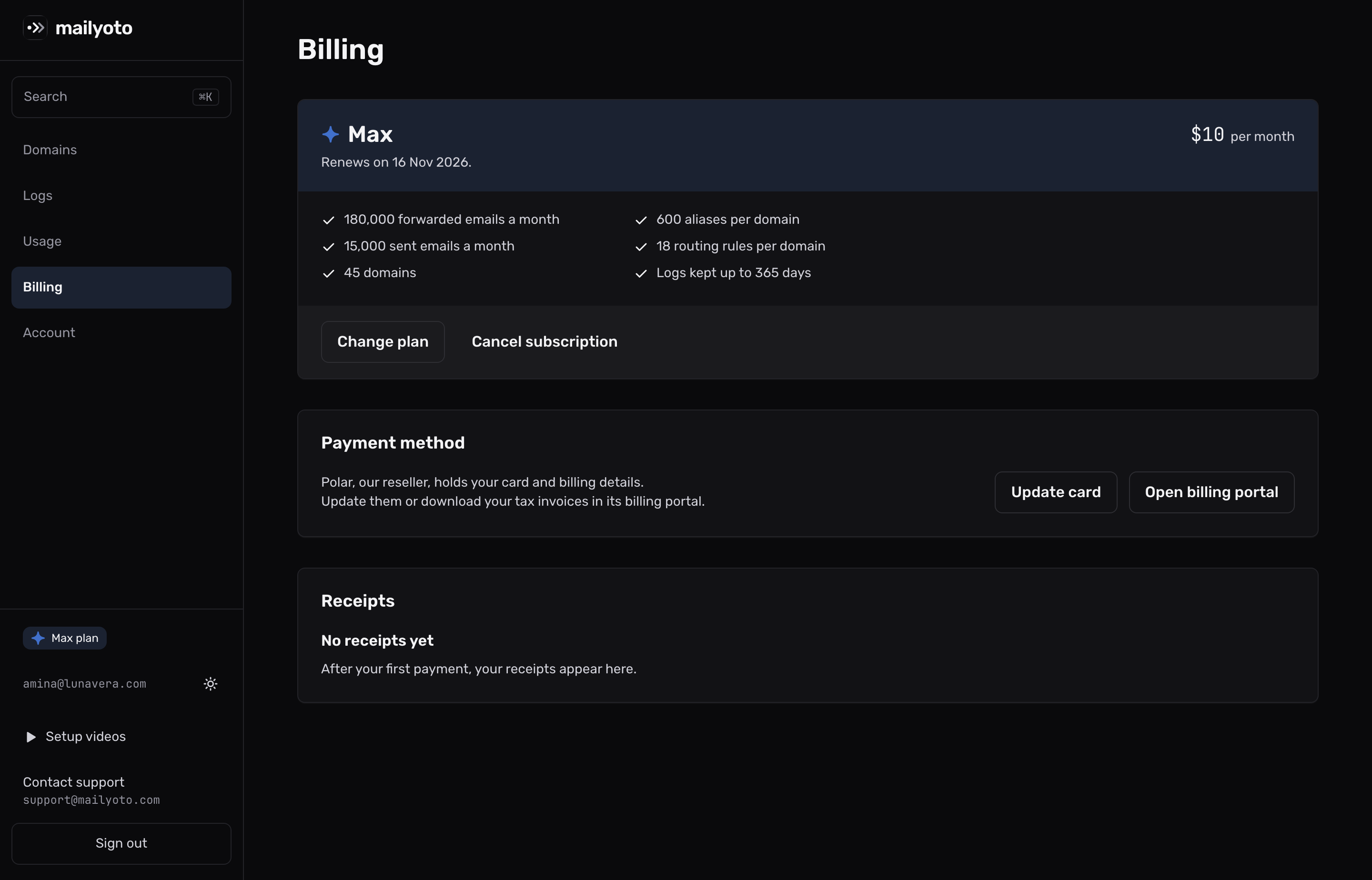
Open Billing in the sidebar and find the Payment method card.
-
Go to Polar#
Select Update card, then Continue to Polar.
Polar’s billing portal opens.
-
Change the card on Polar’s portal#
Add the new card in the portal and make it the one your subscription uses.
When you leave the portal, it returns you to Billing.
To pay for a plan switch with the new card, change the card first, then switch plan.
When a renewal payment fails#
Your plan keeps working while Polar tries the payment again.
From the 2nd failed attempt, Mailyoto emails you “Your Mailyoto payment did not go through”, with a link to update your card. Update the card as above, and Polar can take the next payment with it.
If the renewal is still unpaid 7 days after its date, the account moves to Free. See what happens after a downgrade for what switches off then, and upgrade again to go back.
Billing says it could not reach Polar
The message reads “We could not reach Polar. Try again in a moment.” Wait a moment, then select the button again.
There is no Payment method card
On the Free plan, there is no card to change. To pay for a plan, see Upgrade to Pro or Max.