Manage API keys
Create an API key on the Account page, use it to call the Mailyoto API, and revoke it when it leaks or you stop using it.
Updated 29 October 2026
When you finish, you have a key that lets your own code manage your domains and aliases through the Mailyoto API.
Before you start
- A Mailyoto account on any plan. Sending email through the API needs Pro or Max.
- A place on your server to keep the key, such as an environment variable.
-
Create the key#
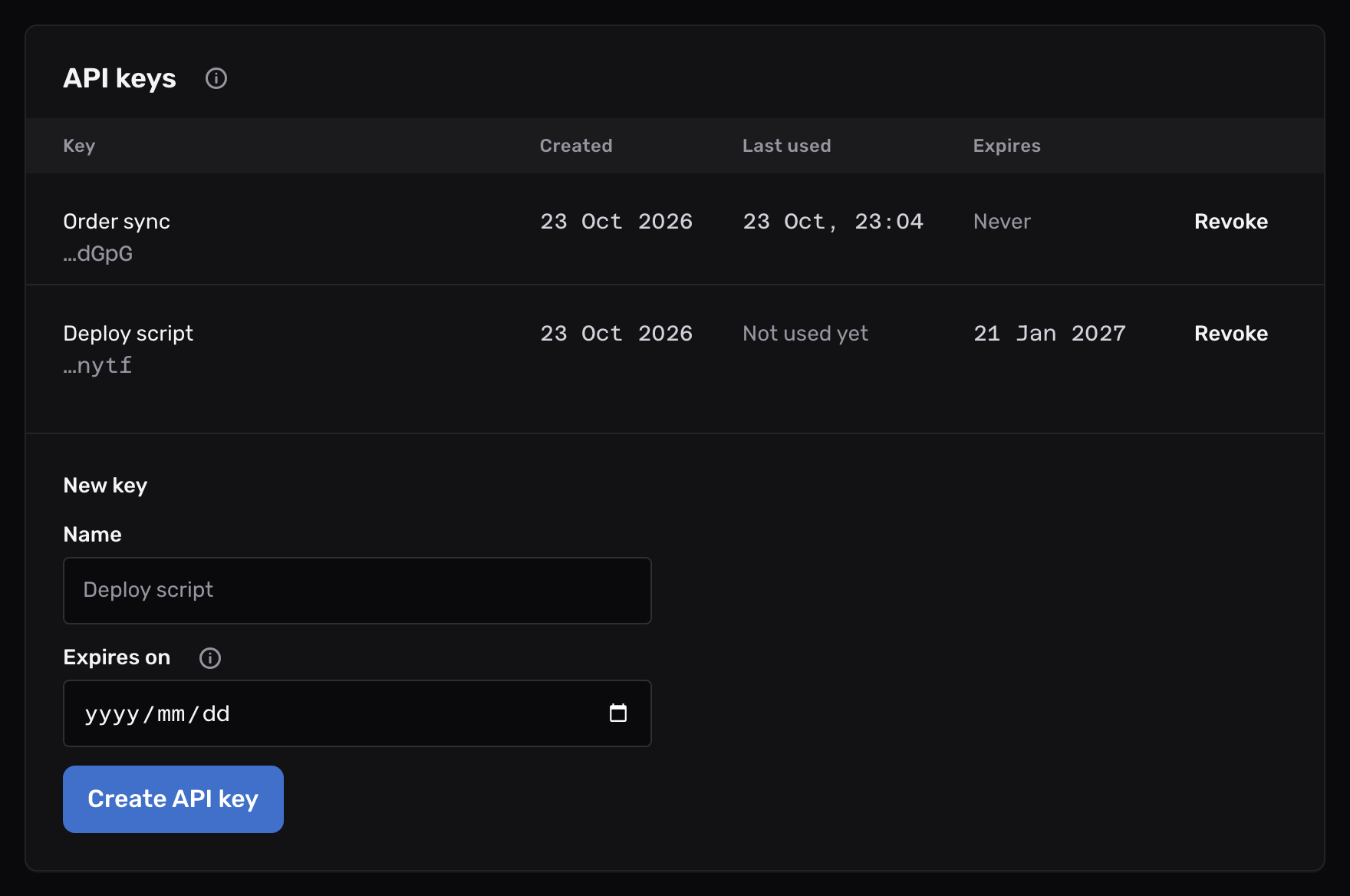
Open Account in the sidebar, then the API keys tab.
Under New key, type a Name that says where the key is used, such as “Deploy script”.
To make the key stop working on a set day, pick that day in Expires on. Leave it empty for a key that works until you revoke it.
Select Create API key.
-
Copy the key#
The Your new API key dialog shows the key. It starts with
myo_, followed by 40 letters and digits.Copy it into the place your code reads secrets from, for example an environment variable named
MYO_API_KEY, then select Done.The dialog is the only time anyone sees the key. Mailyoto keeps only a hash of it. If you lose the key, create a new one.
A key grants full access to your account. Keep it out of web pages, mobile apps and public repositories.
-
Check that it works#
Send the key as a Bearer token in the
Authorizationheader.curl https://api.mailyoto.com/v1/account \ -H "Authorization: Bearer $MYO_API_KEY"A working key returns your account as JSON. A wrong, revoked or expired key returns
401.
Keys in the list#
The table shows each key by its name, with its last 4 characters under it.
Last used gives the time of the key’s latest request, or Not used yet.
Expires gives the day the key stops working, or Never. Once that day has passed, the key shows Expired in red.
Revoke a key#
Select Revoke beside the key, then Revoke key to confirm. Mailyoto refuses requests with that key at once, and the key leaves the list.
You can’t turn a revoked key back on. To give your code access again, create a new key and update your server.
Revoke a key as soon as you think someone else has seen it.
Limits#
| Limit | Value |
|---|---|
| Keys per account | 10, counting expired keys until you revoke them |
| Requests per minute | 240 per key, shared across every endpoint, and coming back one at a time (details) |
| API address | https://api.mailyoto.com/v1/ |
Creating a key says the account is limited to 10 API keys
Every account can hold 10 keys, and an expired key still counts. Revoke one you no longer use, then create the new key. To raise the limit, contact support at support@mailyoto.com.
Requests return 401 and say the API key expired
The response’s detail reads, for example, This API key expired at 2026-12-31T23:59:59Z. Create a new one in your account settings. and its code is api_key_expired.
Create a new key, put it on your server, then revoke the expired one.
Requests with the key return 401
Check that the key is still on the API keys tab. Check that your code sends it in the Authorization header as Bearer and the key, and that you copied no space or line break with it.
Requests return 429
That key used its requests faster than they come back. Wait the number of seconds in the Retry-After header, then send again.